This live demo contains only a preview of functionality and styles available for this component. View the full demo on Storybook for additional information such as its version, controls, and API documentation.
Overview
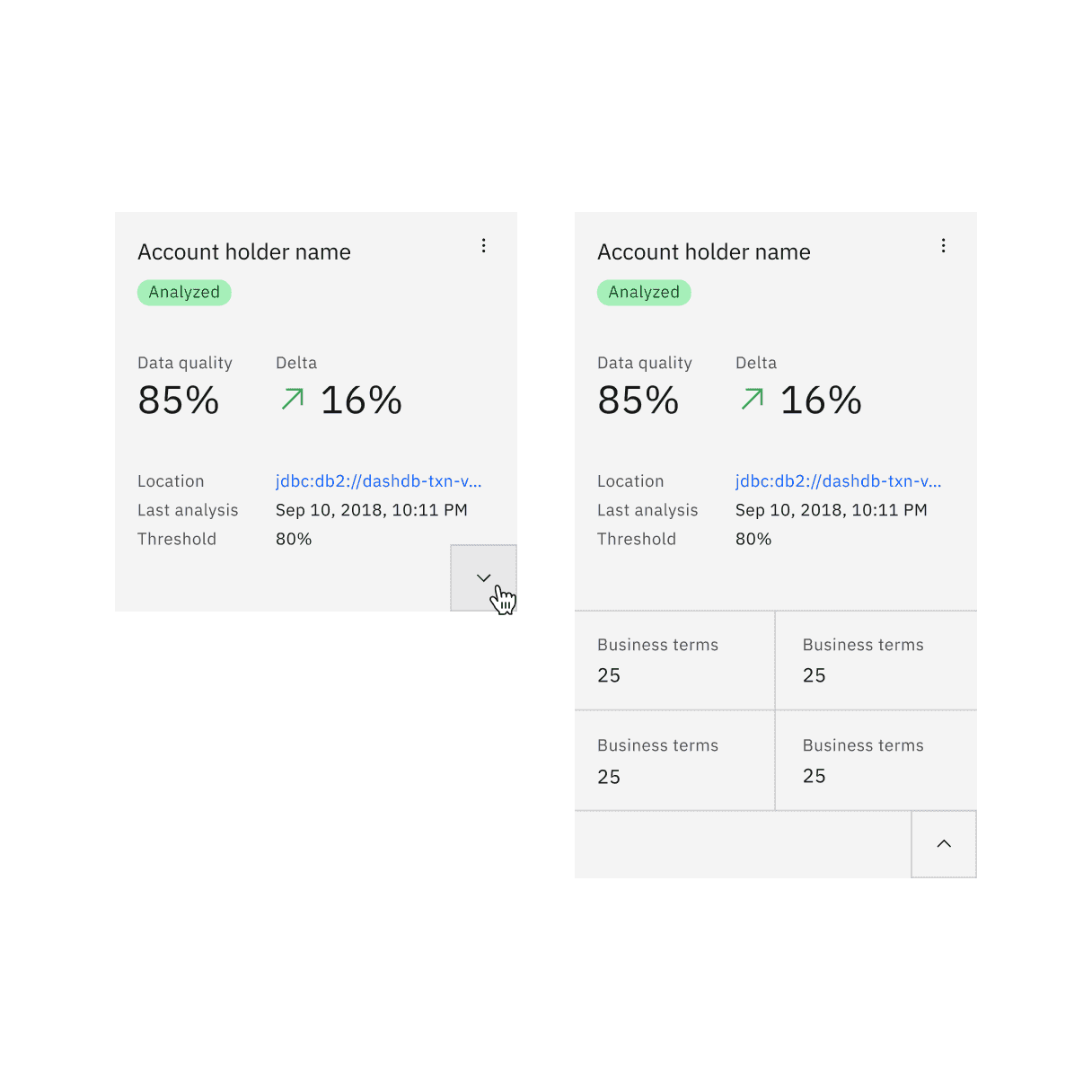
Tile is a component that can contain various content and nested components and can have interactive functions. Tile is often laid out in groups, is a different color than the UI background, and responds to the grid. Tiles have no preset styles and are purposely flexible so product teams can determine their tile content for specific use cases.
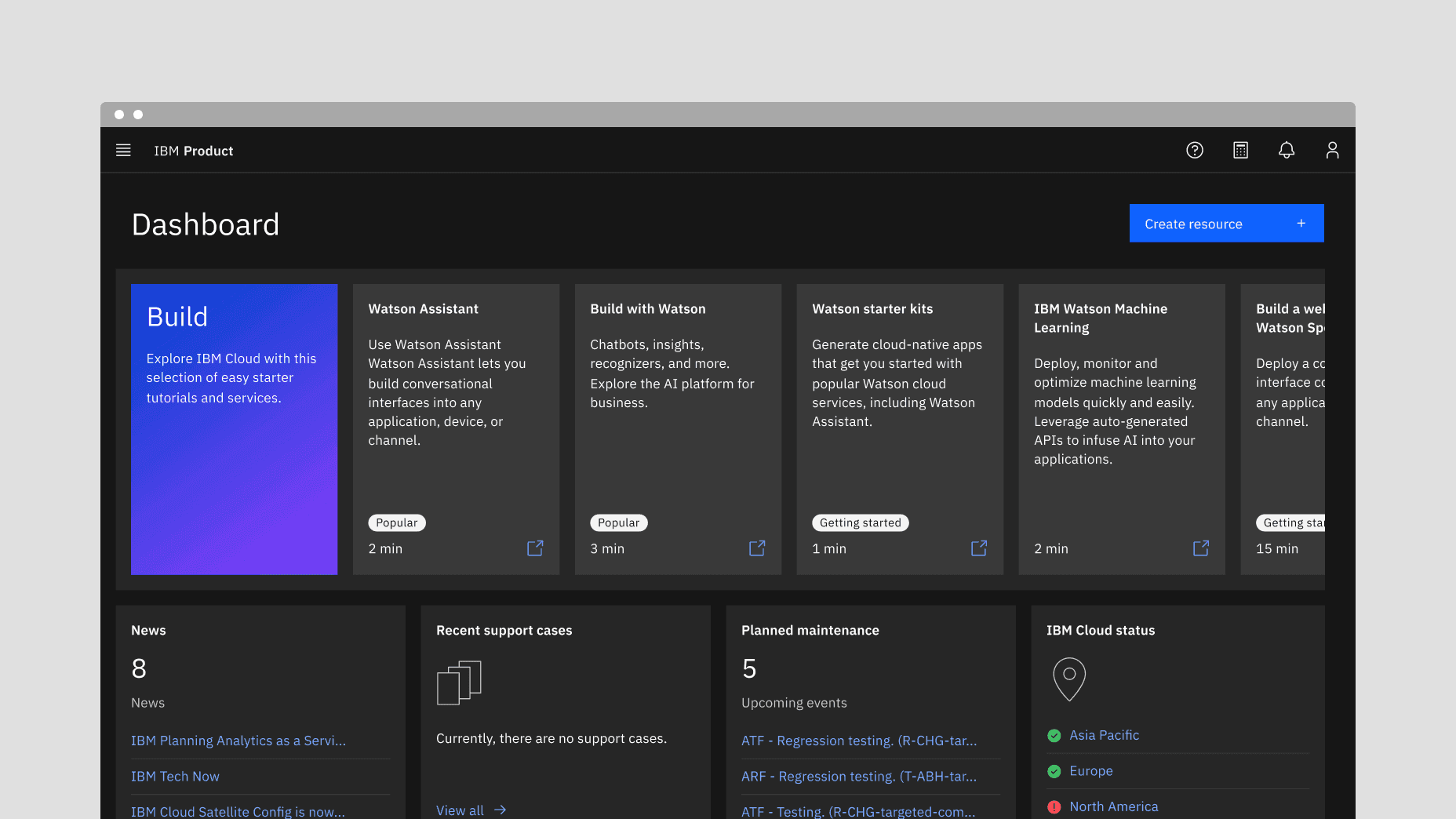
Example of the tile component in a UI
Tiles versus cards
Tiles are simple and foundational. Cards can be very complex. Cards are built upon the tile foundation and have various patterns of information hierarchy, multiple actions, overflow menus, selectable features, etc. Carbon does not have a card pattern, but we link out to several card patterns within our pattern asset library (PAL) ecosystem below:
- Productive cards versus Expressive cards (Carbon for IBM Products)
- Dashboard cards (IBM Sustainability Software Design)
- Cards (Carbon for IBM.com)
When to use
Tiles are reusable components that provide shortcuts to building cards and other modules. Use tiles to group related information in flexible containers. Here are some common use cases for when to use tiles:
- To contain related groupings of information or actions
- To guide users to take actions or navigate
- To present options for single or multiple selections
- To hide or show large amounts of content
When not to use
Tiles reside on the same plane as the page background layer and do not have elevation. Tiles organize essential information and have the same visual hierarchy as content on the same page.
Do not add a drop shadow to tiles and use them to reveal secondary information, actions, or notifications. Use modals, popovers, and dialogs that have elevation and are appropriate for this use case instead.
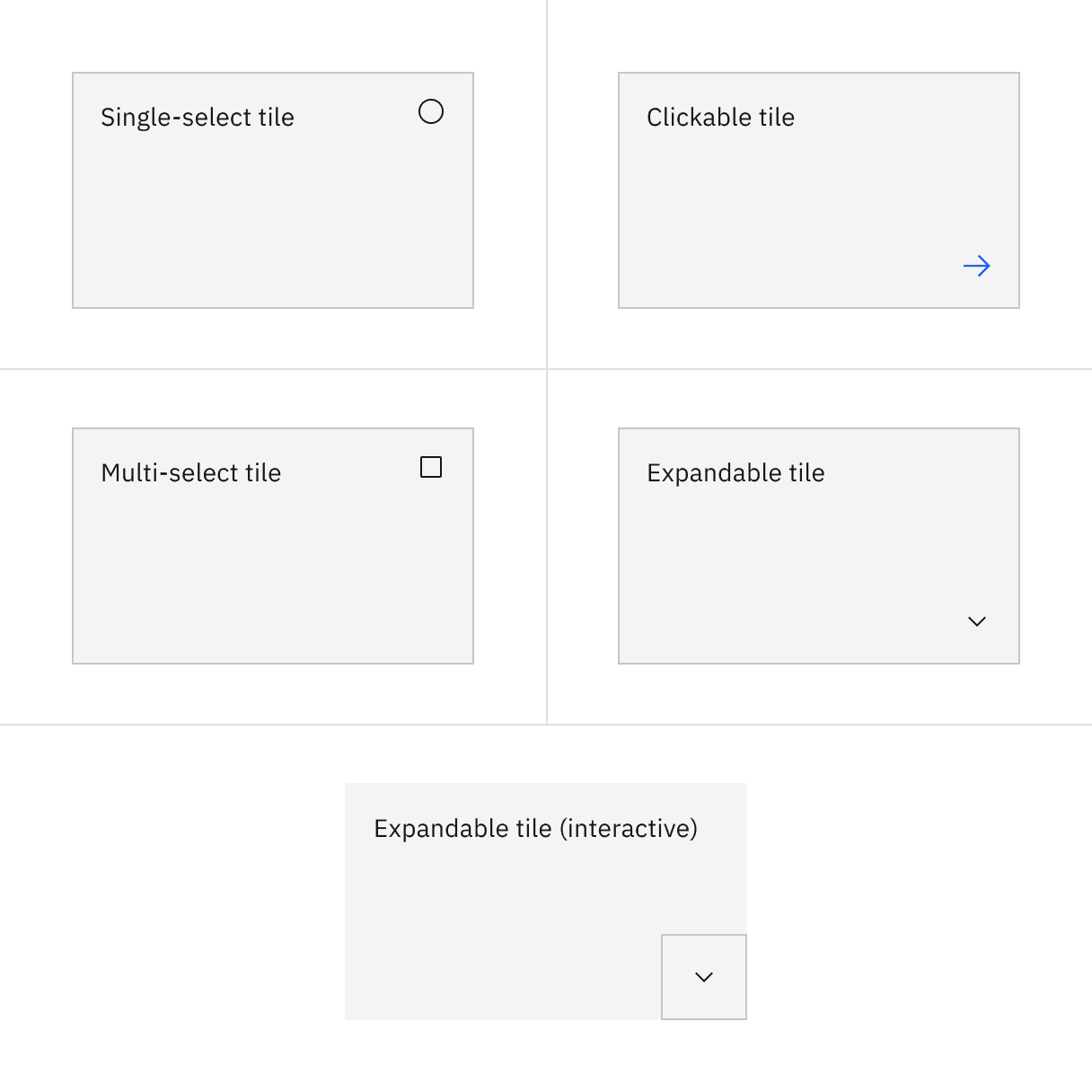
Variant | Purpose | |
|---|---|---|
For high-level, short, and digestible content pieces such as features, plans, or services offered. | ||
For prompting an action, navigating or directing to other pieces of information about the subject matter. This variant has an available feature flag. | ||
For presenting options to a user in a structured manner, such as a set of pricing plans. This variant has available feature flags. | ||
For hiding and revealing a large amount of content to focus on specific pieces of information. This variant has an available feature flag. |
Feature flags
Feature flags have been added to the clickable, selectable, and expandable variants of tile to improve accessibility and changes its visual appearance, not its functionality. For code-specific feature flag information, refer to the Code tab. These current variants of tile are not being deprecated, but teams are encouraged to use the feature flag tile for their products moving forward. Once the next major release (v12) is released in the future, these feature flags will become the default version of the component.
The following are the feature flag changes made to tile.
- A border has been added to the clickable, selectable, and expandable variants of tile to visually indicate they are operable.
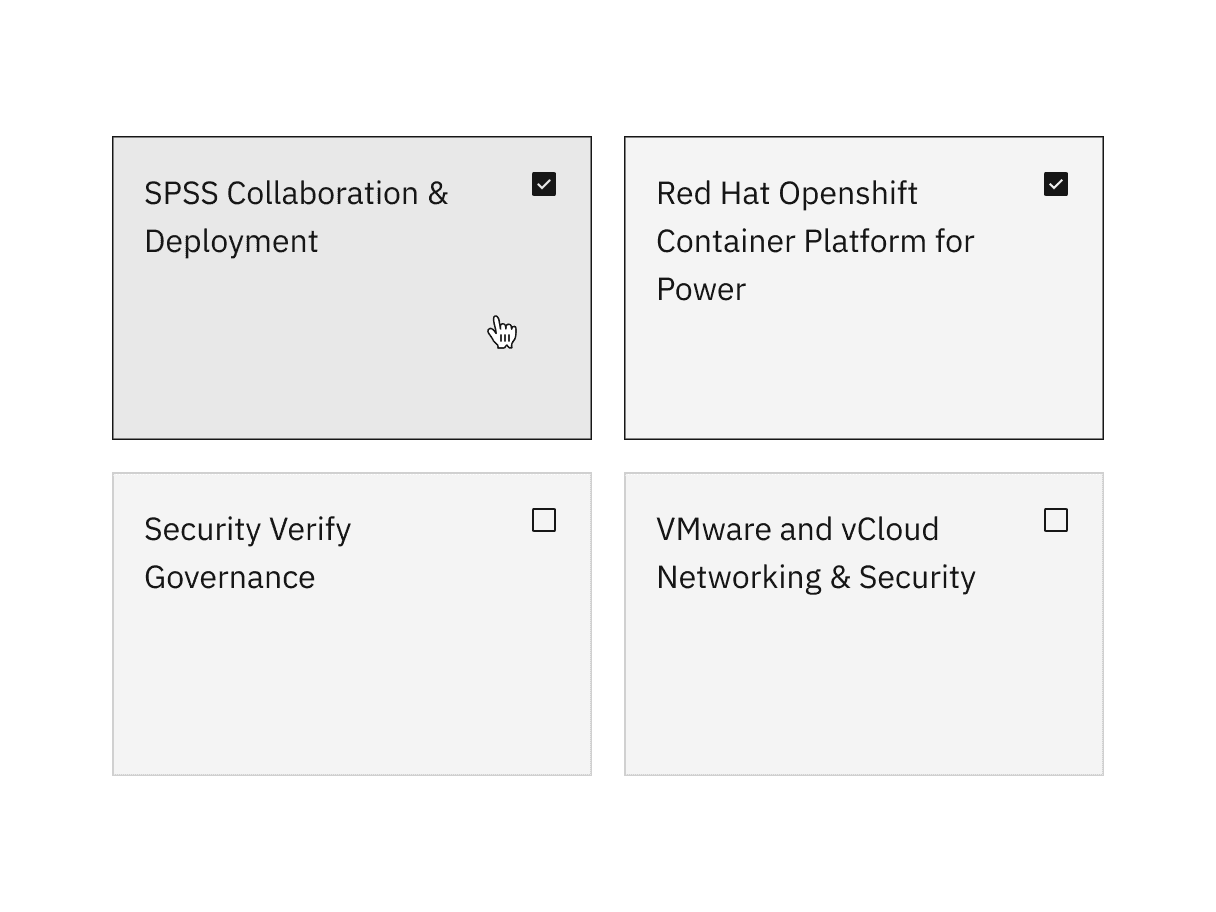
- Single-select tile icons have been changed from checkmark icons to radio button icons, whereas multi-select tile icons have been changed from checkmark icons to checkbox icons. These icons appear in the enabled state instead of only on hover before making a selection.
Sizing
Tile width varies depending on the three basic gutter modes: wide, narrow, and condensed. Tile height varies depending on the content placed within it while using spacing tokens and following aspect ratios. The minimum tile height is a 2:1 aspect ratio. As the content grows, set vertical spacing between sections within the content area.
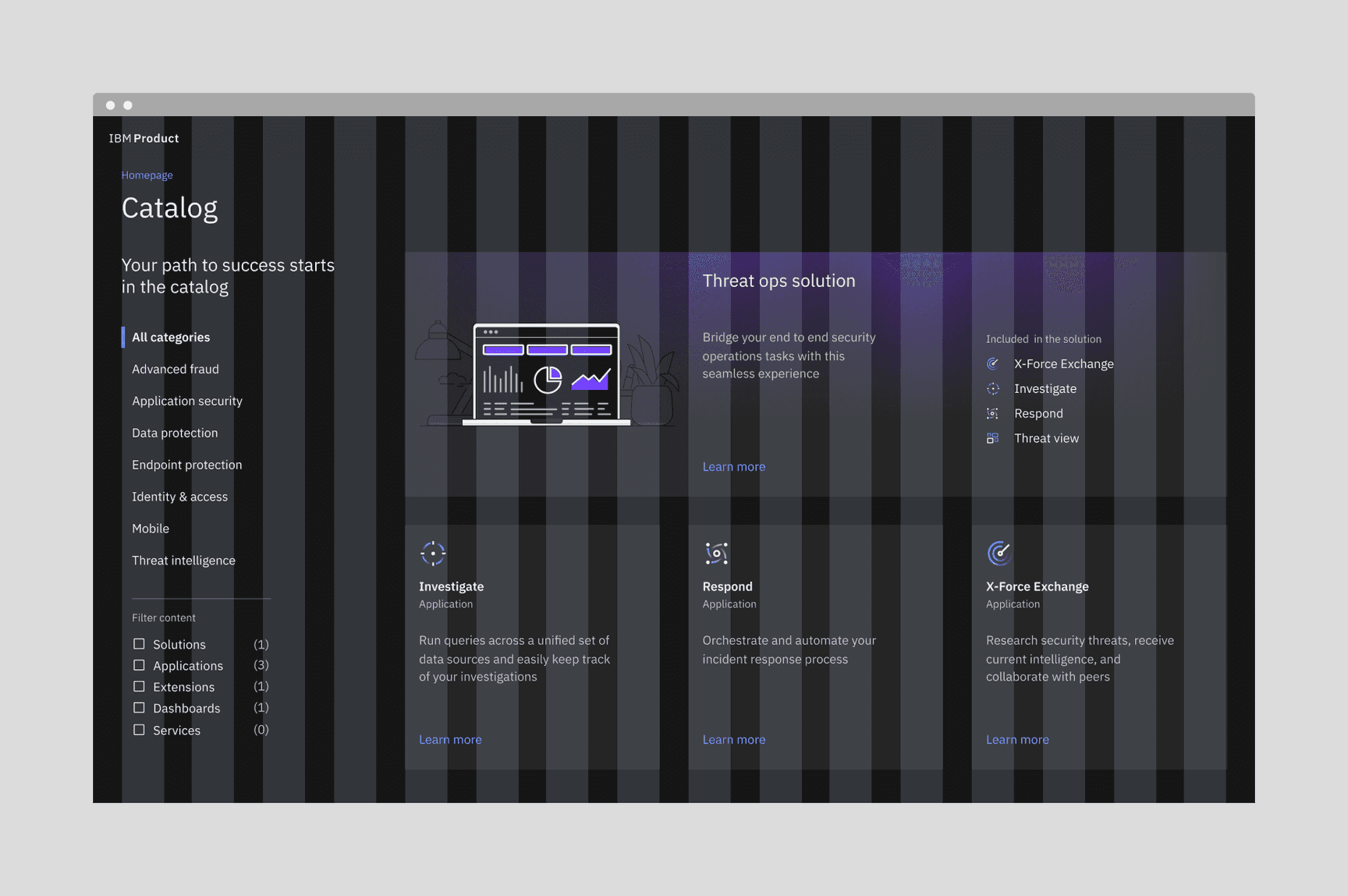
Example image of tiles on the wide grid
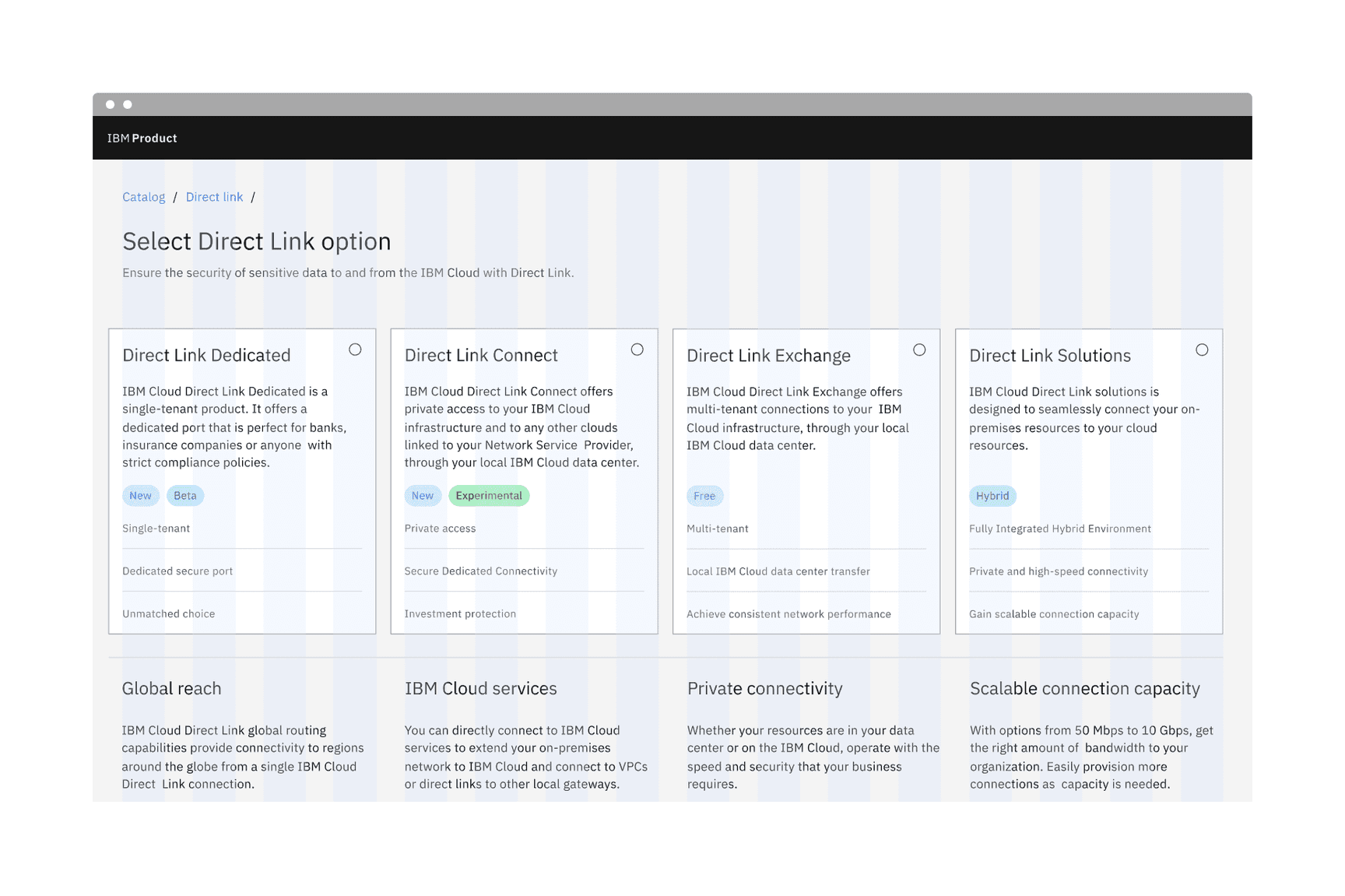
Example image of tiles on the narrow grid
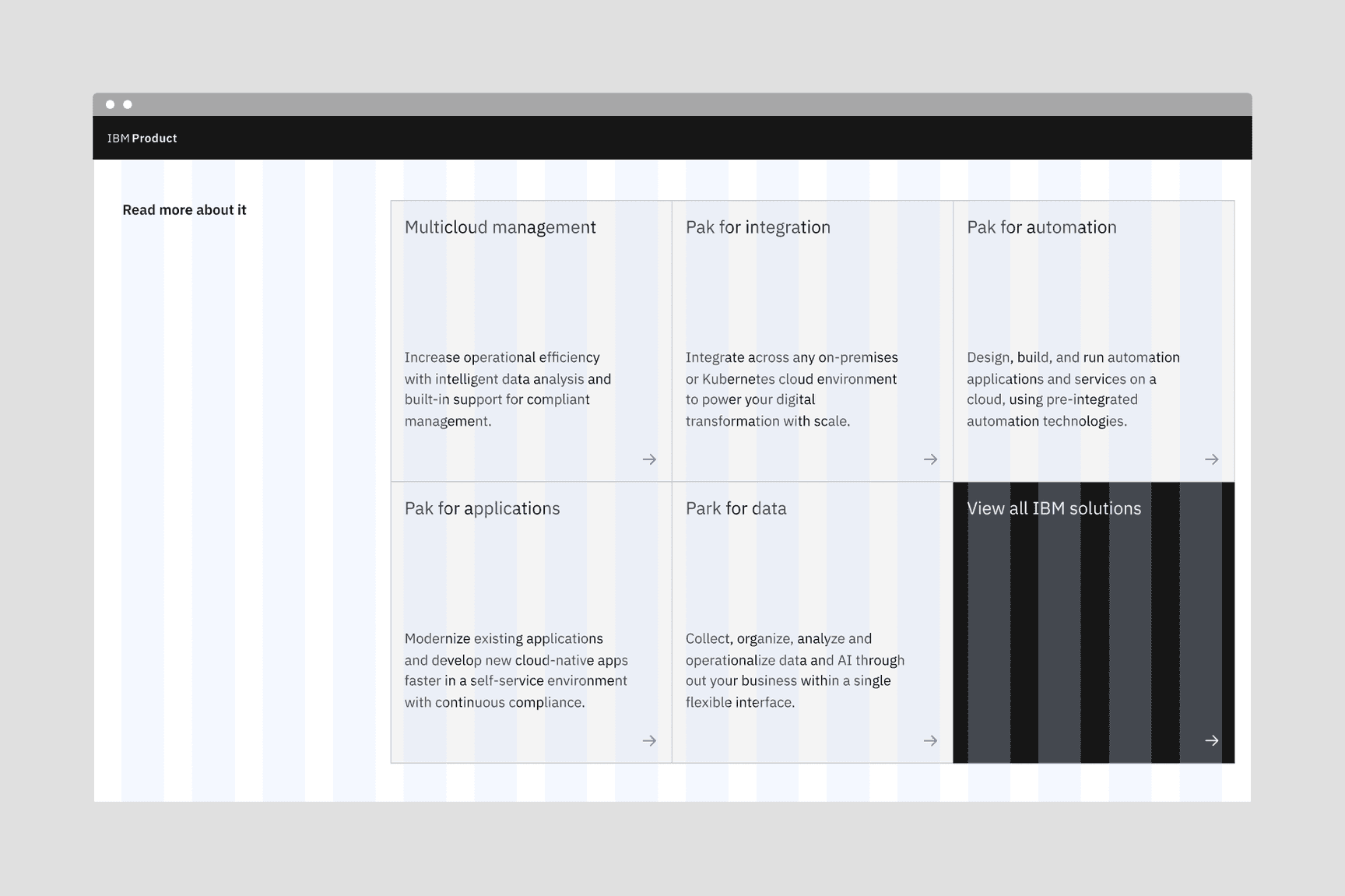
Example image of tiles on the condensed grid
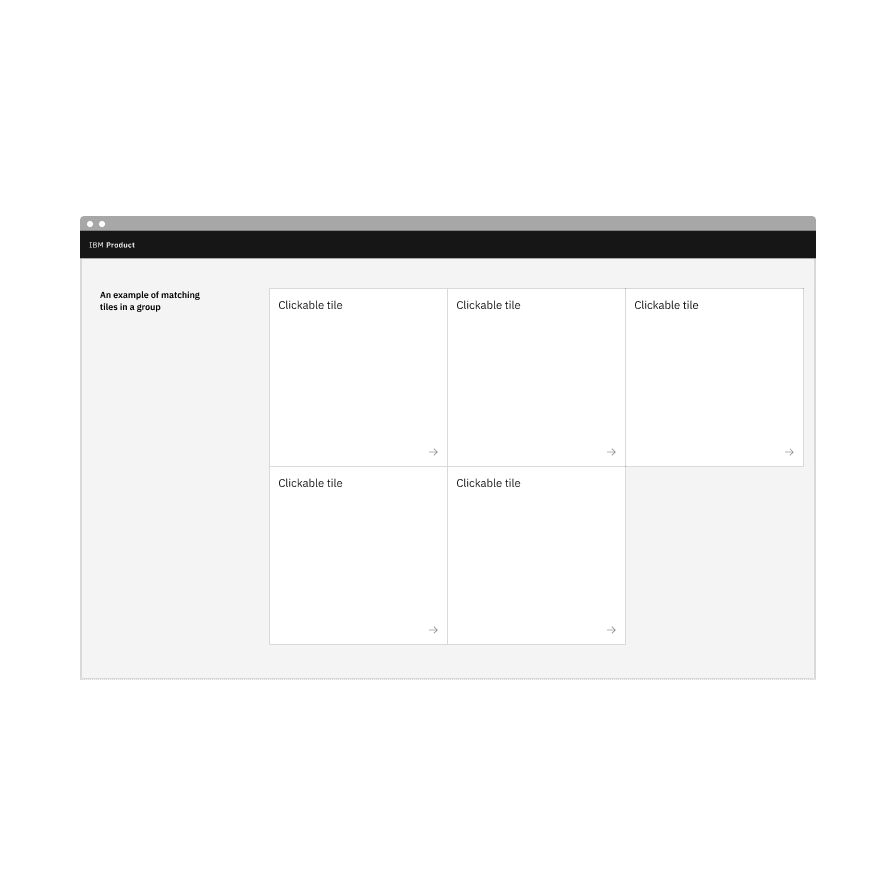
Do match the tile variants in groups.
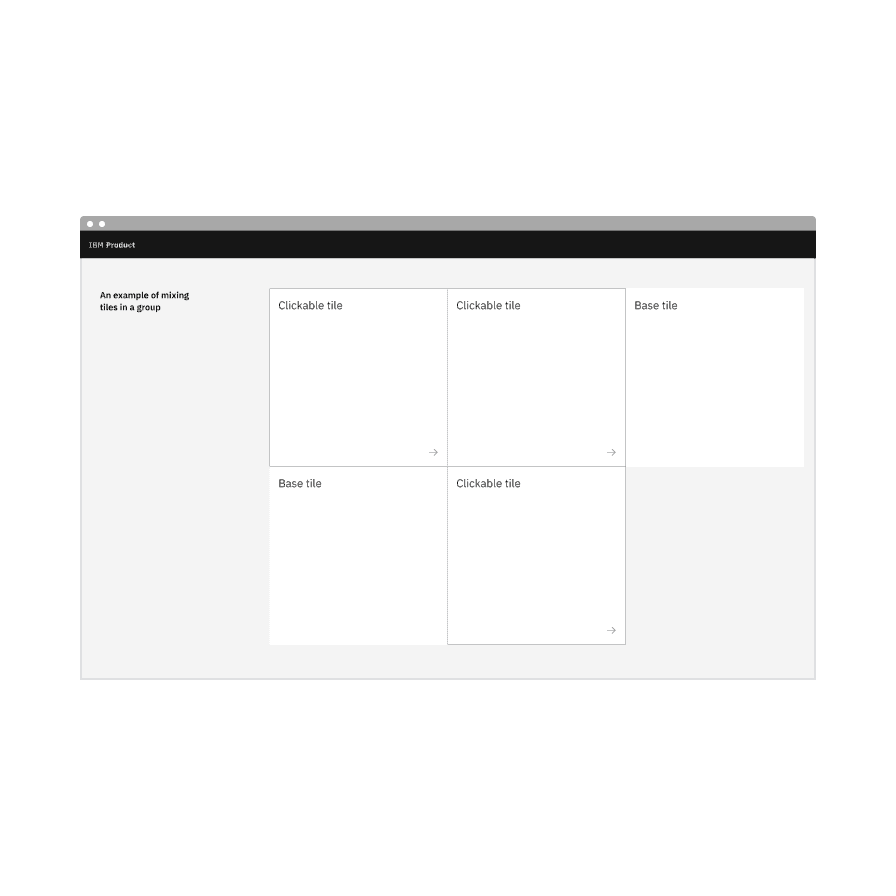
Do not mix different variants of tiles in groups.
Layout
There are three basic layouts for tiles: standard, vertical masonry, and horizontal masonry. The standard layout is the most commonly used.
- In a standard layout, tiles are the same in height and width as all other tiles in the group.
- In a vertical masonry layout, tiles can vary in height, but are consistent in width.
- In a horizontal masonry layout, tiles can vary in width; different rows of tiles may vary in height, but tiles within a row should be consistent in height.
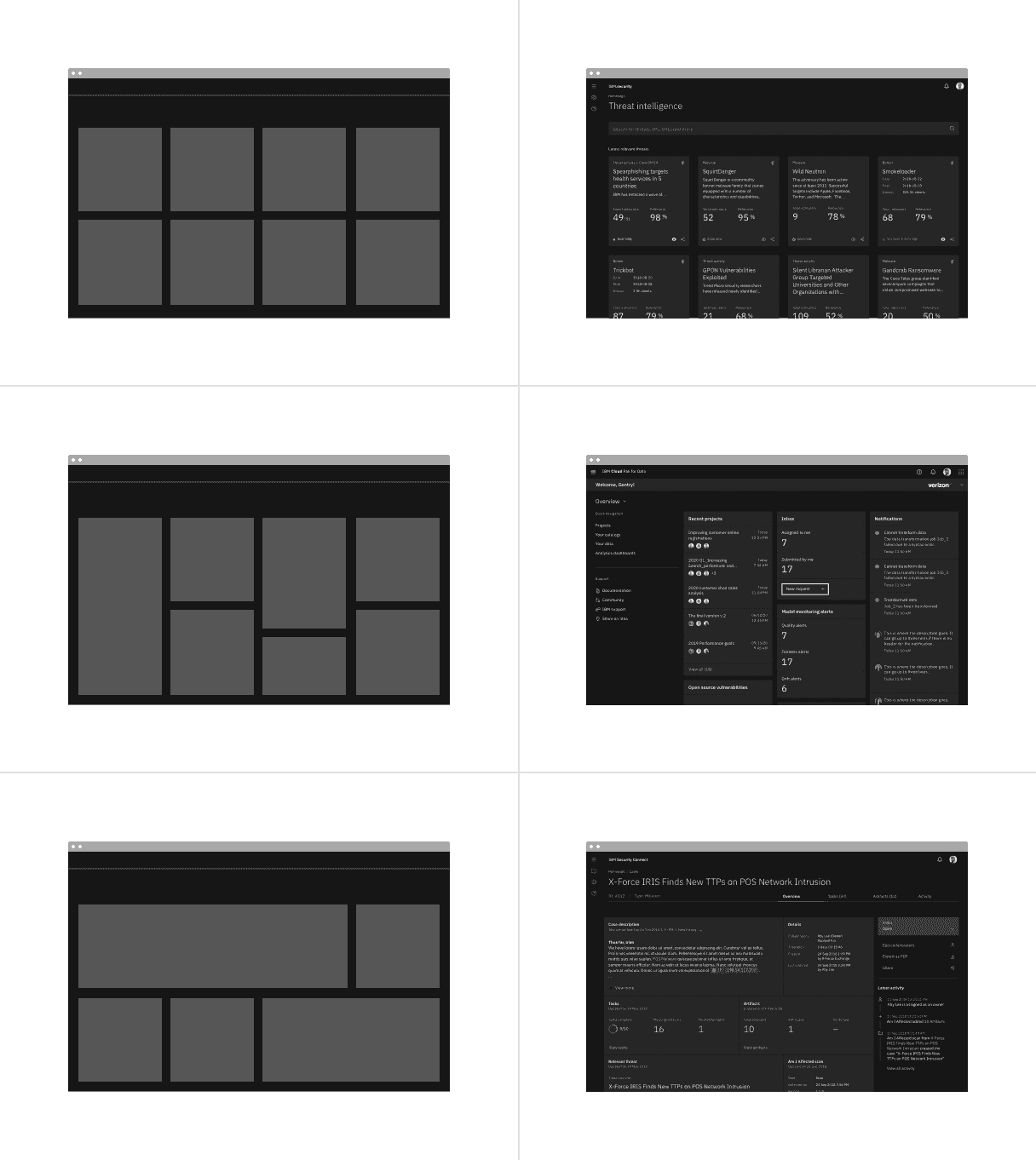
Examples of standard, vertical masonry, and horizontal masonry tile layouts
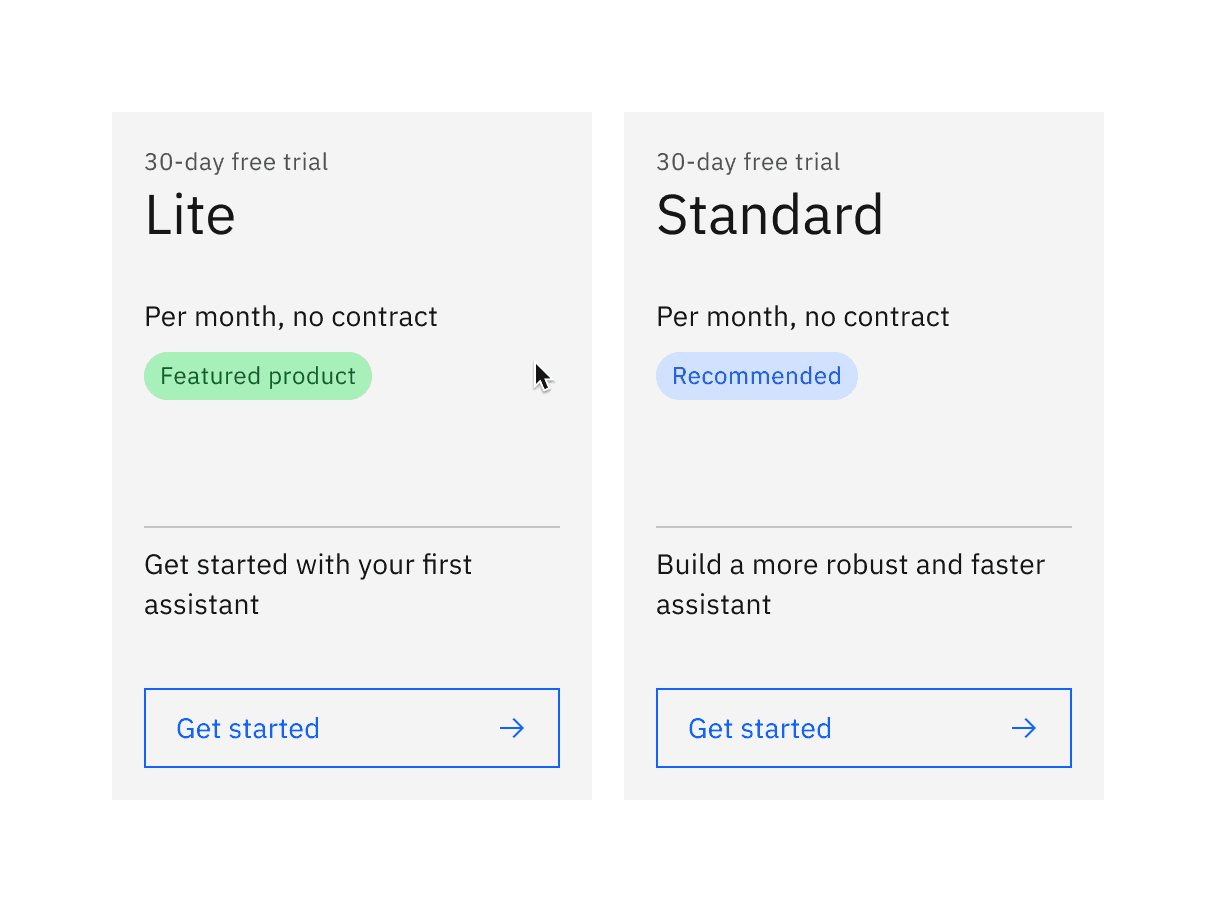
Example of base tiles
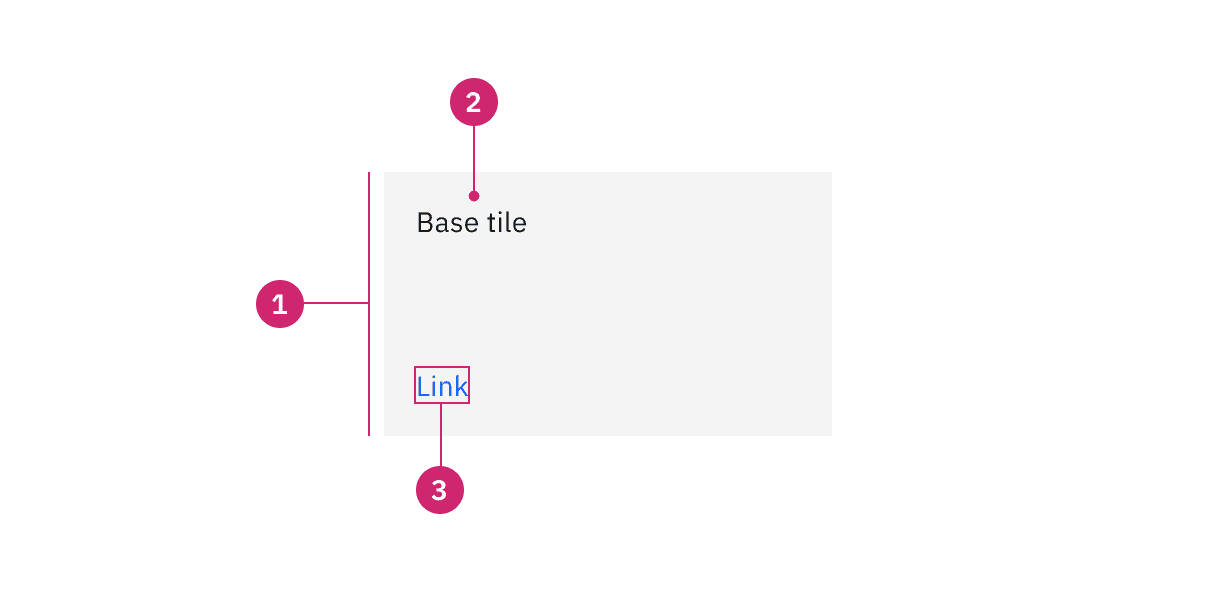
Anatomy of base tiles
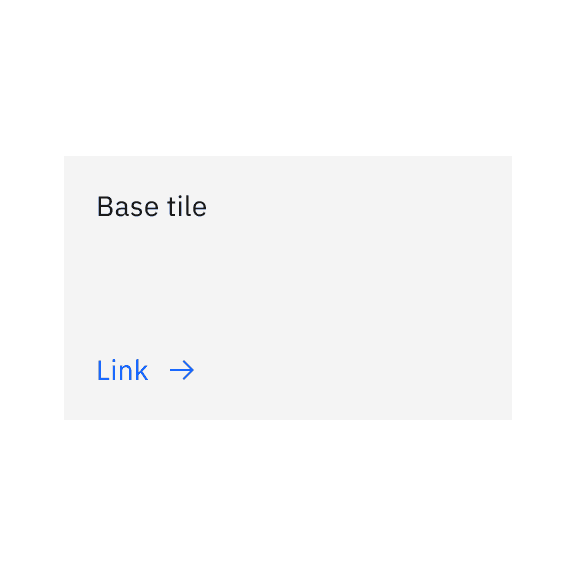
Do left align the link at the bottom of the base tile.
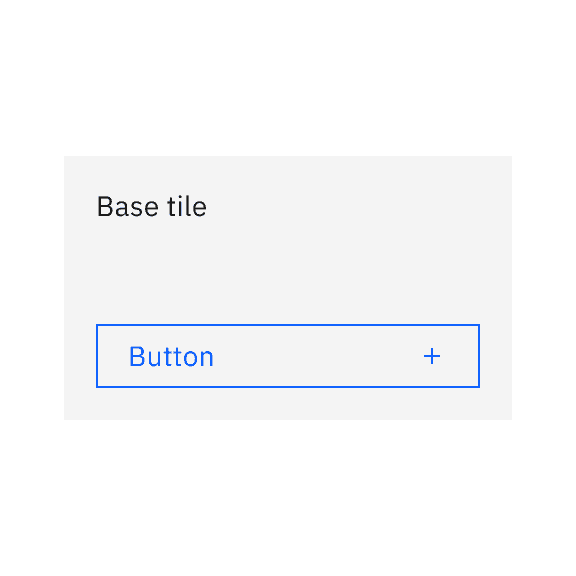
Do span the button in width at the bottom of the base tile.
States
Clickable tiles have enabled, hover, focus, and disabled states. For more information about clickable tile states, see the Style tab.
Keyboard
- Base tiles do not receive focus unless they contain interactive elements.
Tabmoves focus forward through interactive elements within base tile in a logical order.Shift+Tabmoves focus backward through interactive elements within base tile in a logical order.Enteractivates the base tile's interactive elements.
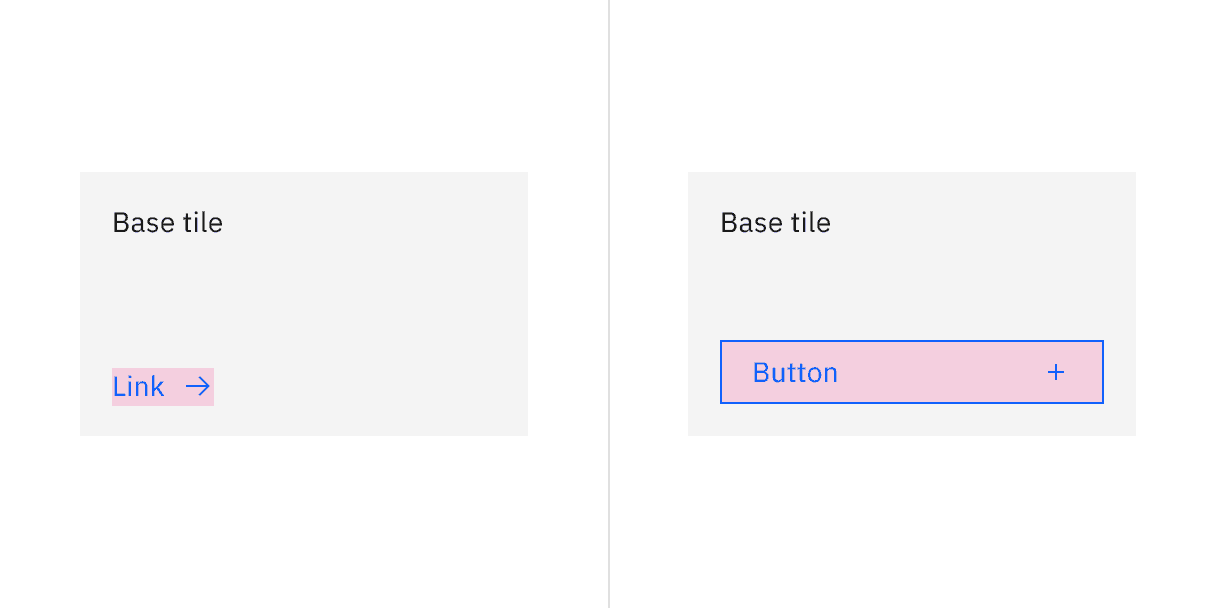
Clickable areas of base tile with interactive elements
Clickable
Clickable tiles can be used as navigational elements that redirect the user to a new page. In these situations, the entire tile is in a clickable state. Due to accessibility concerns, clickable tiles cannot contain separate internal CTAs but can contain pictograms, icons, or media such as illustrations or images.
Clickable tiles has an available feature flag.

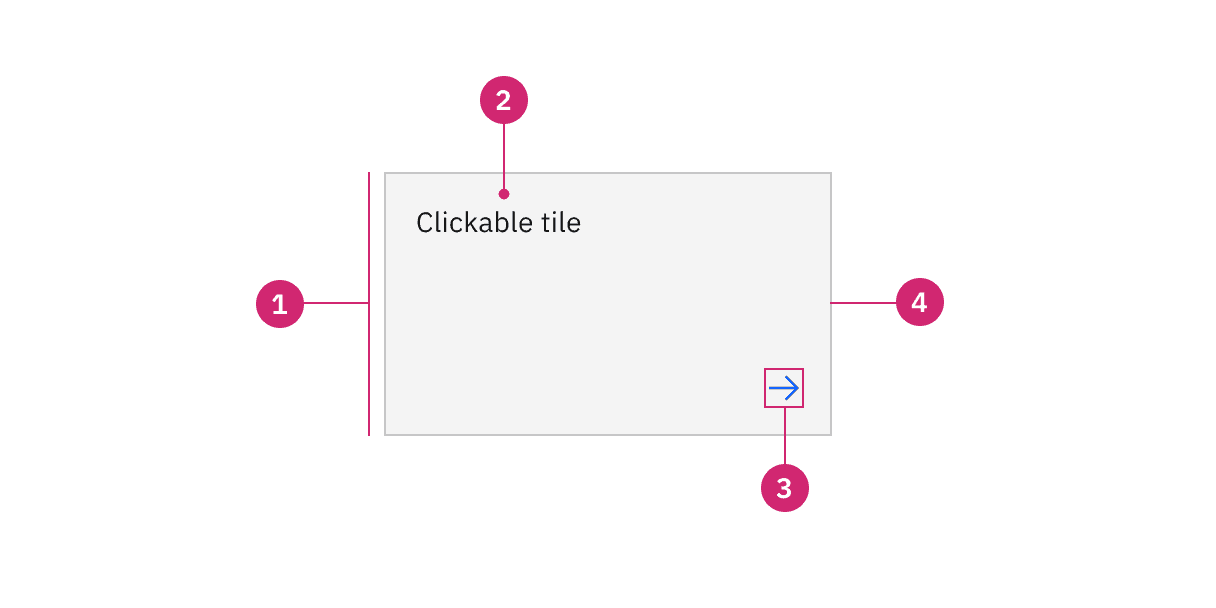
Anatomy of clickable tile with the feature flag enabled
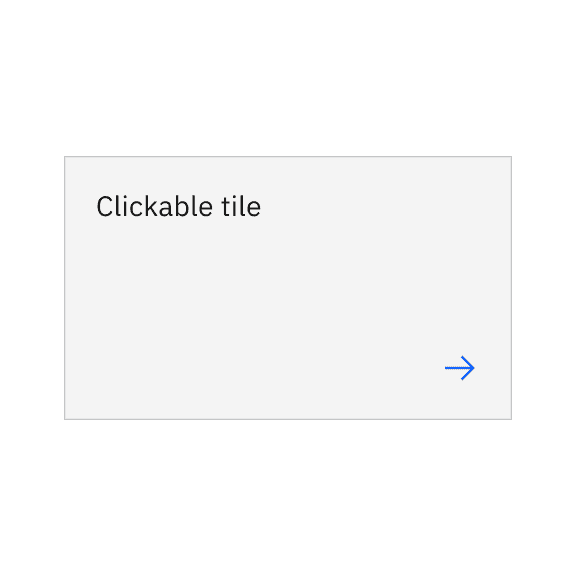
Do right align the arrow icon when it is by itself.
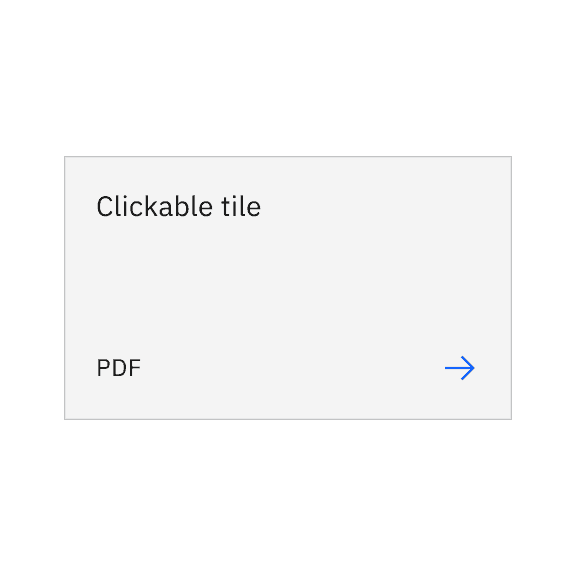
Do right align the arrow icon when there is additional text.
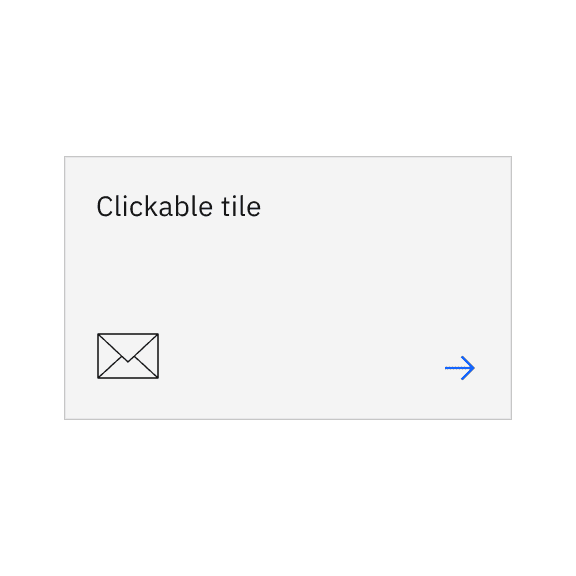
Do right align the arrow icon when there is a decorative icon or pictogram.
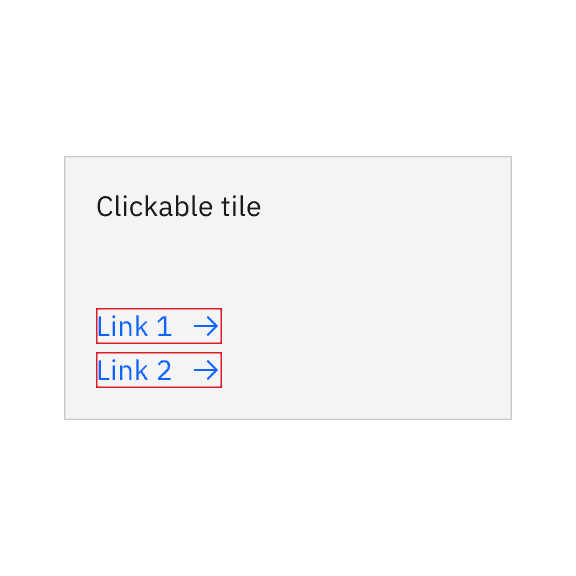
Do not add interactive links or components on clickable tiles.
States
Clickable tiles have enabled, hover, focus, and disabled states. For more information about clickable tile states, see the Style tab.
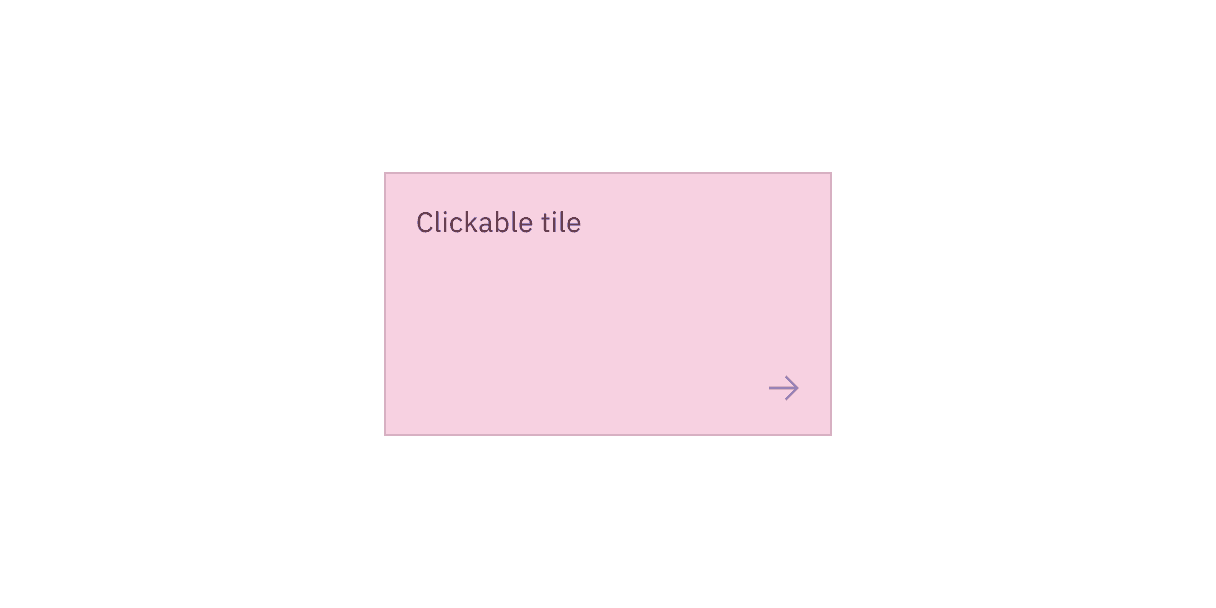
Clickable areas of clickable tile with the feature flag enabled
Selectable
Selectable tiles are used to present different options for users to select from. Selectable tiles can contain internal CTAs, like links to documentation, if the CTA is given a click target of its own in addition to the tile’s click target. Selectable tiles can either have single-selection or multi-selection.
Selectable tiles have available feature flags.
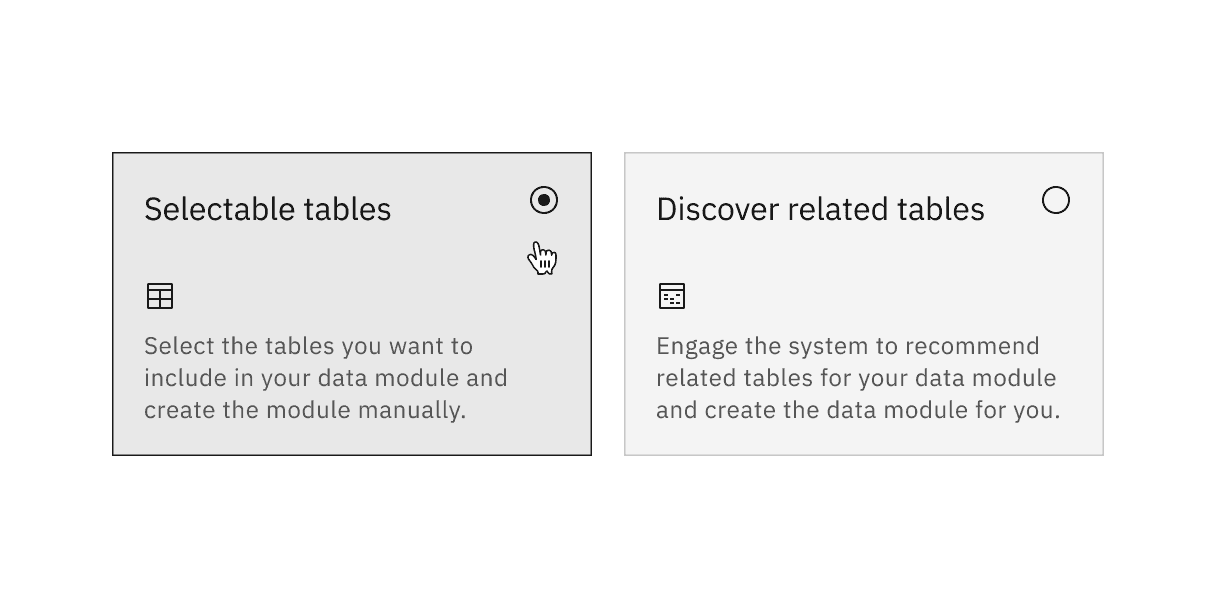
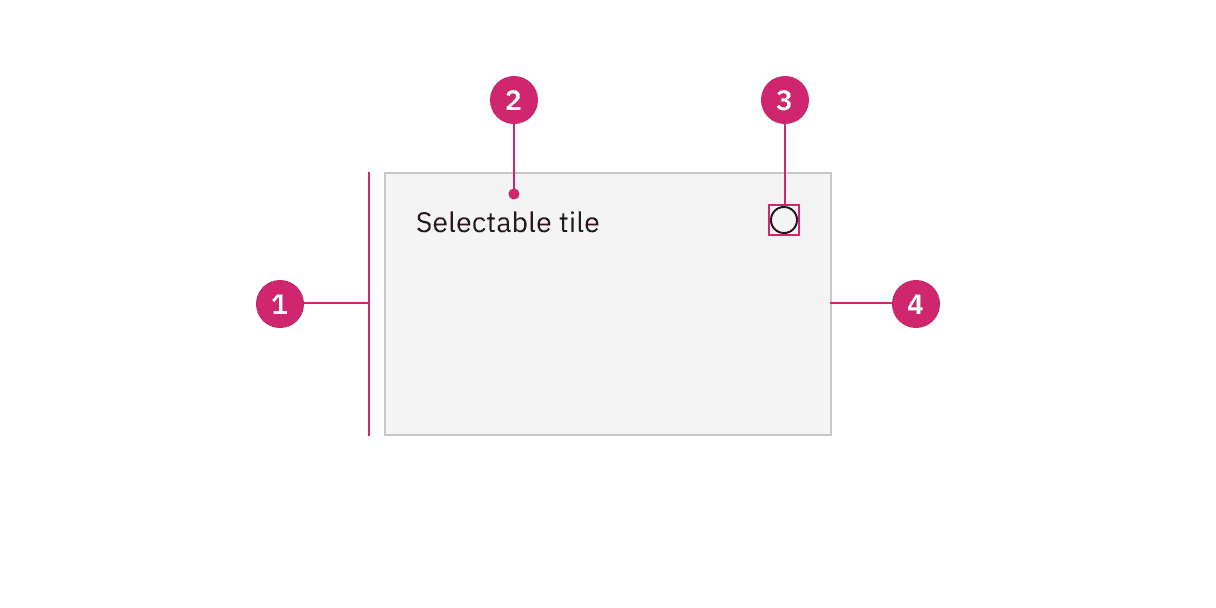
Anatomy of selectable tile with the feature flags enabled
States
Selectable tiles have enabled, hover, hover selected, selected, focus, and disabled states. For more information about base tile states, see the Style tab.
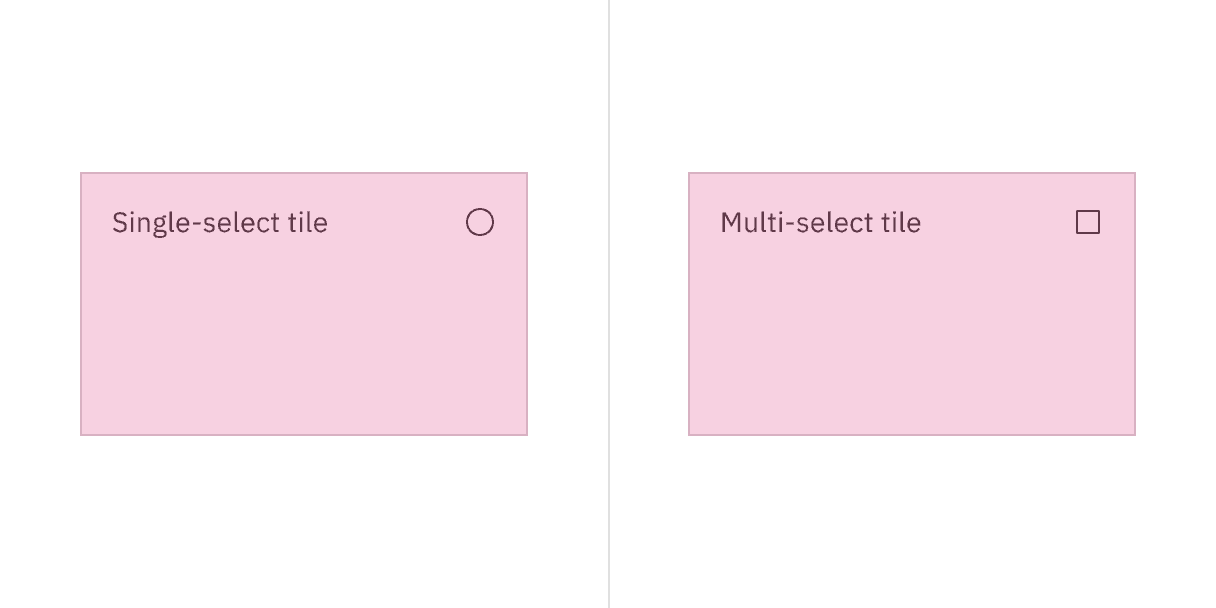
Clickable areas of selectable tile with the feature flags enabled
Expandable
Expandable tiles are used to reveal or hide additional information to the user and can be expanded and collapsed differently depending on their content. If an expandable tile does not have interactive elements, clicking anywhere in the tile expands and collapses the tile. If an expandable tile has interactive elements, the chevron icon button expands and collapses the tile.
Expandable tile has an available feature flag.
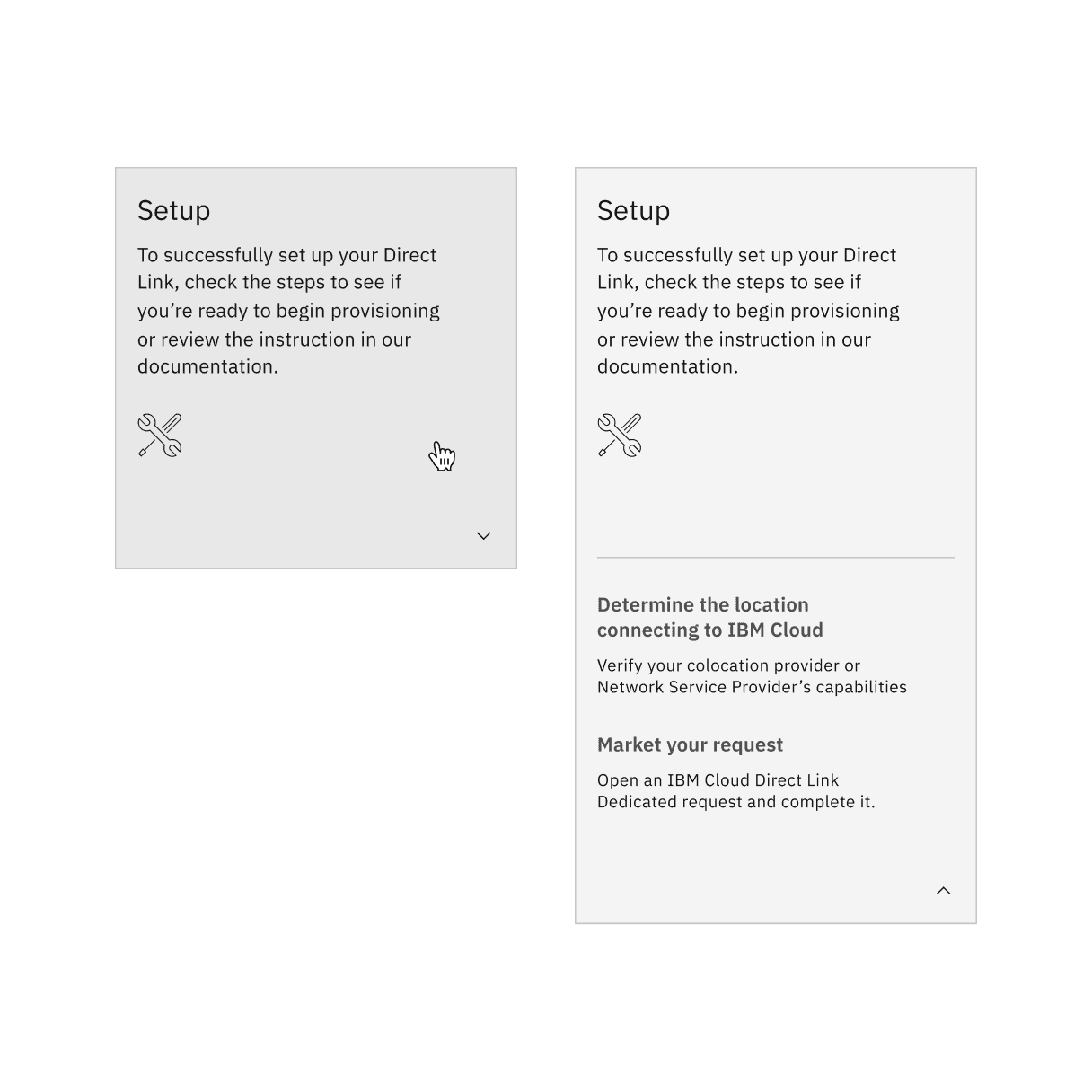
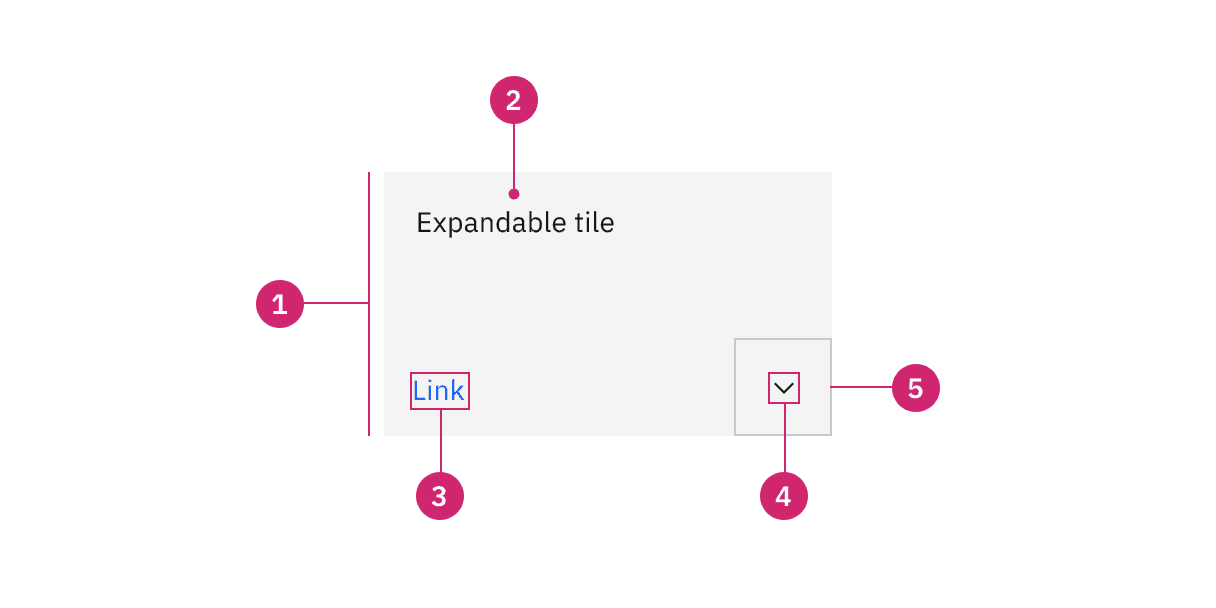
Anatomy of expandable tiles with the feature flag enabled
- Container: Contains all content within a tile.
- Text: The text within a tile.
- Interactive elements (optional): Interactive elements like links or buttons placed within a tile.
- Icon: The icon that visually indicates the tile is expandable.
- Border: The border that visually indicates the tile is interactive.
States
Expandable tiles have enabled, hover, focus, and disabled states. For more information about expandable tile states, see the Style tab.
Clickable areas
If the expandable tile does not have interactive elements, it can be expanded or collapsed by clicking anywhere on the tiles container. If the expandable tile has interactive elements, it can be expanded or collapsed by clicking on the button in the bottom right corner. Interactive elements within a tile can also be clicked on and have their own click targets.
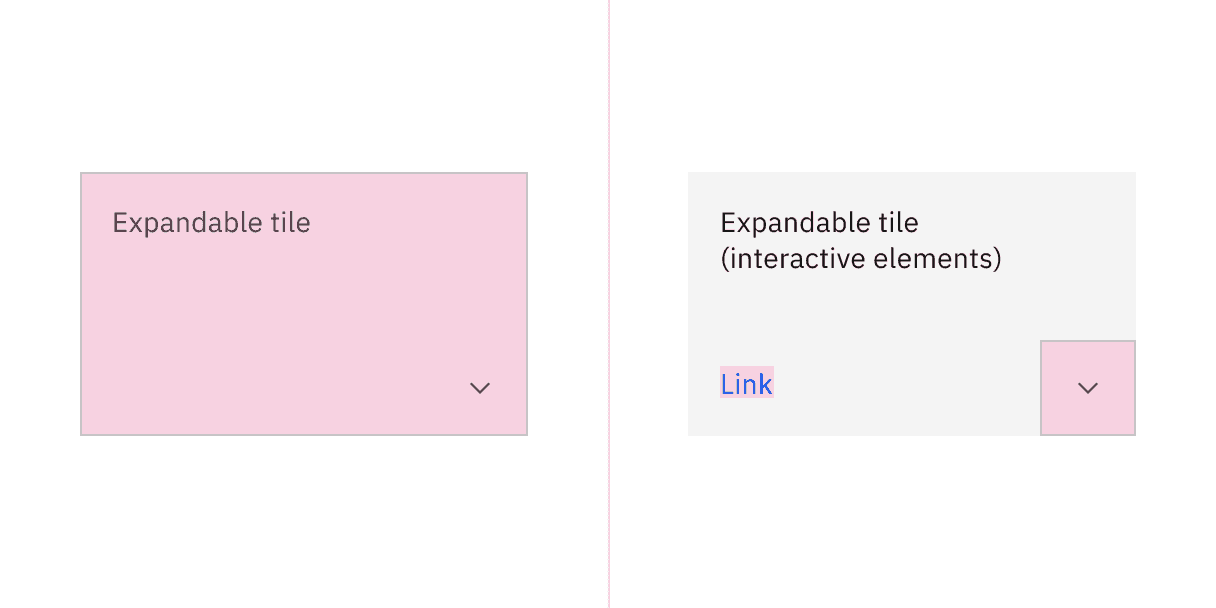
Clickable areas of expandable tile with the feature flag enabled
AI presence
Tile has a modification that takes on the AI visual styling when the AI label is present in the container. The AI variants function the same as the normal versions except with the addition of the AI label which is both a visual indicator and the trigger for the explainability popover.
For more information on designing for AI, see the Carbon for AI guidelines.
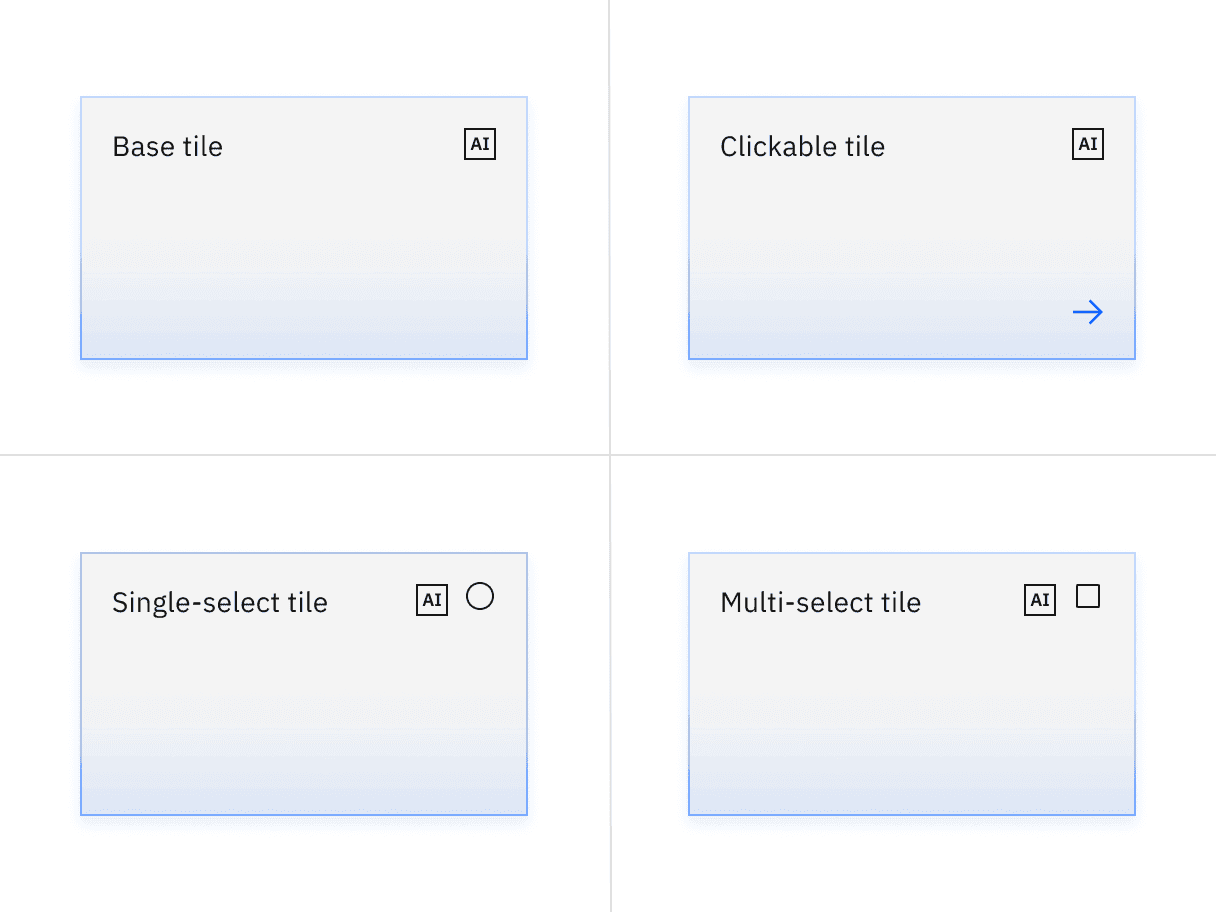
Base, clickable, and selectable tiles with AI presence and feature flags enabled
Grid
To learn more about how to build tiles correctly on the grid, see Carbon’s 2x grid.
Aspect ratio
The aspect ratio is important when building tiles and images. For further guidance, see Carbon’s aspect ratio and its implementation.
Buttons
When in doubt, use full-span button alignment within tiles. For further guidance, see Carbon’s buttons.
Link
Link has variants depending on the context. For further guidance, see Carbon’s link.
Spacing
Spacing helps deliver clear and functional layouts. For further guidance, see Carbon’s spacing.
References
Hagan Rivers, Interactions design with cards/tiles (Medium, 2017)
Feedback
Help us improve by providing feedback, asking questions, requesting features, or leaving any other comments on GitHub.