Overview
A text toolbar is a set of buttons and menus that is grouped horizontally. These controls primarily allow text editing functionality. Formatting actions and style changes can be applied to the editable text within the text area below the text toolbar. Attaching files, embedding links, and searching keywords are additional functions a toolbar can have.
A text toolbar can be customized by adding or removing icon buttons based on specific user needs. This pattern illustrates the following options:
- Redo
- Undo
- Cut
- Copy
- Paste
- Typeface
- Type size
- Bold
- Italic
- Underline
- Text color
- Alignment
- Bulleted list
- Checked list
- Numbered list
- Indent more
- Indent less
- Attachment
- Link
- Search
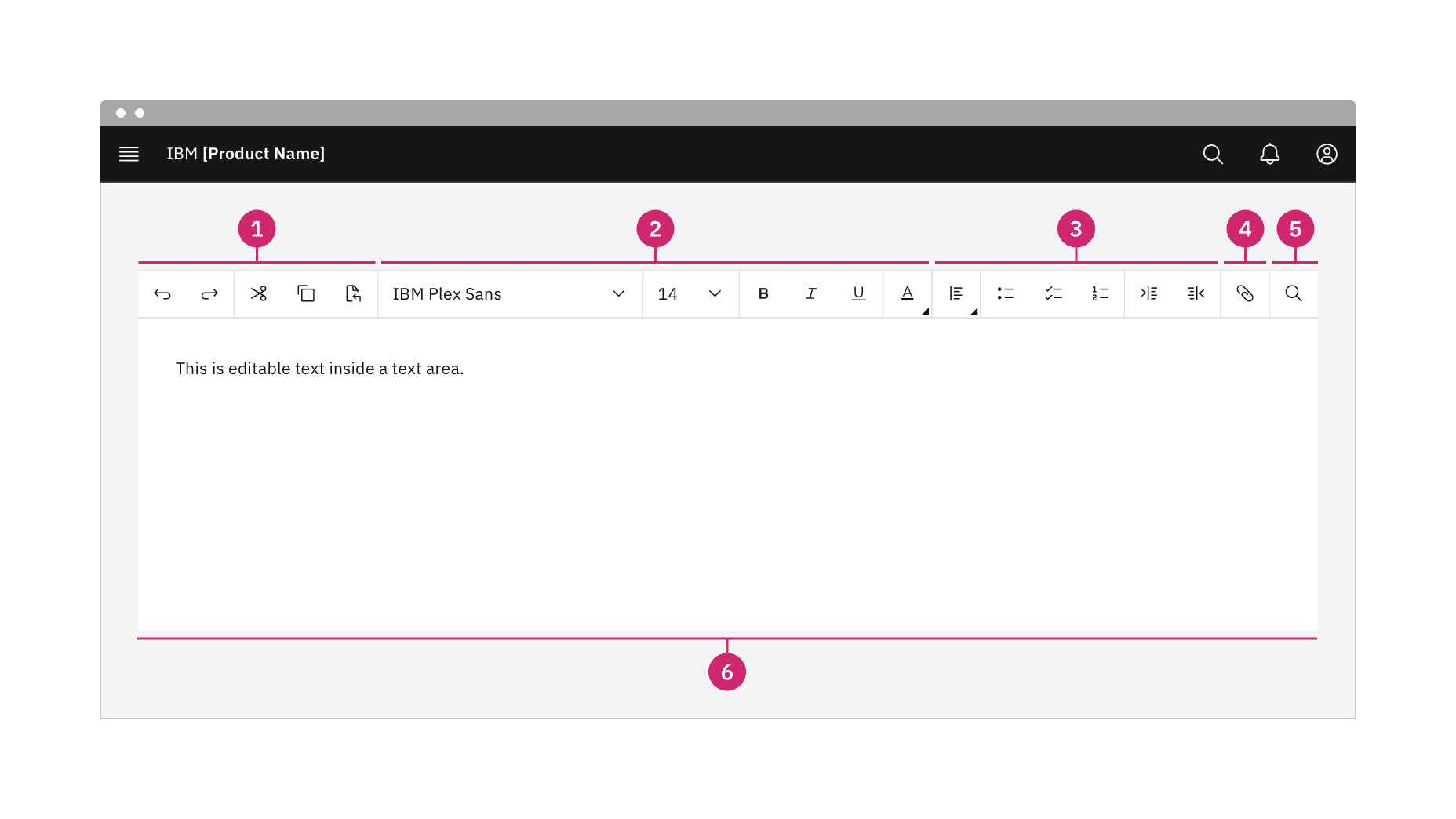
Anatomy of a text toolbar.
Actions: Use "Undo" and "Redo" to undo or revert the last change made. Use "Cut", "Copy", and "Paste" to move pieces of text to another place within the text area, to copy text to the clipboard, or to paste copied text from the clipboard to a different place within the text area.
Formatting: Change the typeface, size, style, and color of text.
Paragraph: Select different alignments and indents for paragraph text and indicate bulleted, checked, or numbered lists.
Attachment: Attach files or embed links in strings of text.
Search: Search keywords within existing paragraphs of text.
Text area: Designated area to type editable text.
States
The text toolbar includes a series of basic actions that adopt the icon button style. The action buttons typically have five different states: enabled, hover, focus, active, and disabled.
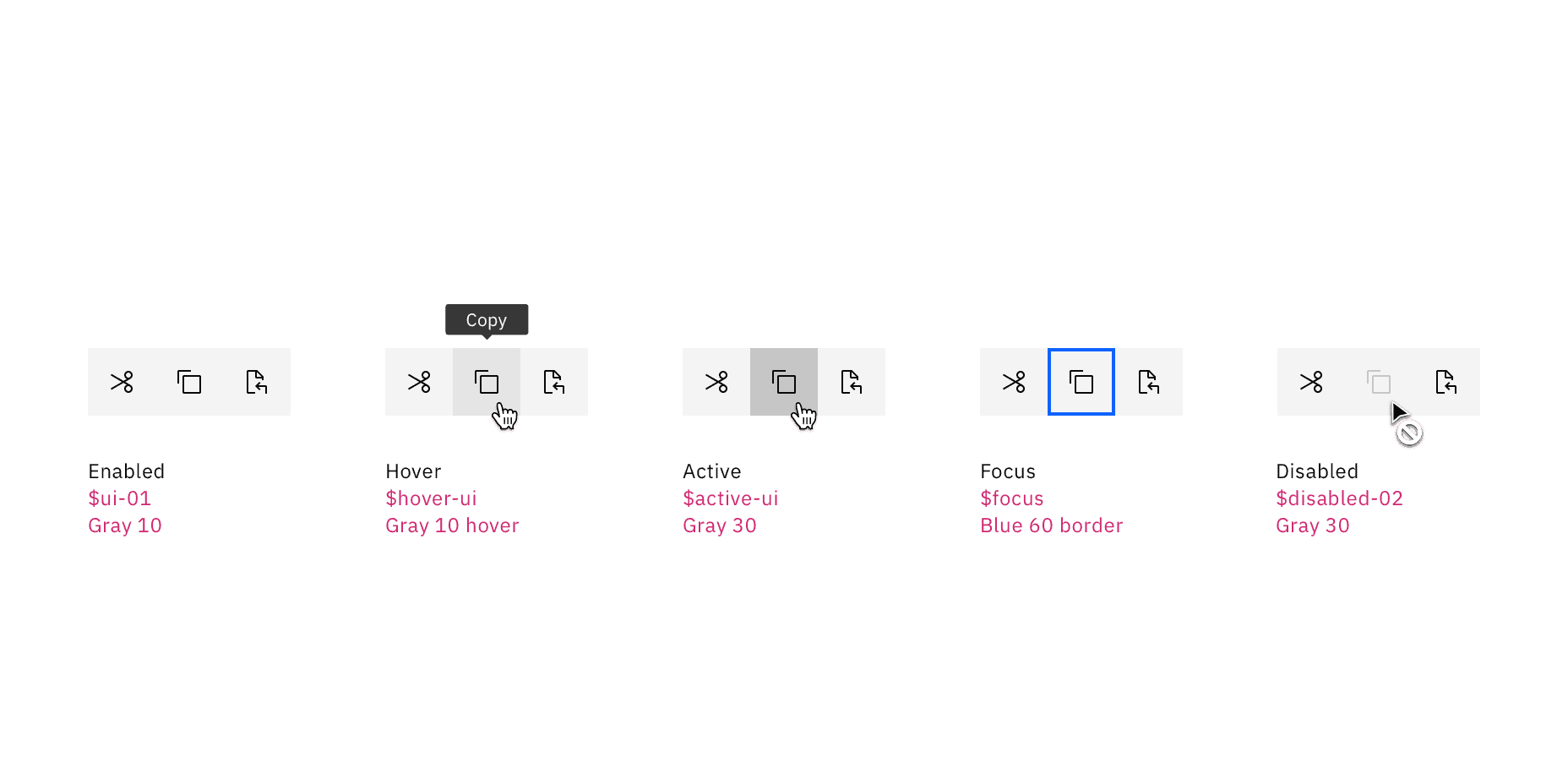
Text toolbar button states.
The typeface and type size menus adopt the dropdown style. The user can easily choose any typeface and type size to customize their text.
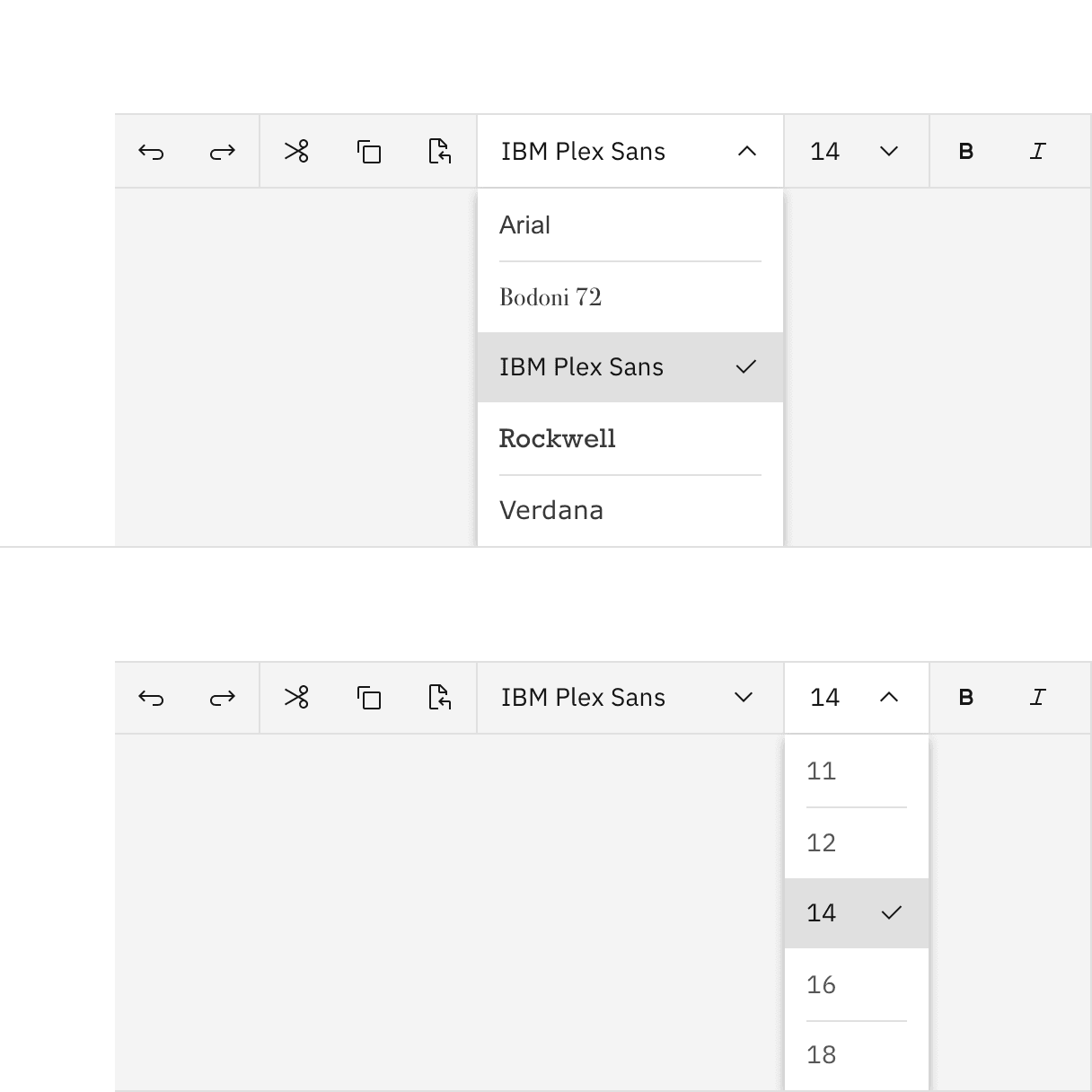
Text toolbar dropdowns.
The text color and paragraph alignment controls open a menu that displays different options to choose from.
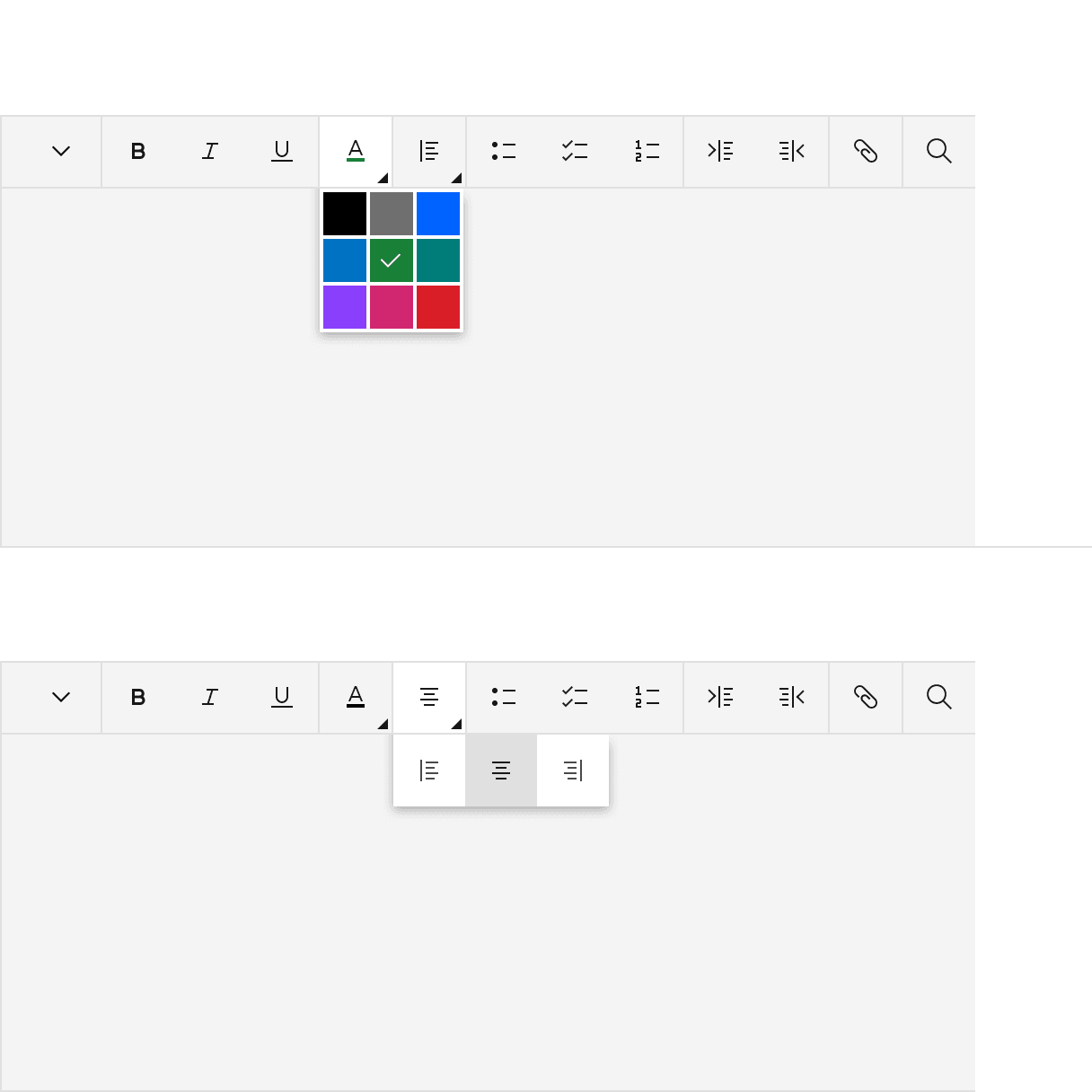
Text toolbar menus.
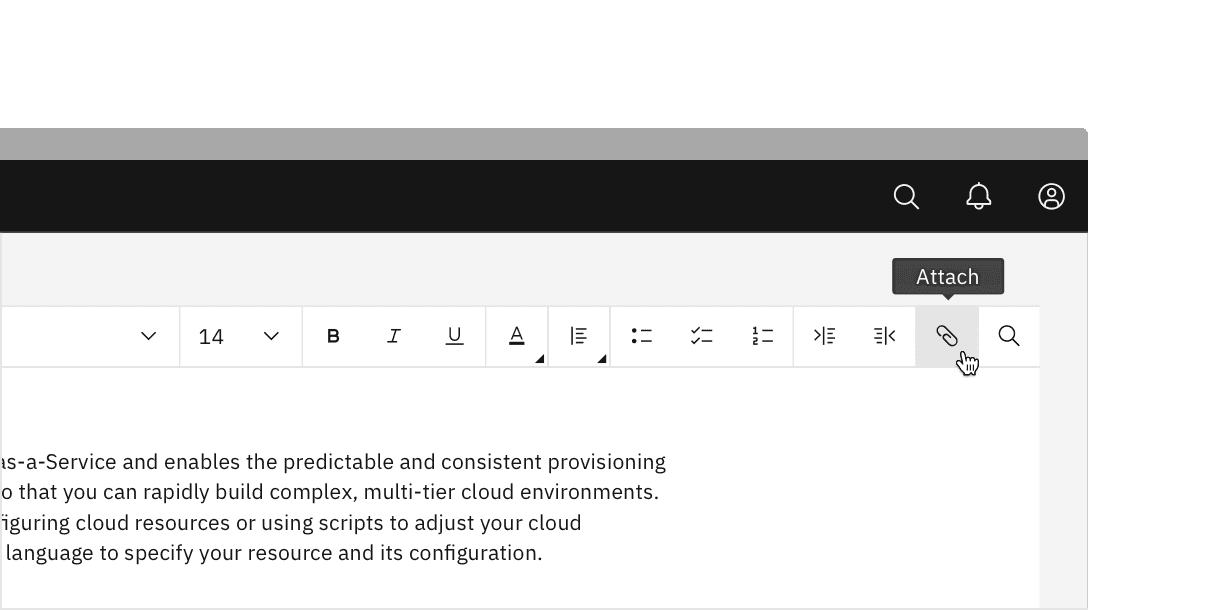
Hover on "Attachment" button.
Once a file has been chosen, the file will load in the bottom left of the text area. A file can be removed by clicking the close x icon.
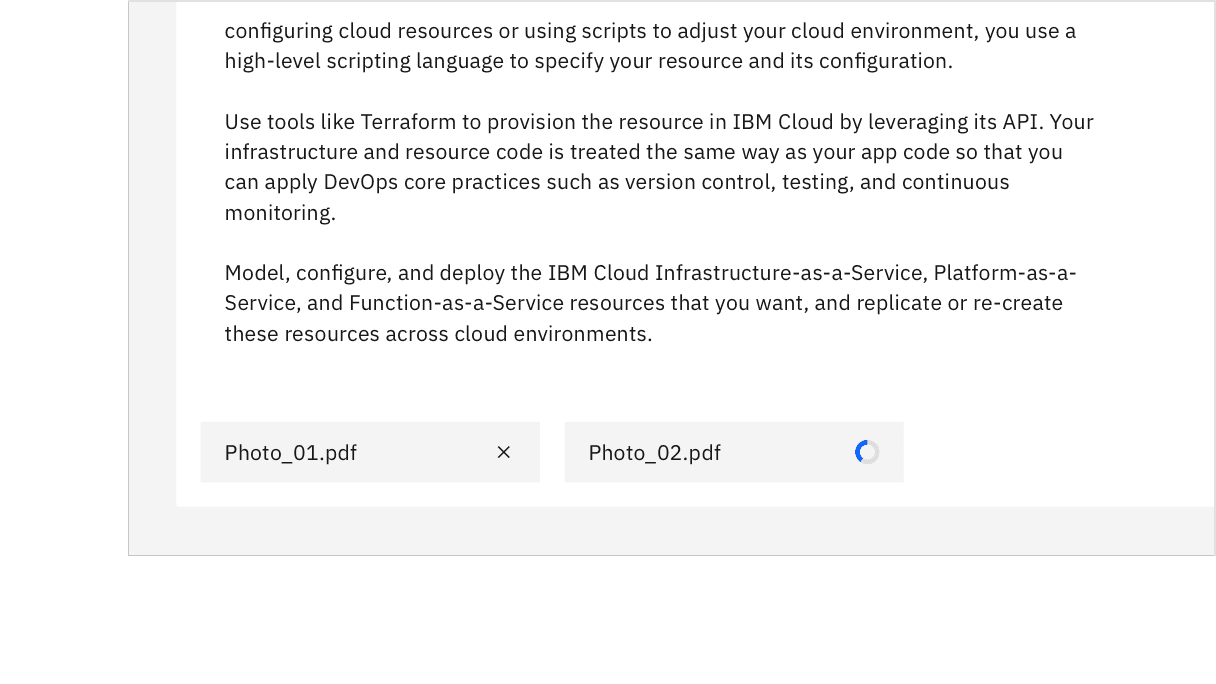
Attaching files to the text area.
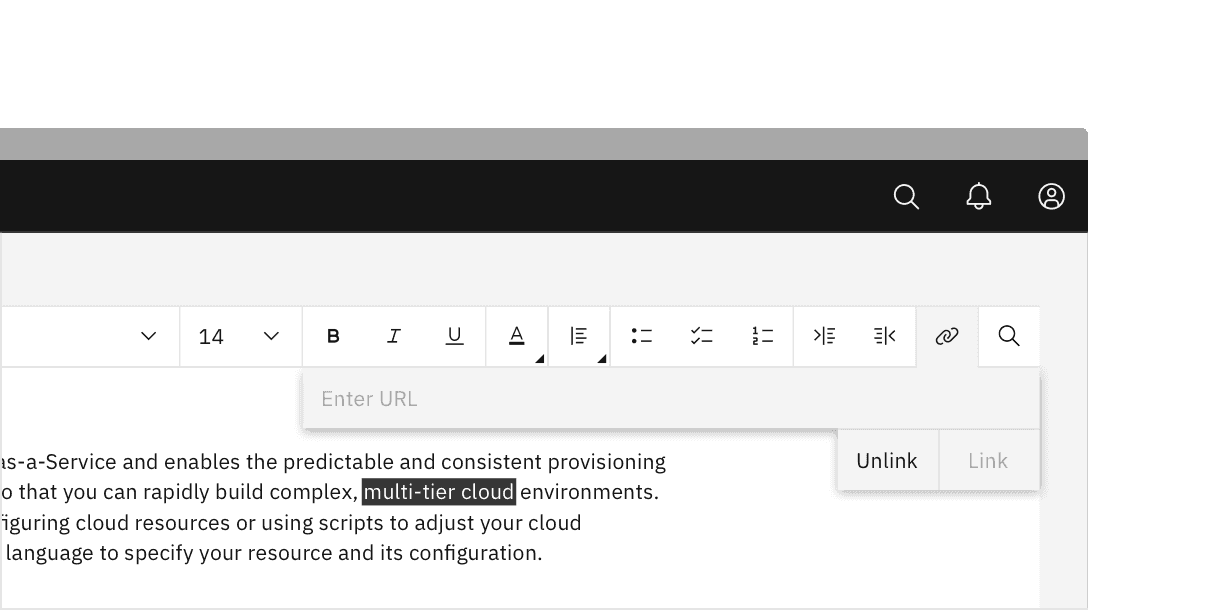
Embedding text links.
Enter the html link in the text field and then click the link button to embed the link. To exit the text field, click the close x icon or anywhere outside of the field. To reopen the link text field to edit or delete, highlight the inline link text with the cursor.
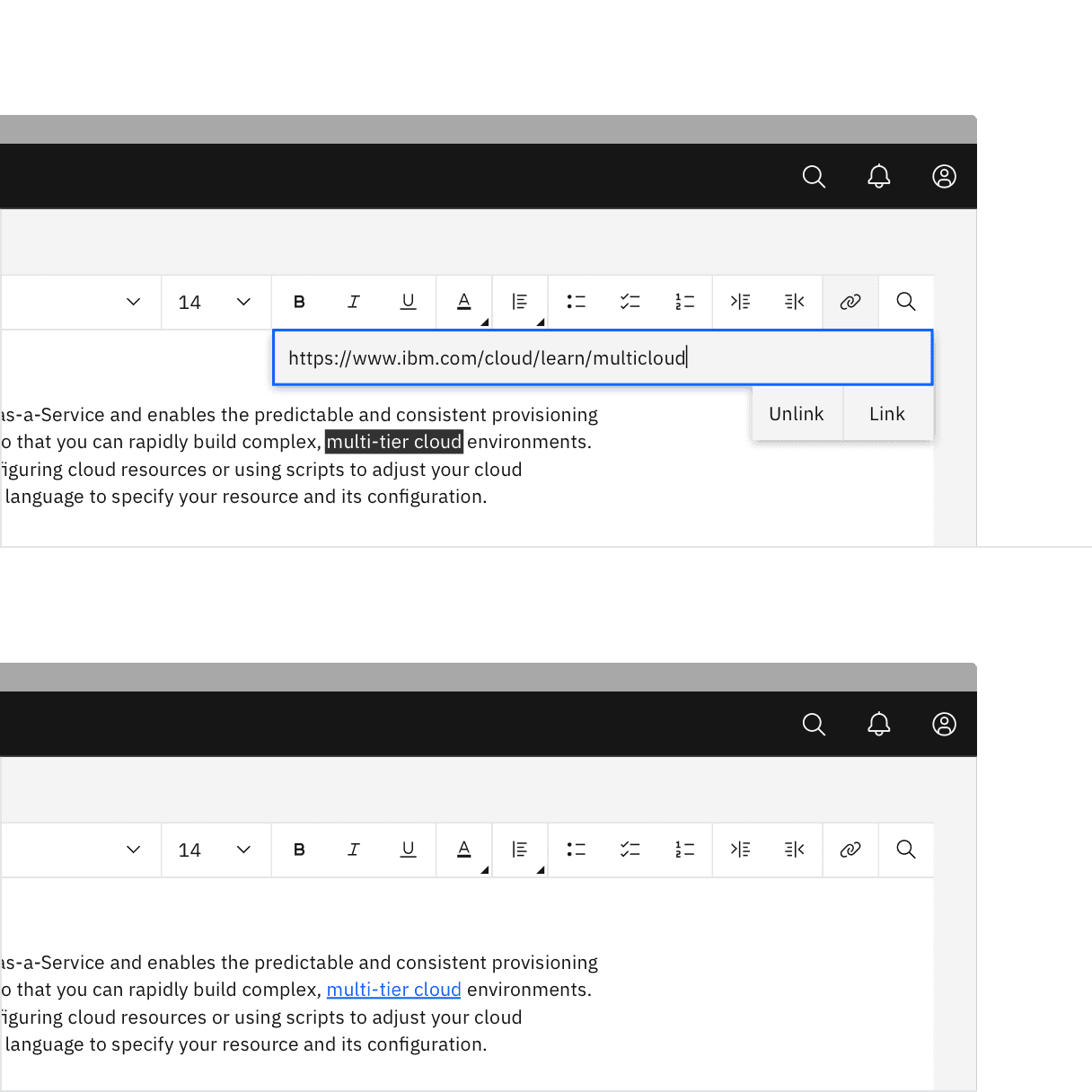
Embedding text links.
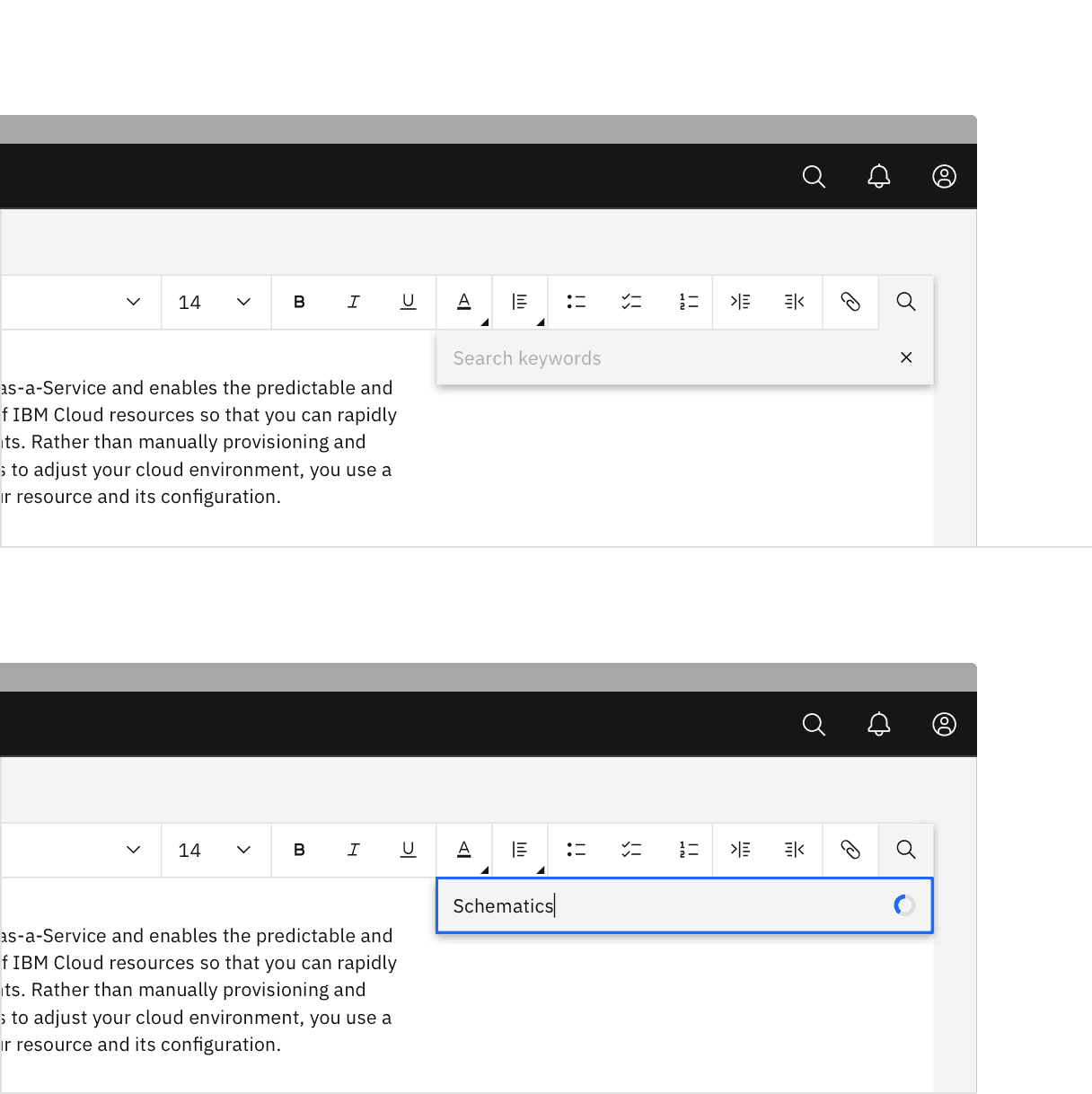
Searching text keywords.
Matching search results are highlighted in the text area. The number of results found is displayed within a tag in the search bar. The user can clear the search by clicking the close x icon inside of the tag. To exit the search, click the close xicon in the search field or click anywhere outside of the search bar.
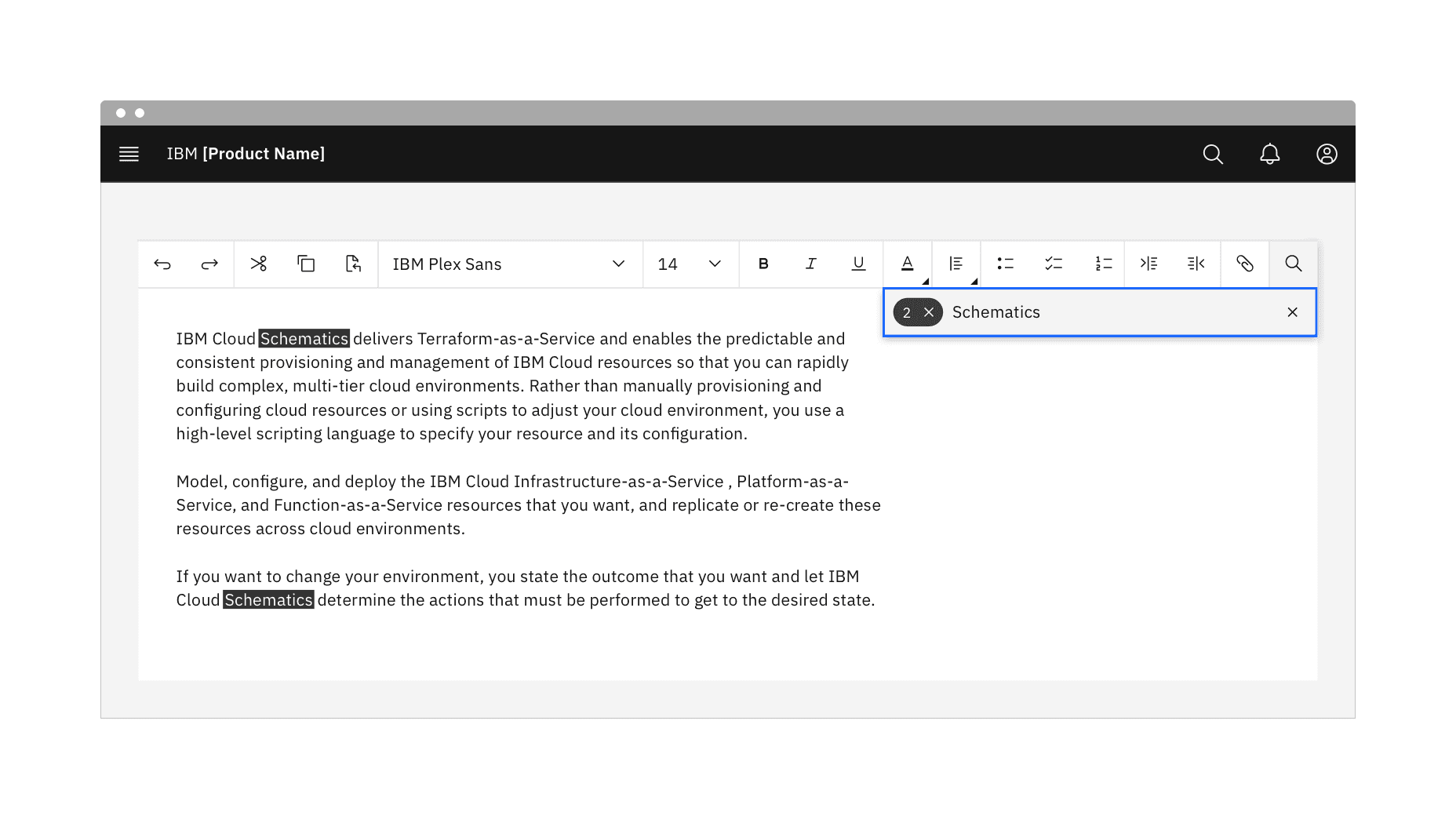
Search keyword matches within the text area.
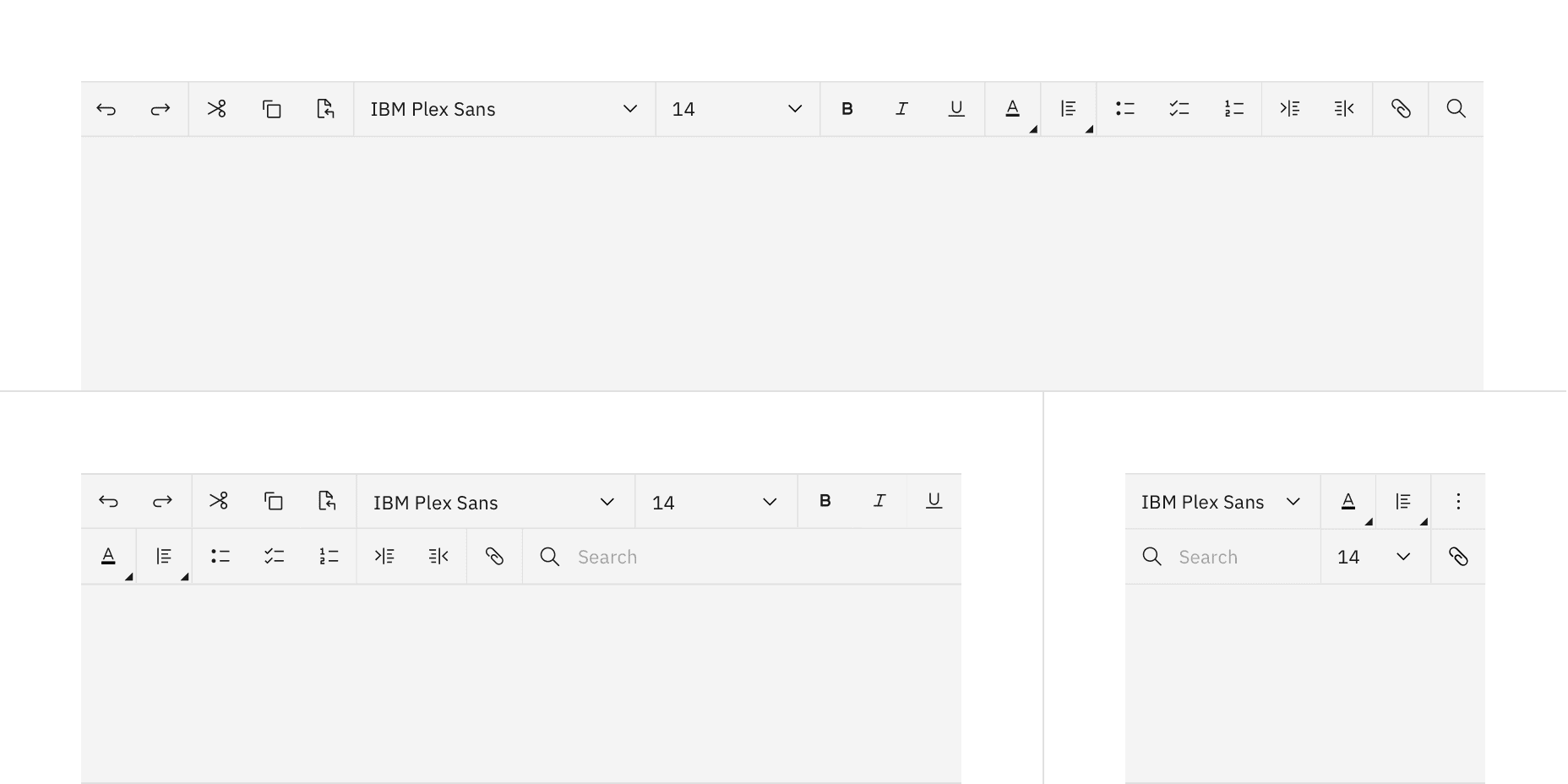
Responsive versions of a text toolbar.
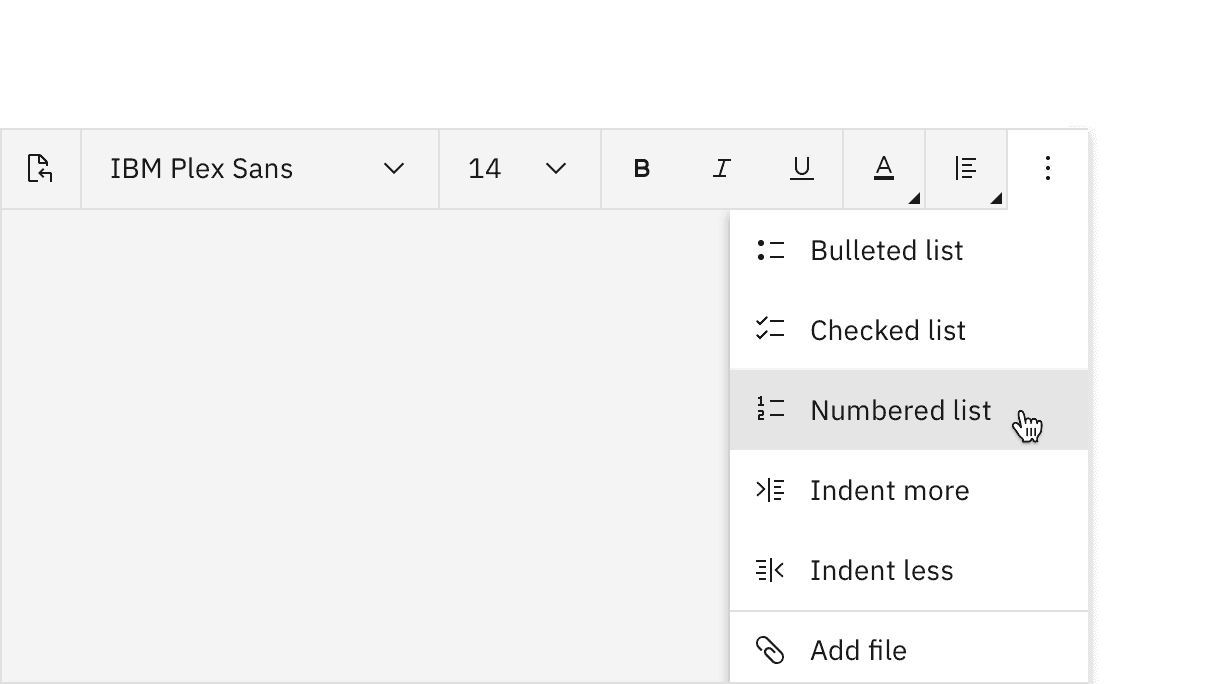
Overflow menu options.
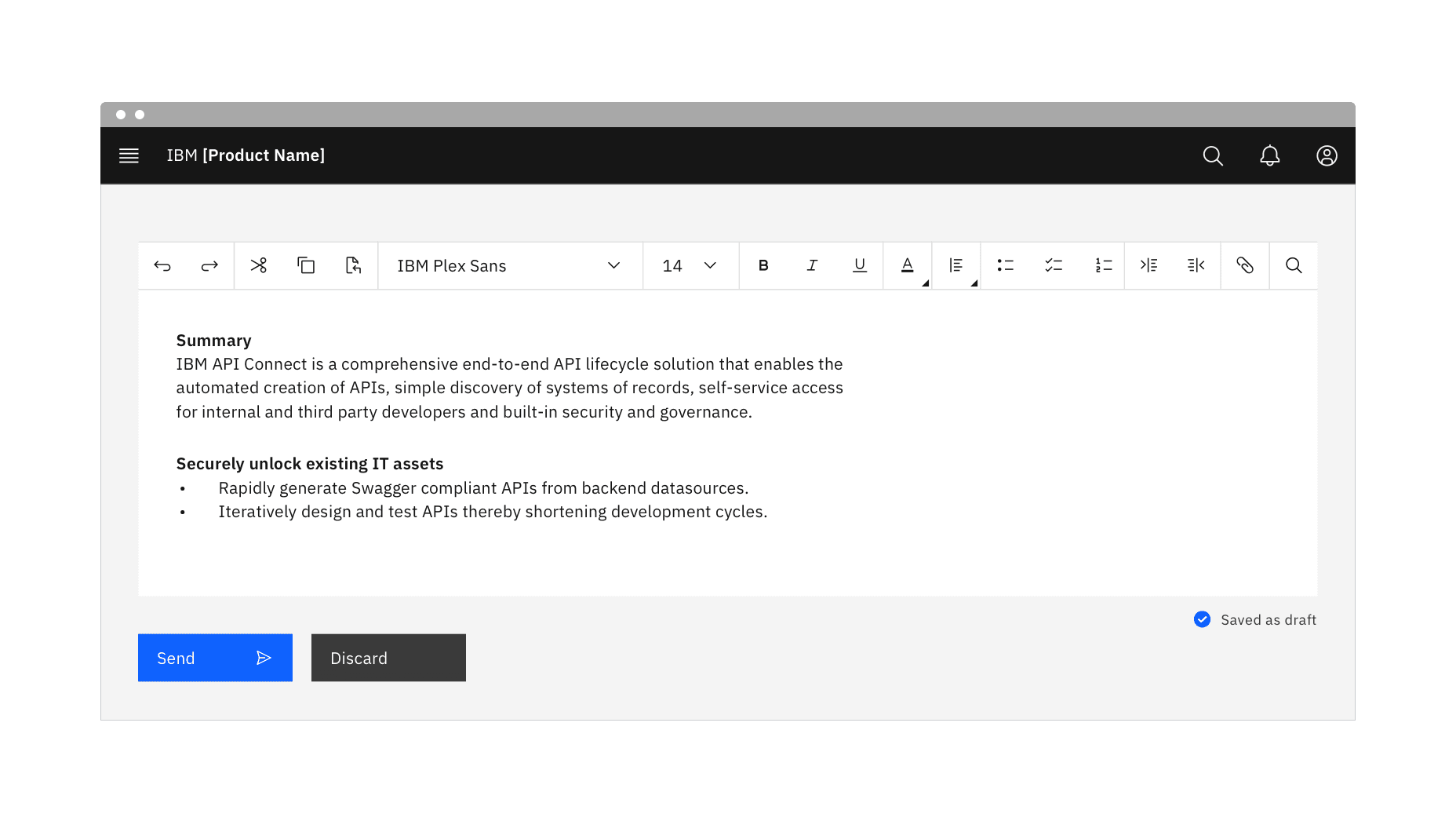
Saving a text file.
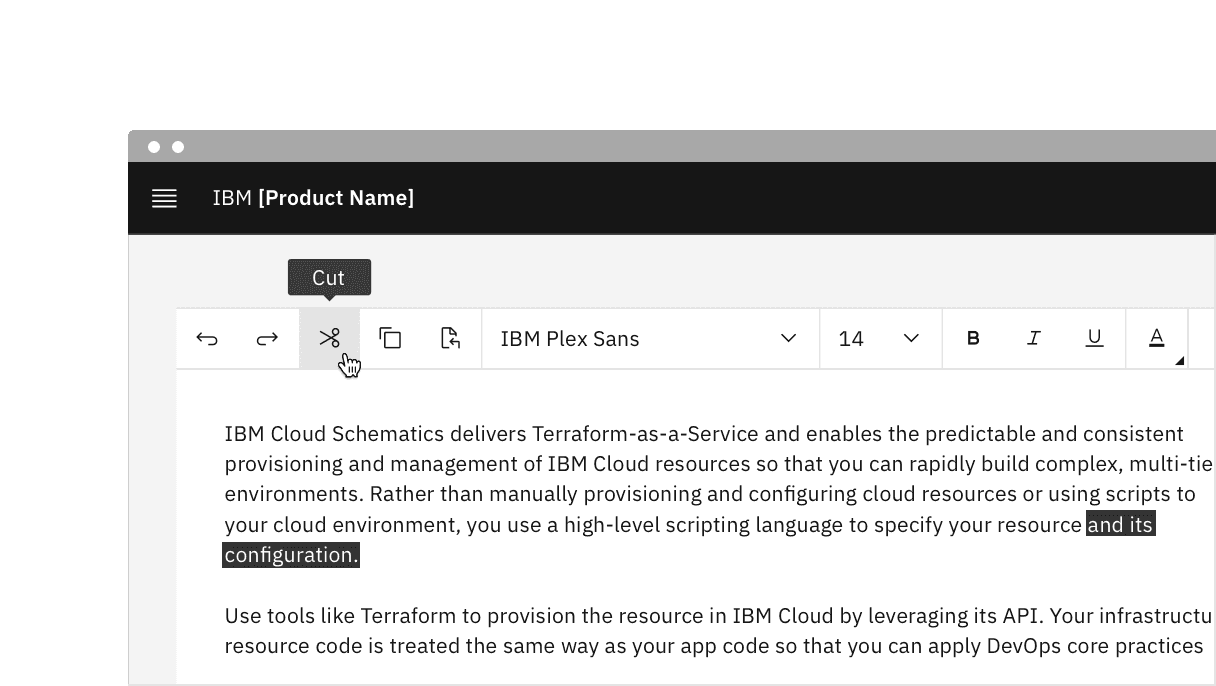
Tooltips on hover for buttons in a text toolbar.
If focus is moving into the toolbar for the first time, focus is set on the first control that is not disabled.
If the toolbar has previously contained focus, focus is optionally set on the control that last had focus. Otherwise, it is set on the first control that is not disabled.
- The
Left Arrowmoves focus to the previous control. - The
Right Arrowmoves focus to the next control.
- The
Up ArrowandDown Arrownavigate to different options within a menu. - Open and close a menu by pressing
Enter.
Screen readers
When a set of controls is visually presented as a group, the toolbar role can be used to communicate the presence and purpose of the grouping to screen reader users. Grouping controls into toolbars can also be an effective way of reducing the number of tab stops in the keyboard interface.
For further accessibility guidance of text toolbars, see WAI-ARIAs guidelines.
3.23 Toolbar, W3C WAI-ARIA Authoring Practices (W3C Working Group Note, 2019)
Toolbar Example, W3C WAI-ARIA design pattern (W3C Working Group Note, 2019)
Feedback
Help us improve by providing feedback, asking questions, requesting features, or leaving any other comments on GitHub.