This live demo contains only a preview of functionality and styles available for this component. View the full demo on Storybook for additional information such as its version, controls, and API documentation.
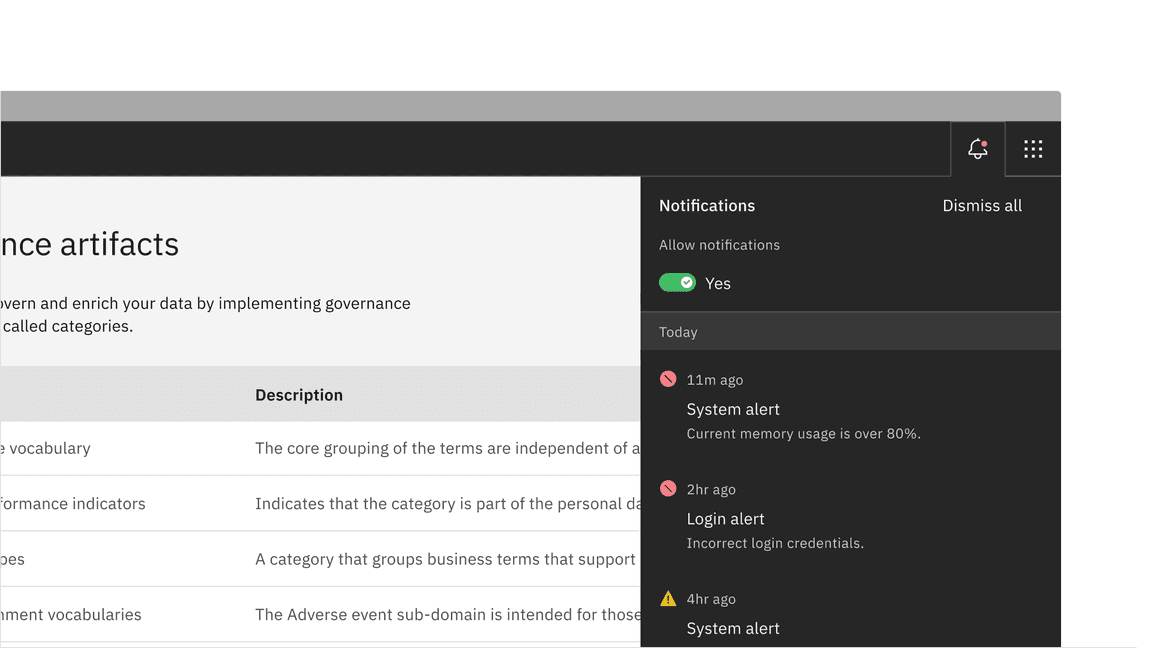
Example of the toggle component in a UI
- To turn off and on a single option that affects the system or page settings.
- Ideal for settings or preferences that can be immediately applied.
- Recommended for actions where the change is reversible without additional confirmation.
- Avoid using toggles if the action requires immediate feedback or confirmation, such as deleting a file.
- Don’t use toggles for more than two options; instead, use a dropdown, radio button, or checkbox.
- Avoid using toggles for settings that aren’t binary in nature or don’t provide instant application; instead use a different UI component, like a checkbox, in combination with a button.
Variants
Variant | Purpose |
|---|---|
Use the default toggle when you need to specify a label text in addition to the toggle state text. Default toggles appear in forms or within full pages of information. | |
Use the small toggle when you do not need to specify label or state text. Small toggles are more compact in size and are used inline with other components. |
Feature flags
A feature flag has been added to the toggle to adjust its label spacing and changes its visual appearance, not its functionality. For code-specific feature flag information, refer to the Code tab. The current toggle is not being deprecated, but teams are encouraged to use the feature flag toggle for their products moving forward. Once the next major release (v12) is released in the future, this feature flag will become the default version of the component.
The following is the feature flag change made to the toggle.
- The spacing between the toggles label and its container is now 8px instead of 16px to improve consistency across our label spacing in other components.
- This change applies to both the default and small toggles.
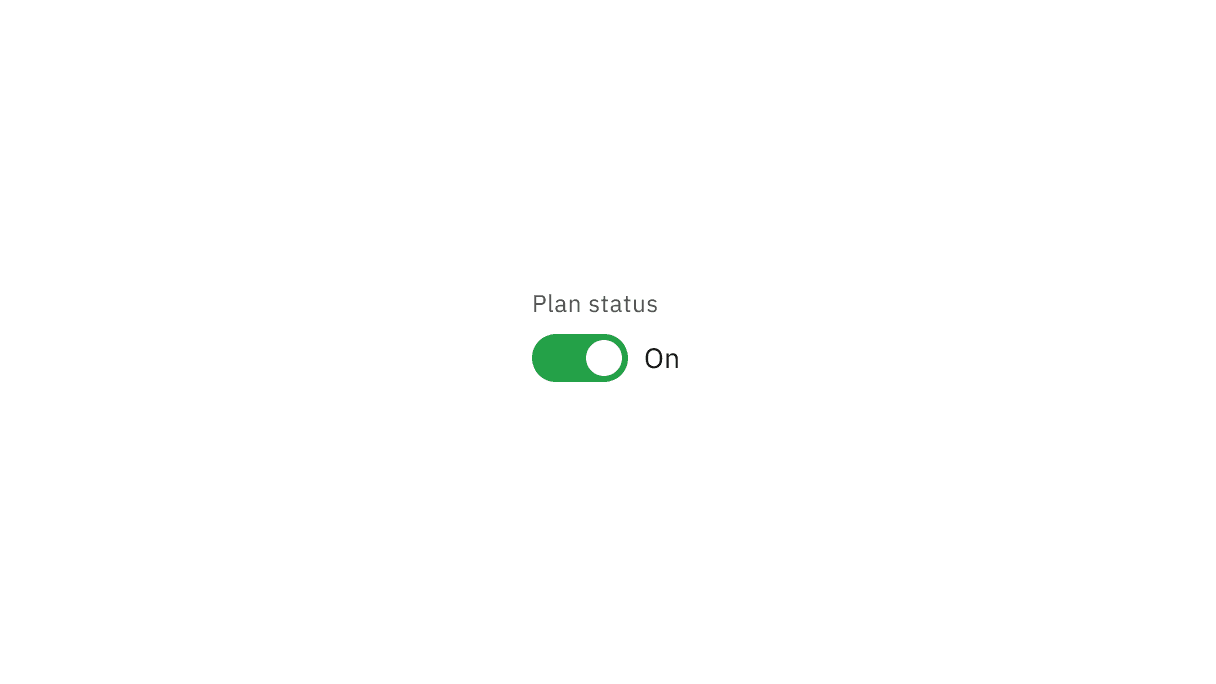
Anatomy
Default and small toggles are both comprised of a label text, a toggle button, and a state text. Default toggles are required to display a component label and state text, unlike the small toggle, where both these elements are optional. The small toggle displays a checkmark tick in the “on” state to ensure the toggle is still accessible when label and state text are unavailable.
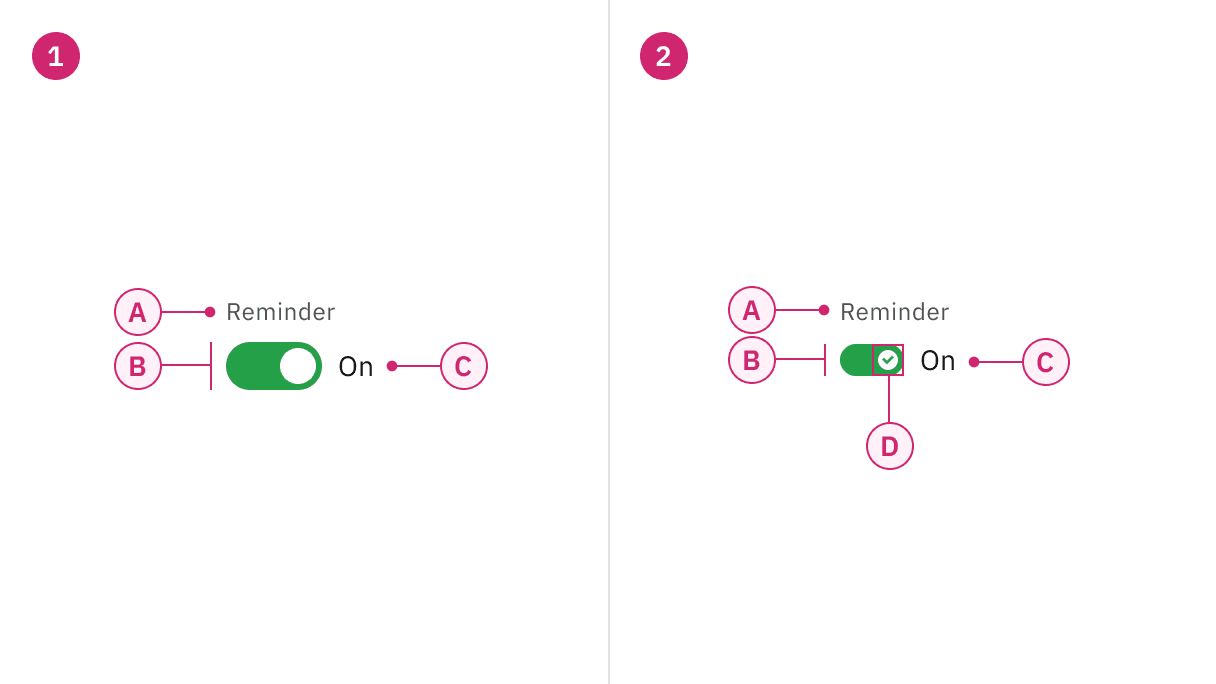
Anatomy of default and small toggle variants
A. Label text
B. Toggle
C. State text
A. Label text (optional)
B. Toggle
C. State text (optional)
D. Checkmark tick (on state)
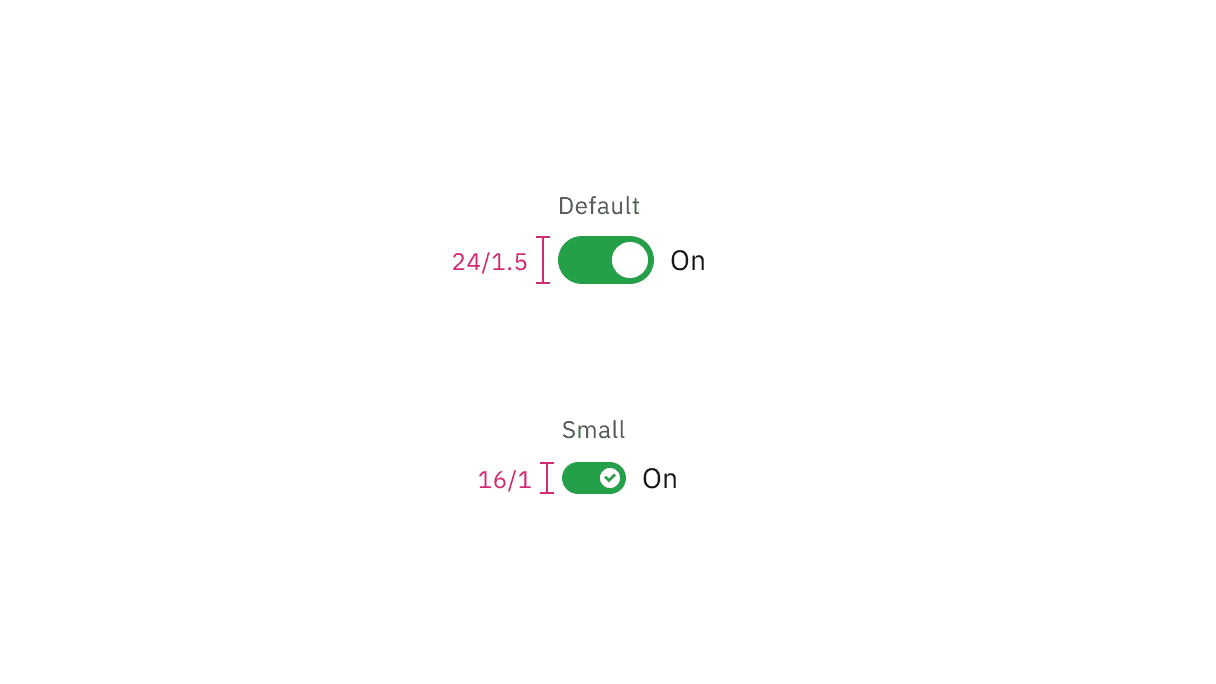
Sizes of toggle
States
The default and small toggle have two main states: on and off. Other interactive states are focus, disabled, read-only, and skeleton. For more information on toggle states, see the Style tab.
State | When to use |
|---|---|
On | When a user clicks or uses the arrow keys to switch on the component. |
Off | When a user clicks or uses the arrow keys to switch off the component. |
Focus | When a user presses tab or clicks on the toggle, it becomes focused, indicating the user has successfully navigated to the component. |
Disabled | When a user is not allowed to interact with the toggle due to either permissions, dependencies, or pre-requisites. The disabled state completely removes the interactive function from a component. The styling is not subject to WCAG contrast compliance. |
Read-only | When the user can review but not modify the component. This state removes all interactive functions like the disabled state but can still be focusable, accessible by screen readers, and passes visual contrast for readability. |
Skeleton | Use on an initial page load to indicate that the toggle has not yet fully loaded. |
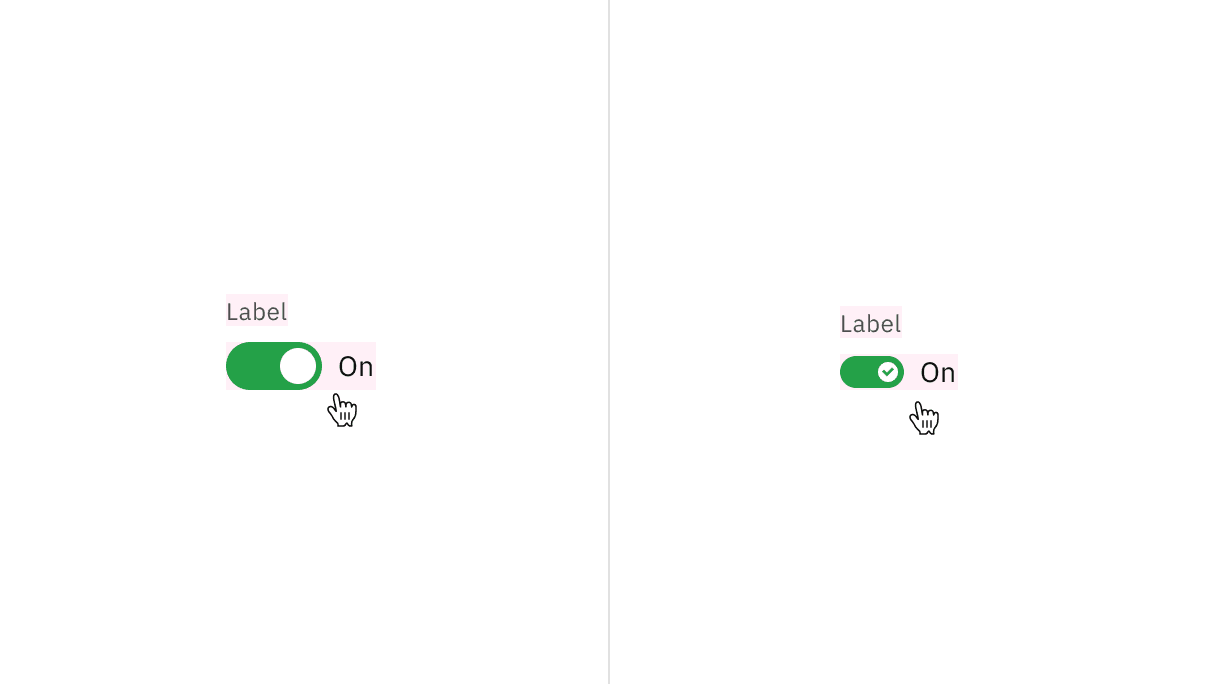
Clickable areas of default and small toggle
Default toggle
The default toggle is larger in size than the small toggle. They are commonly used in forms and can appear within full pages of information that are not restricted in space. Default toggles are required to display a visible label and a state text.
Default toggle has an available feature flag.
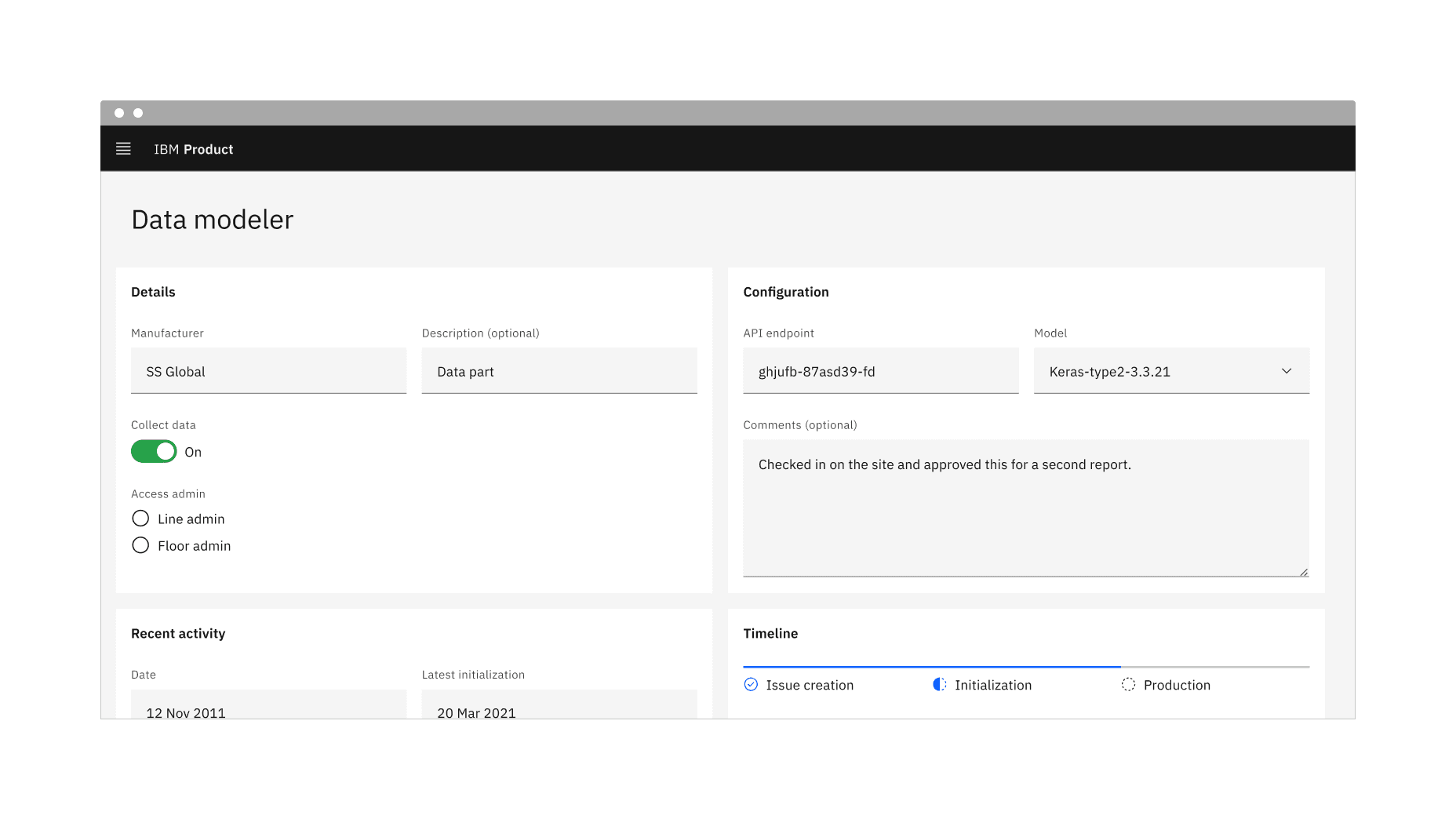
Small toggle
The small toggle is often used in condensed spaces and appear inline with other components or content. The label and state text are optional for the small toggle.
Small toggle has an available feature flag.
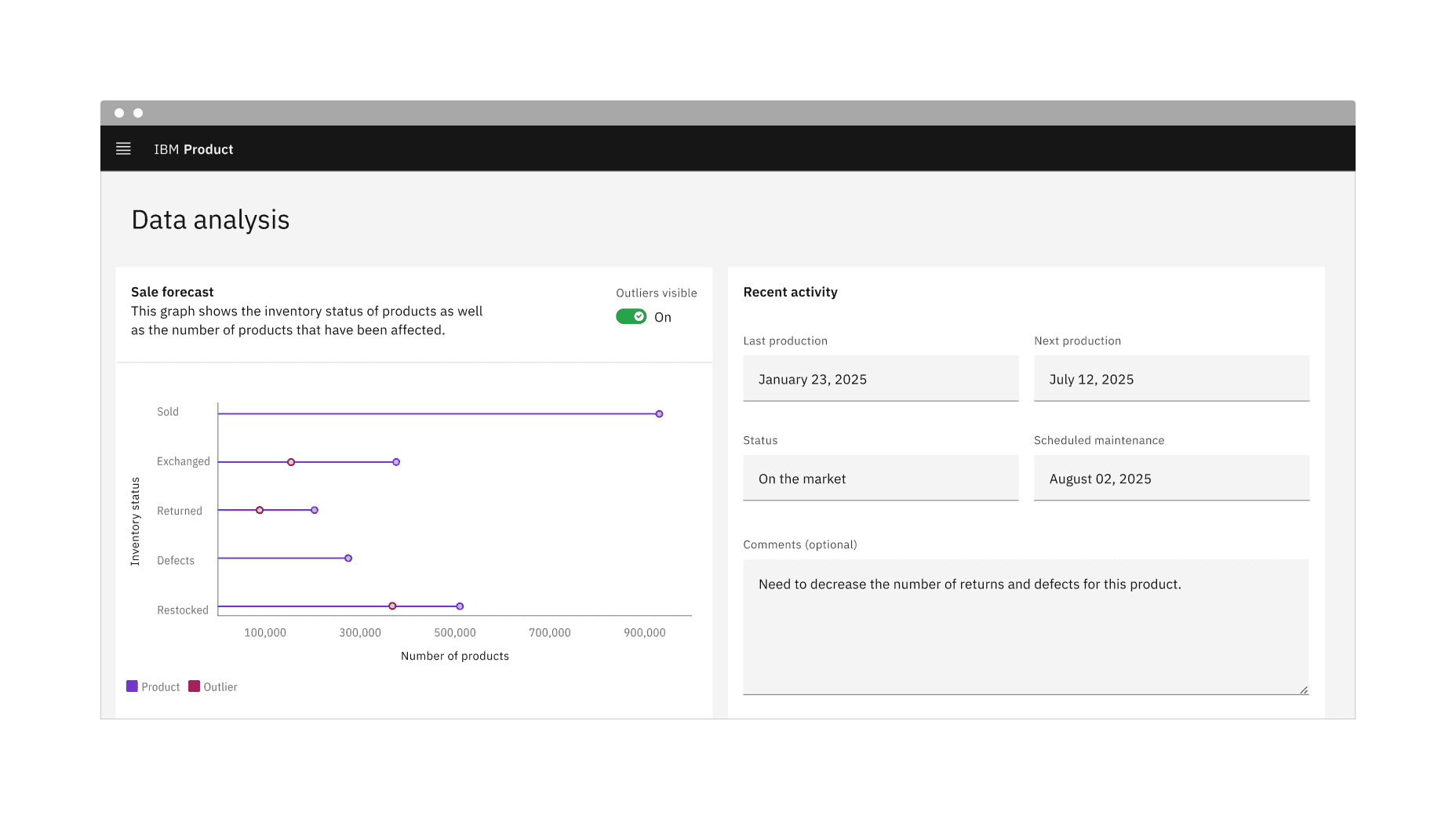
Unlike the default toggle, the small toggle is more compact in size and displays a checkmark tick in the on state to ensure the toggle is still accessible without requiring visible label or state text. For example, inside data table rows.
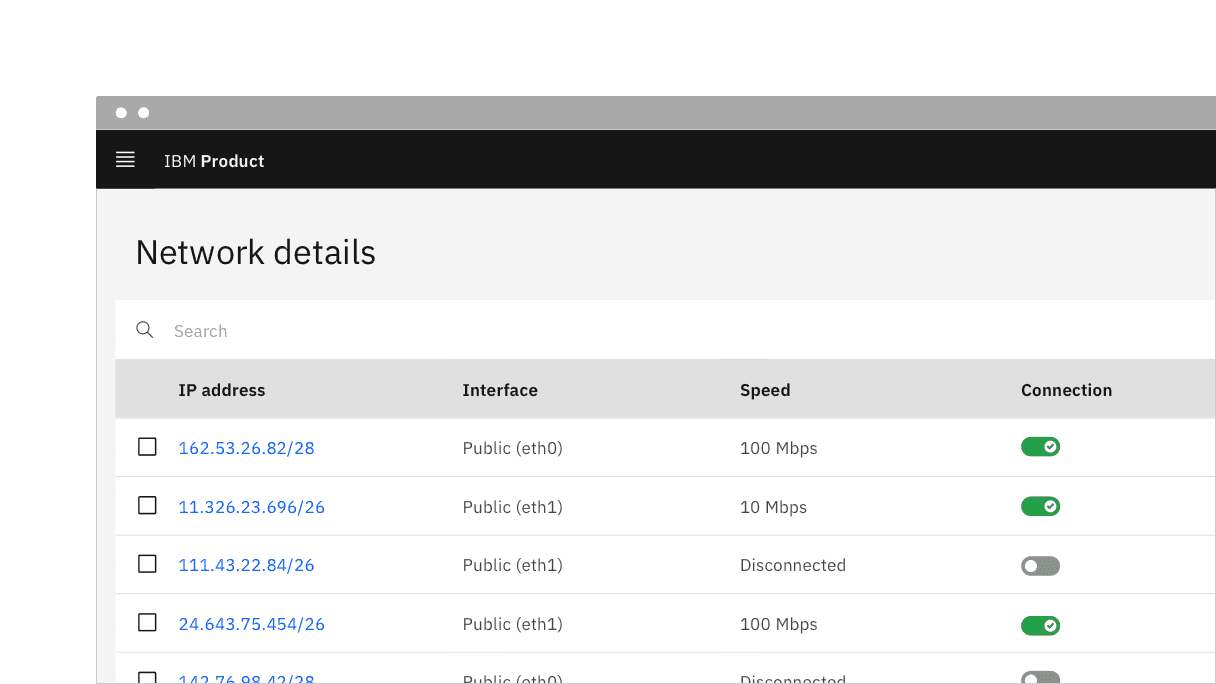
Example of a small toggle in context without a visible label or state text
Feedback
Help us improve by providing feedback, asking questions, requesting features, or leaving any other comments on GitHub.