This live demo contains only a preview of functionality and styles available for this component. View the full demo on Storybook for additional information such as its version, controls, and API documentation.
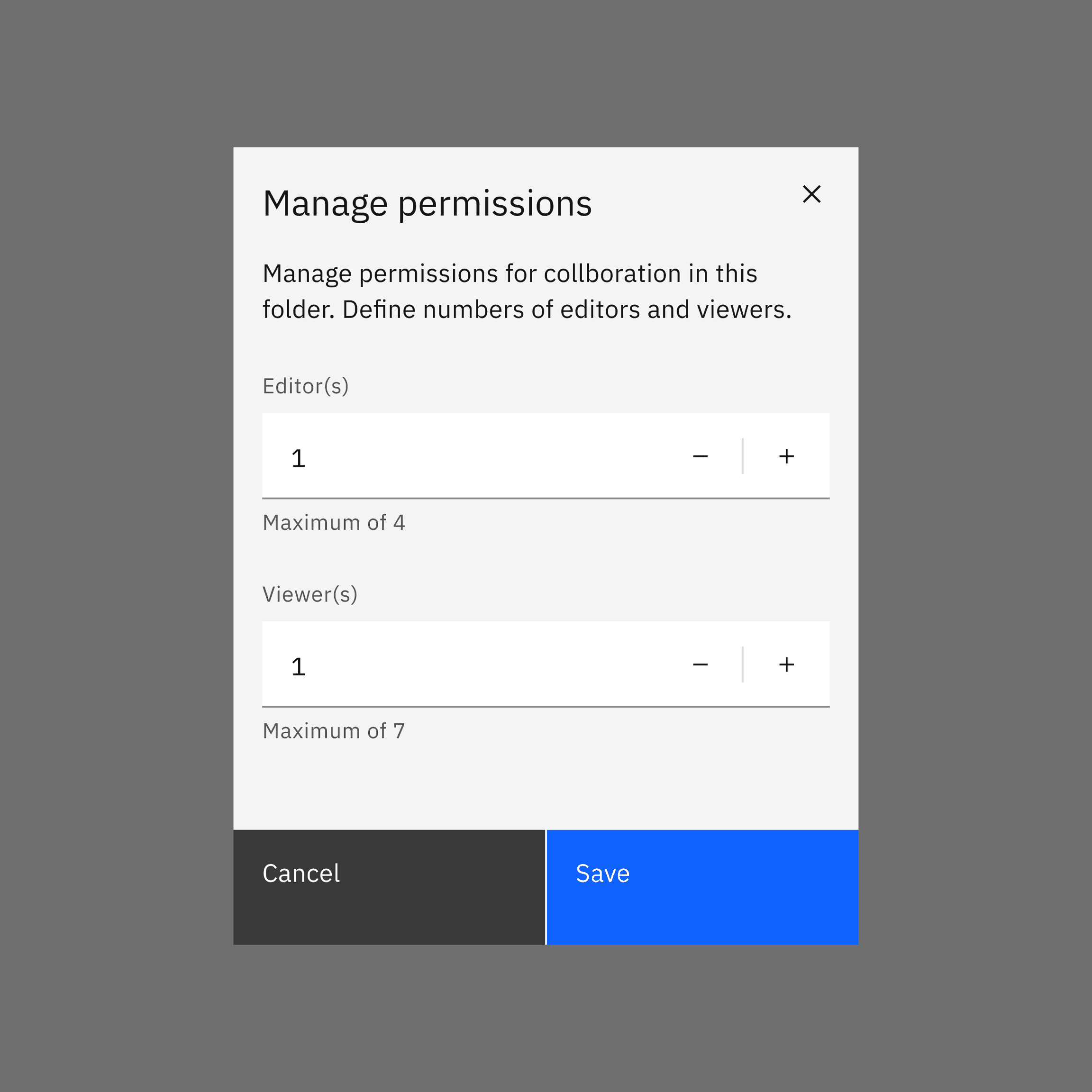
The user needs to input a numeric value
Adjusting small values when increasing or decreasing them requires only a few clicks
When users may not know exact values and only want to change the values that are relative to its current state
When not to use
- It is best practice not to use number input if large value changes are expected. For example, when the value sets from 1 to 30, number input is not a great option because it requires many clicks to reach 30. In this case, use slider when numeric values are large or when there is a wide range of numeric options.
- It is also best to avoid number input for continuous variables such as prices, distances, lengths, or human heights. When the exact value is important to specify within a wide range, use text input instead.
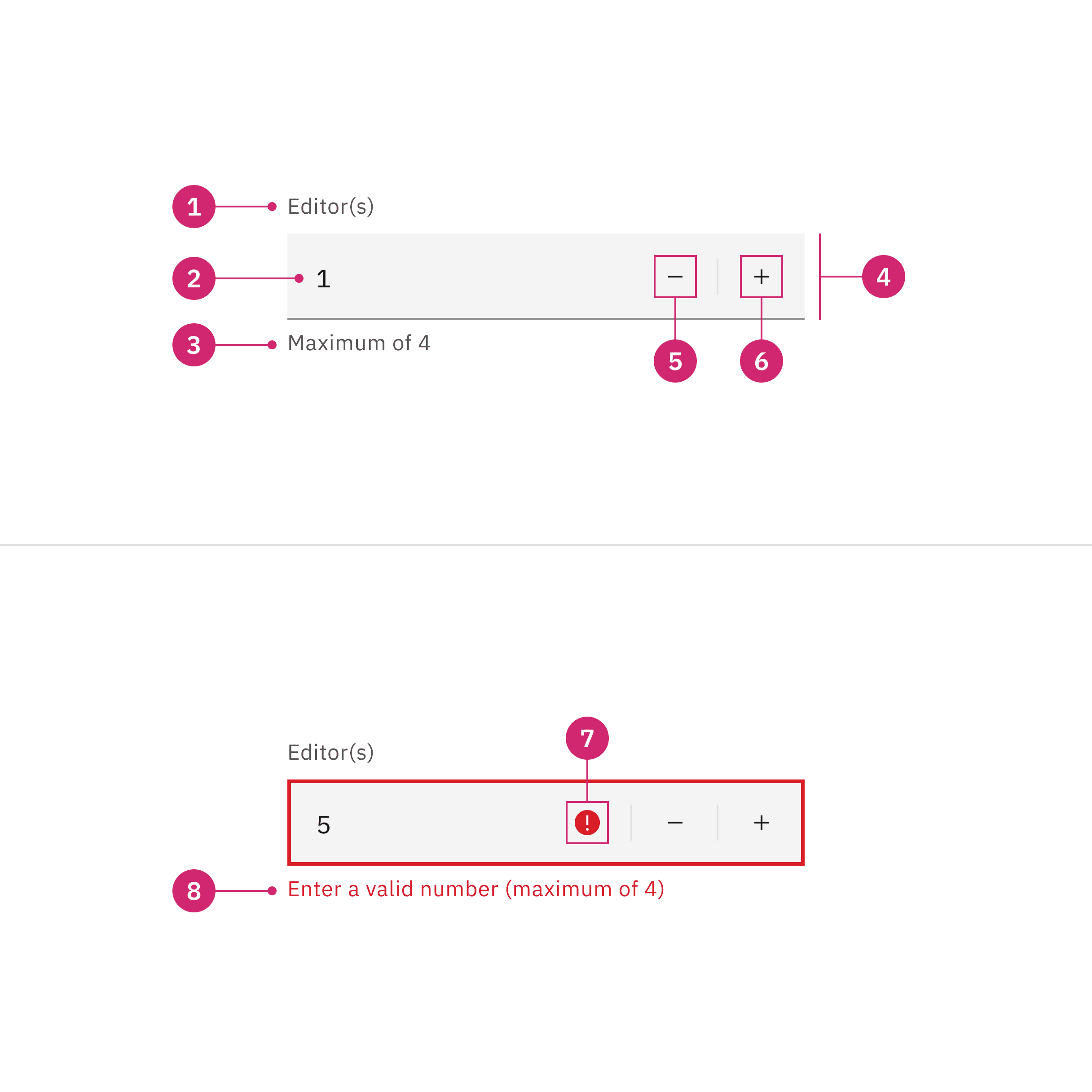
- Label: Text that informs the user about the content they need to enter in the field. It is required unless you get an approved accessibility exemption.
- Numeric value: The value changes when user enters a value into the field or uses the subtract or add controls.
- Helper text: Assistive text that can provide additional aid or context to the user. Often used to explain the correct data format.
- Field: The container in which a user enters data.
- Subtract icon: This icon triggers decremental values.
- Add icon: This icon triggers incremental values.
- Status icon: Indicates the state of the number input, either error or warning.
- Error or Warning text: It replaces the helper text when an error or warning state appears.
Style | Appearance | Use case |
|---|---|---|
Default | A traditional style where the label is positioned outside and above the input field. | Use when white space is needed between input components or in productive moments where space is at a premium, and smaller components are needed. |
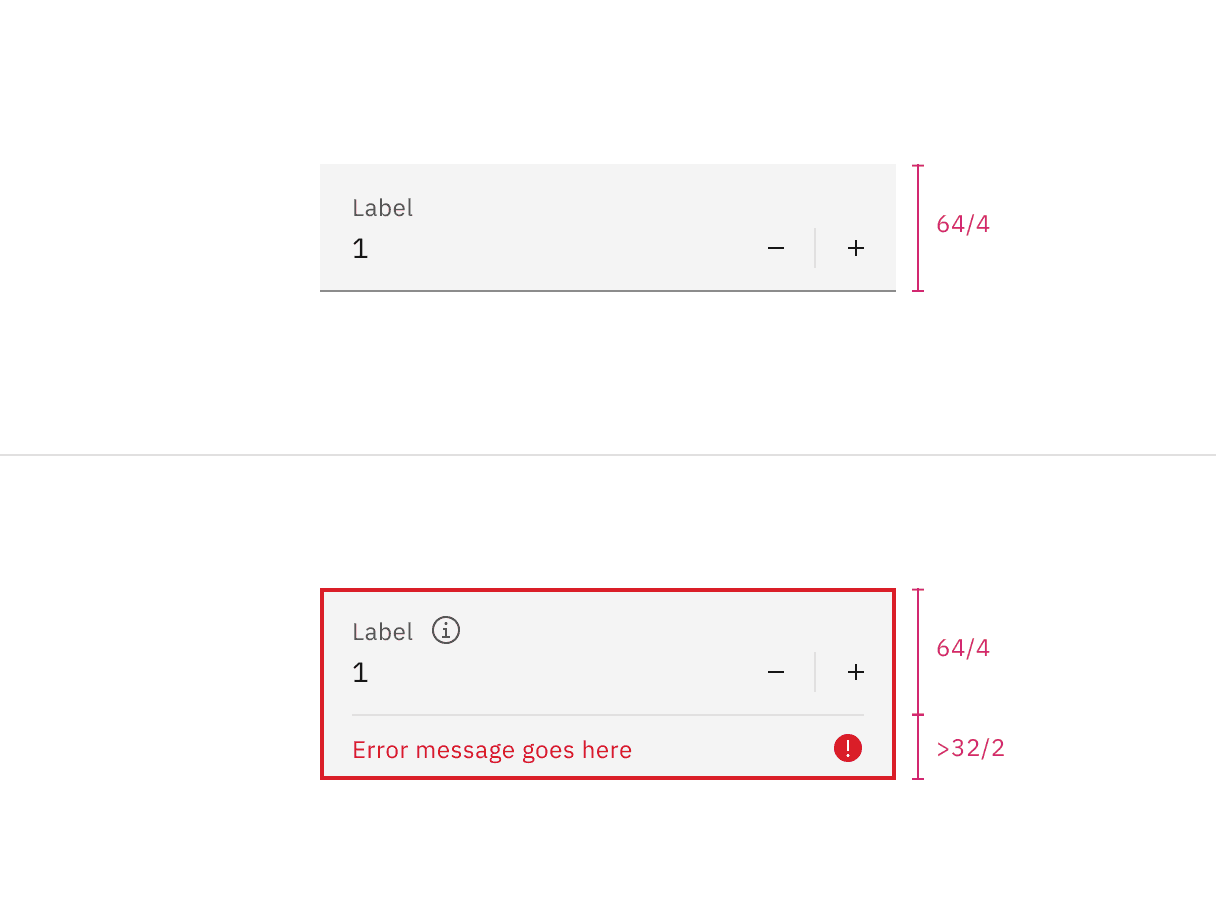
Fluid | An alternative style where the label is placed inside of the input field and is stacked inline with the user input text. | Use in expressive moments, fluid forms, contained spaces, or attached to complex components, like a toolbar. |
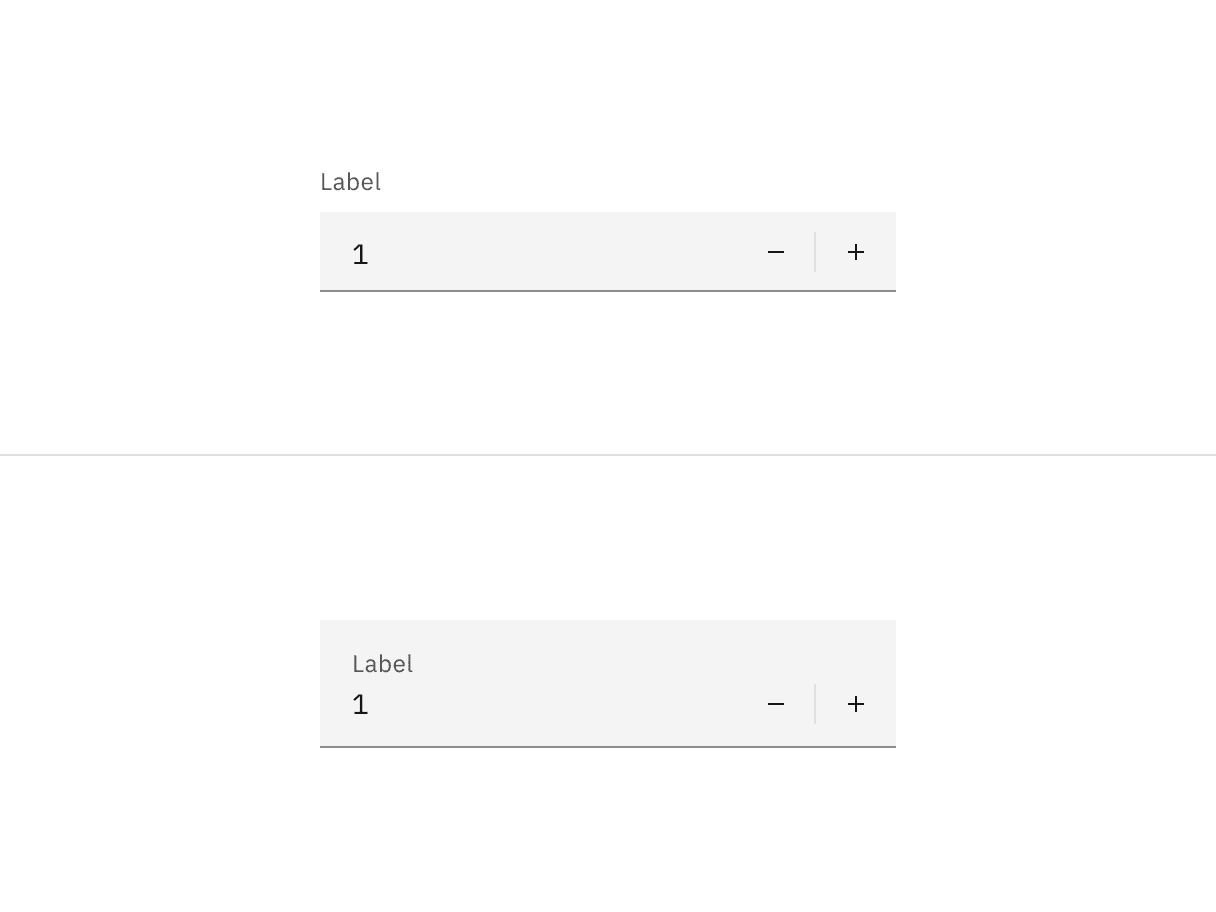
A default style input is shown on the left and fluid style is on the right.
Size | Height (px/rem) | Use case |
|---|---|---|
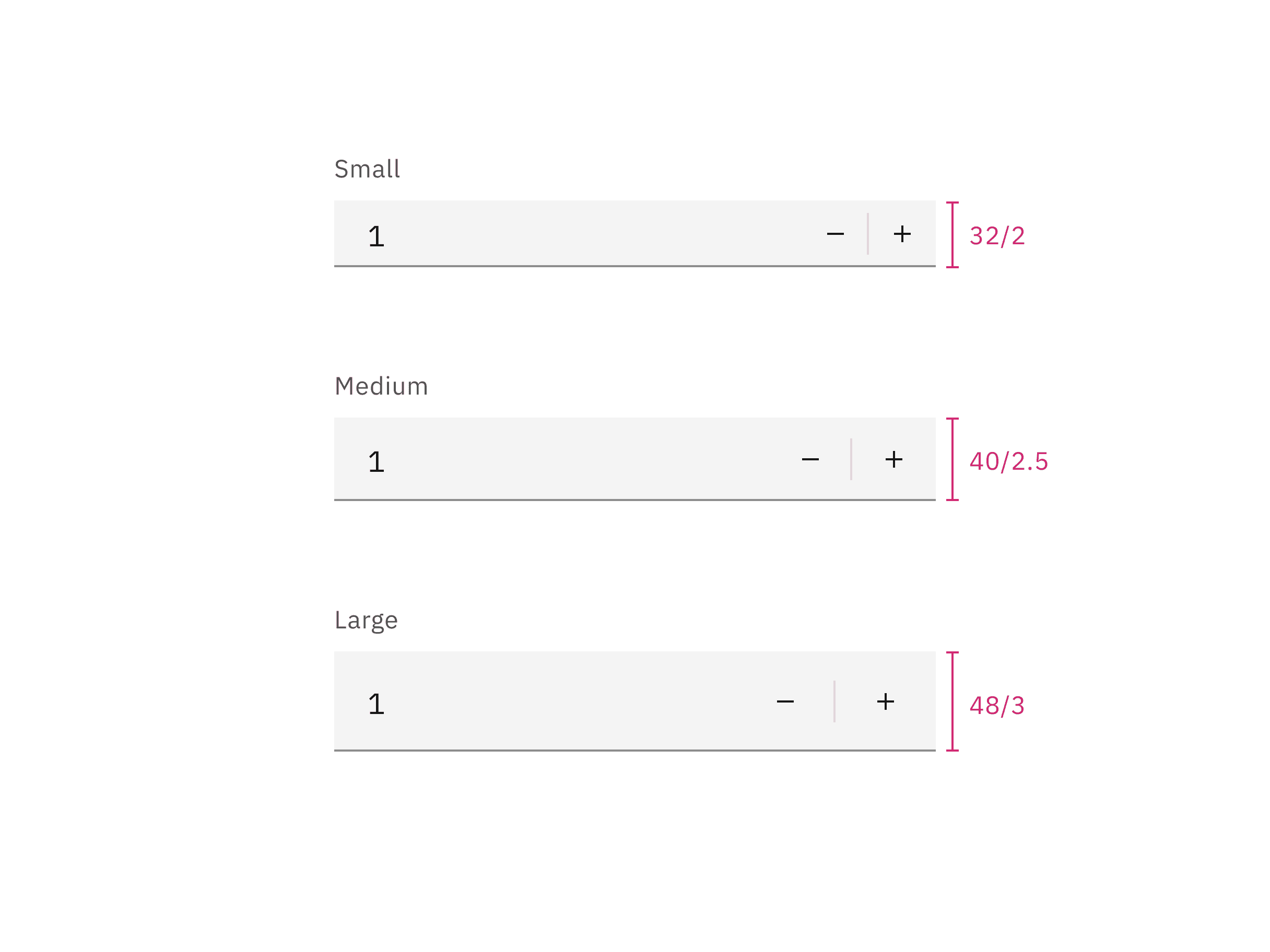
Small (sm) | 32 / 2 | Use when space is constricted or when placing a number input in a form that is long and complex. |
Medium (md) | 40 / 2.5 | This is the default size and the most commonly used size. When in doubt, use the medium size. |
Large (lg) | 48 / 3 | Use when there is a lot of space to work with. The large size is typically used in simple forms or when a number input is placed by itself on a page. |
Always include a label so that users know how to complete the field
Keep the label short and concise
Use sentence-style capitalization for the label
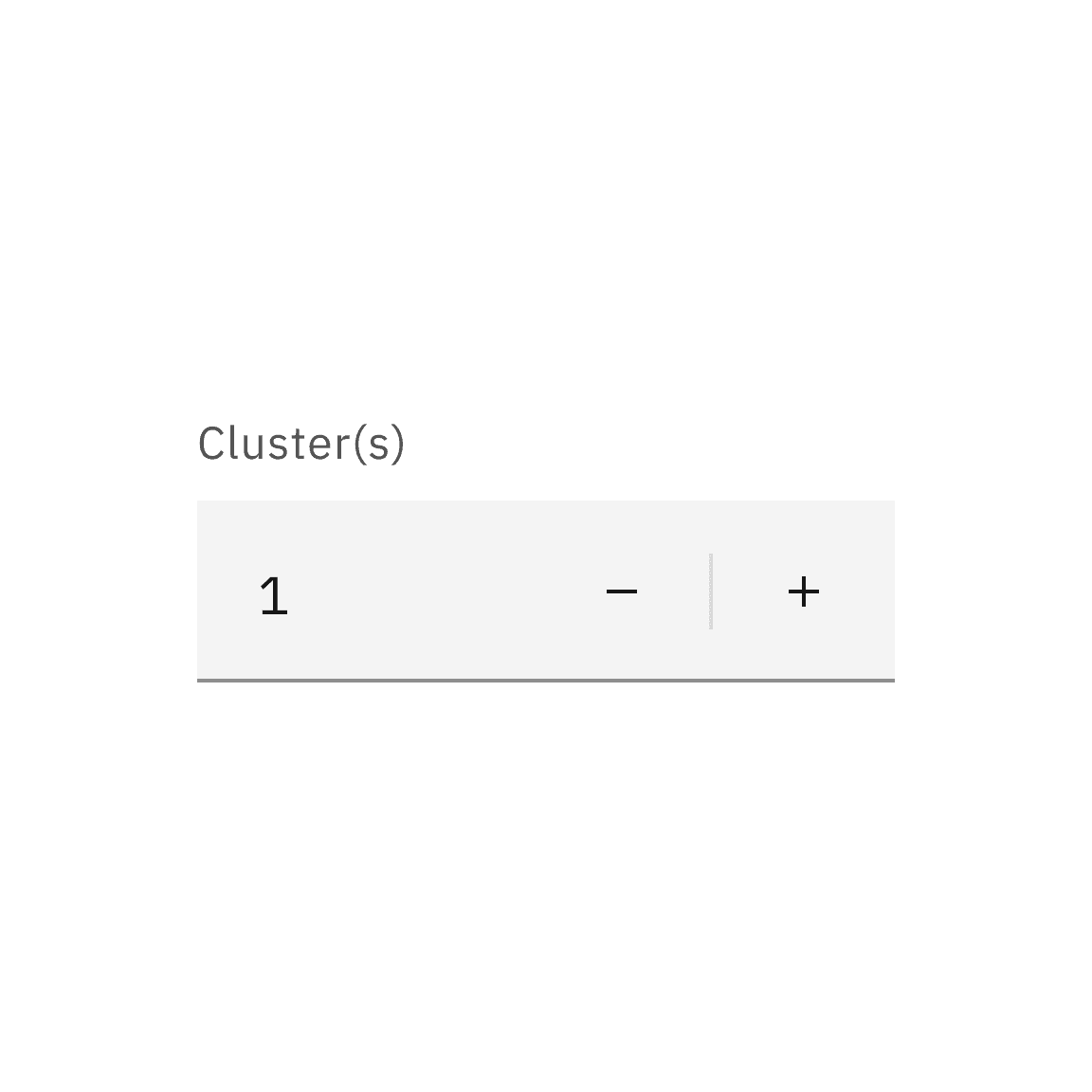
Do include a label
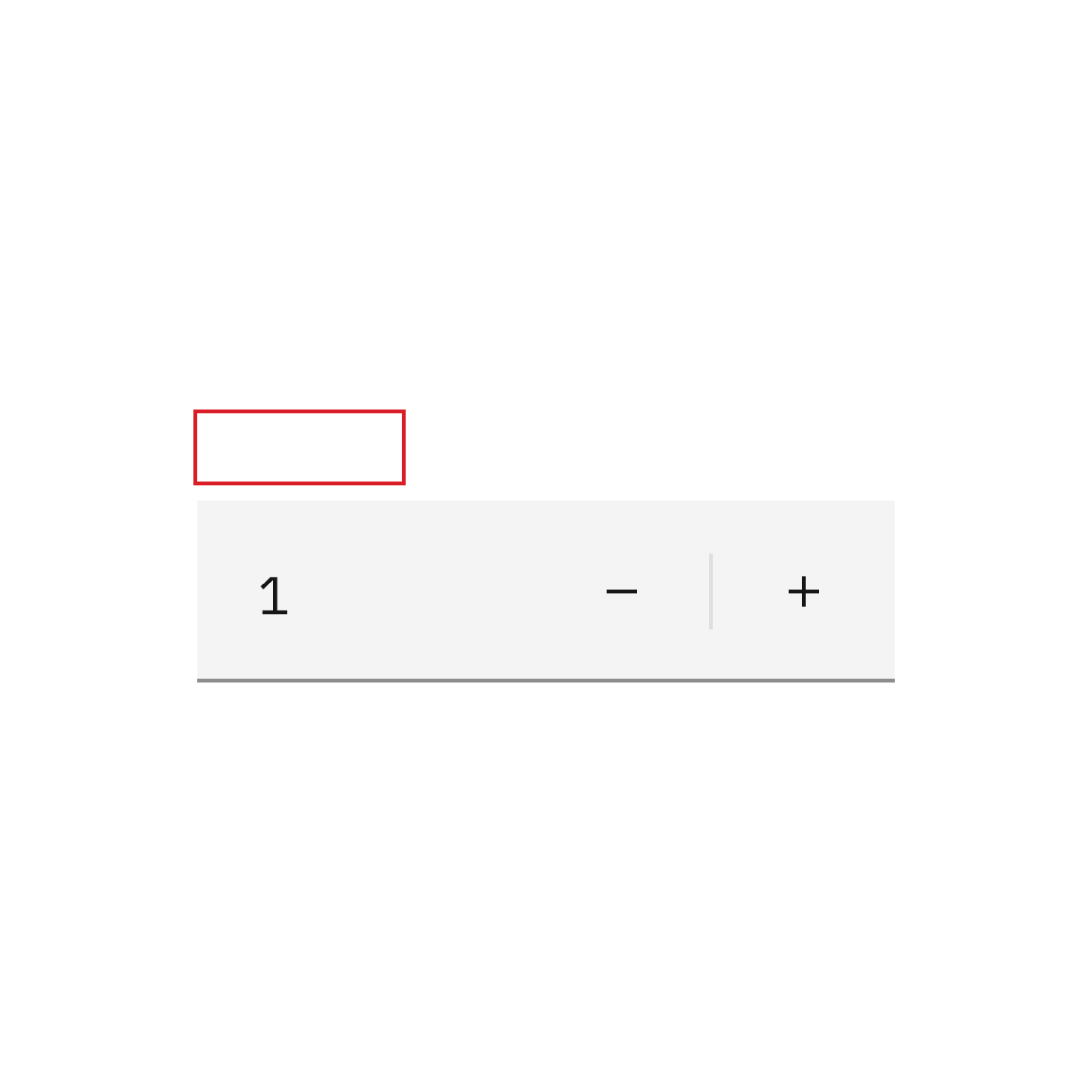
Do not hide a label that helps user understand the context of number input
Indicates the input value if it has a maximum or minimum
Helper text is optional but if present will be replaced by warning and error messages when needed
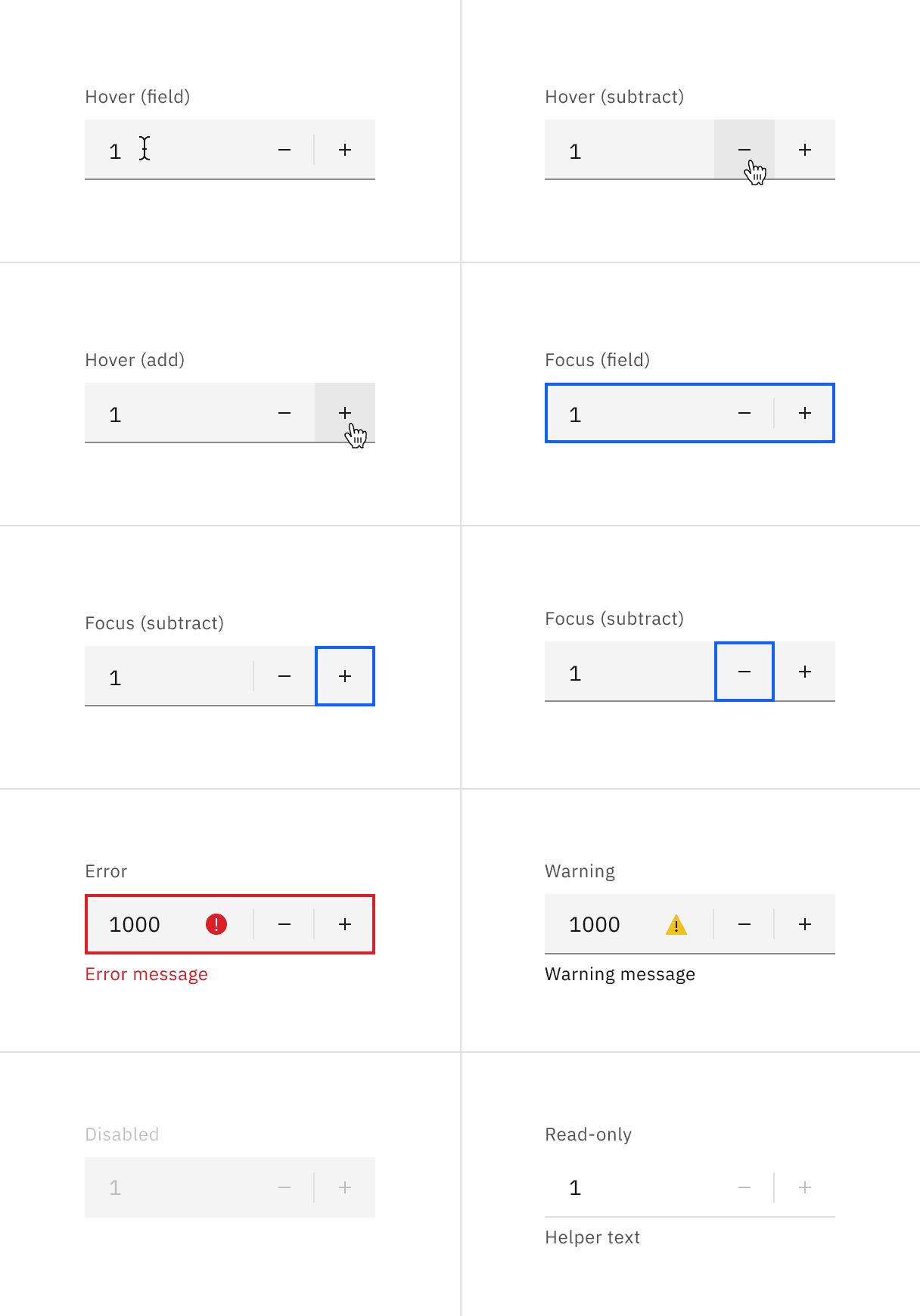
State | When to use |
|---|---|
Enabled | When the number input is live but a user is not directly interacting with it. This is commonly referred to as the default or normal state of the component. An enabled number input field should contain a default value. |
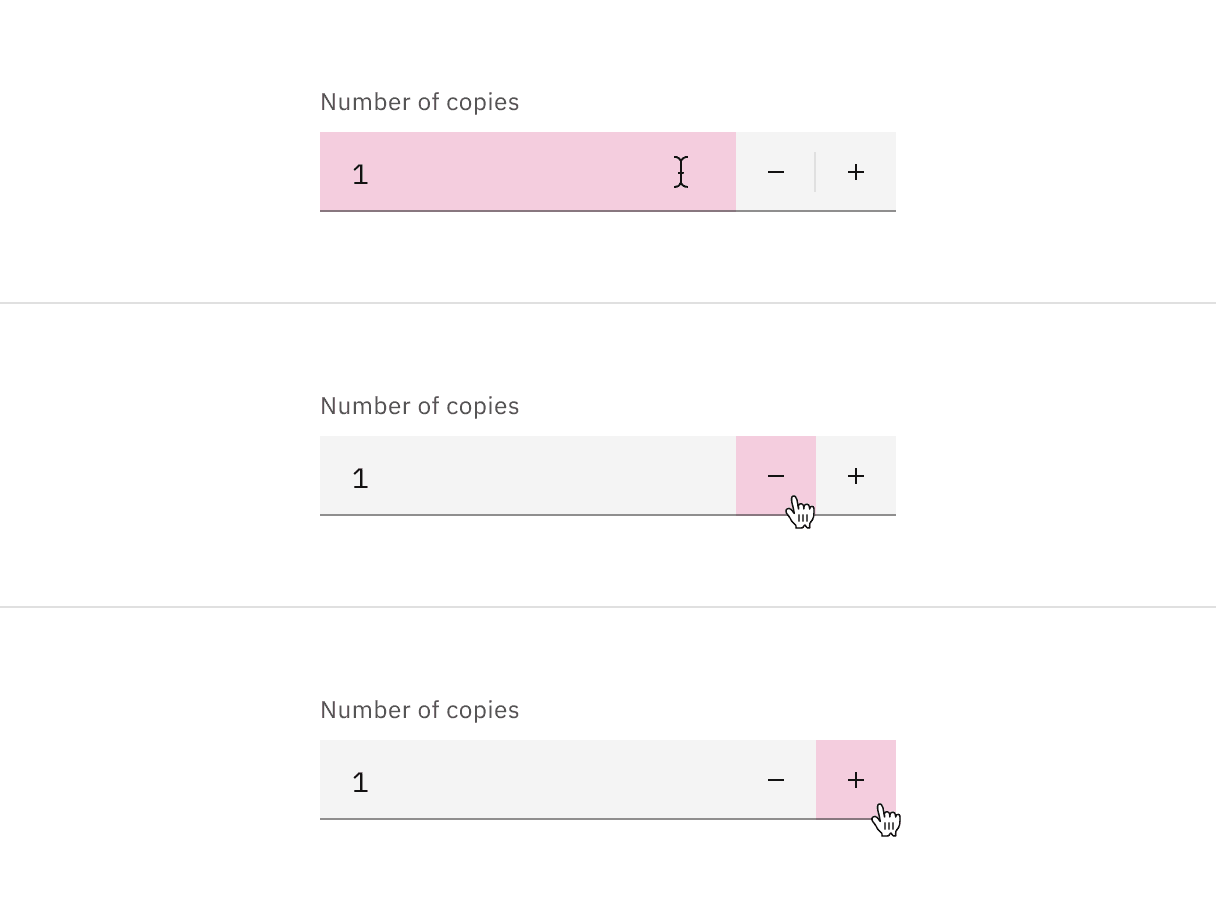
Hover | When a user’s mouse cursor is hovering over the field or the button controls. |
Focus | When a user tabs to or clicks on the number input, the field or controls become focused, indicating the user has successfully navigated to the component. |
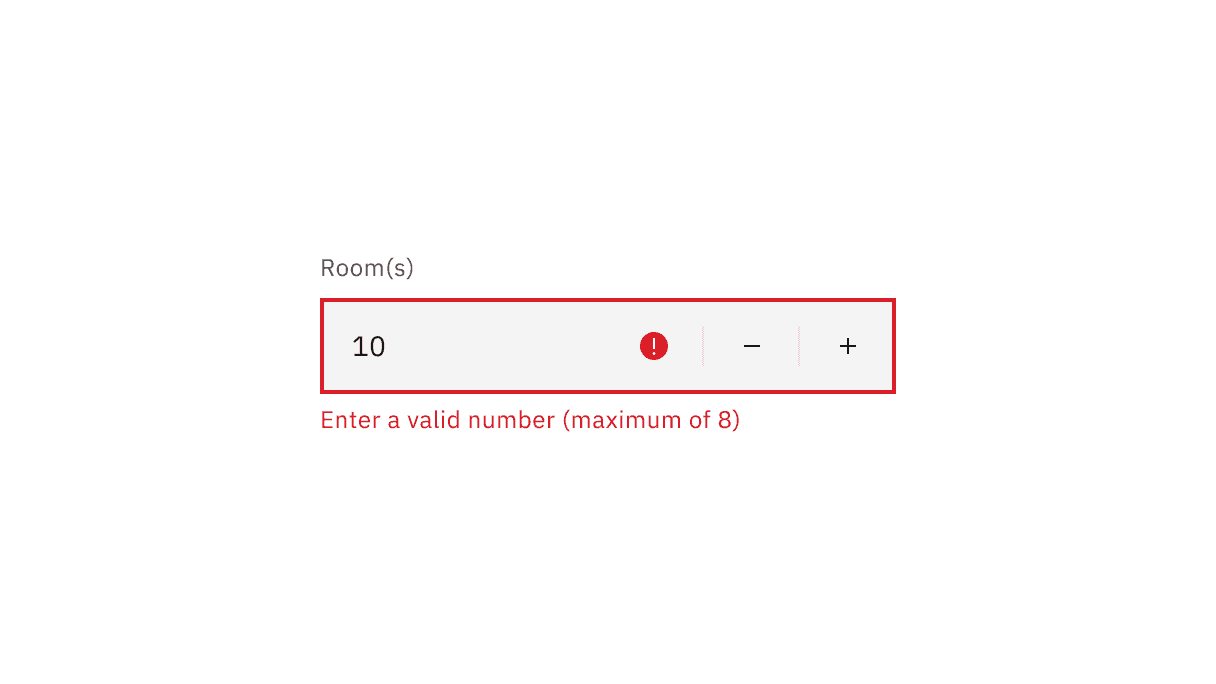
Error | When the required number input has not been filled in. It can also be triggered due to a system error. This state requires a user response before data can be submitted or saved. |
Warning | When you need to call the user’s attention to an exception condition. The condition might not be an error but can cause problems if not resolved. |
Disabled | When the user cannot interact with a component and all interactive functions have been removed. Unlike read-only states, disabled states are not focusable, are not read by screen readers, and do not need to pass visual contrast, making them inaccessible if they need to be interpreted. |
Skeleton | Use on an initial page load to indicate that the number input has not yet fully loaded. |
Read-only | When the user can review but not modify the component. This state removes all interactive functions like the disabled state but can still be focusable, accessible by screen readers, and passes visual contrast for readability. |
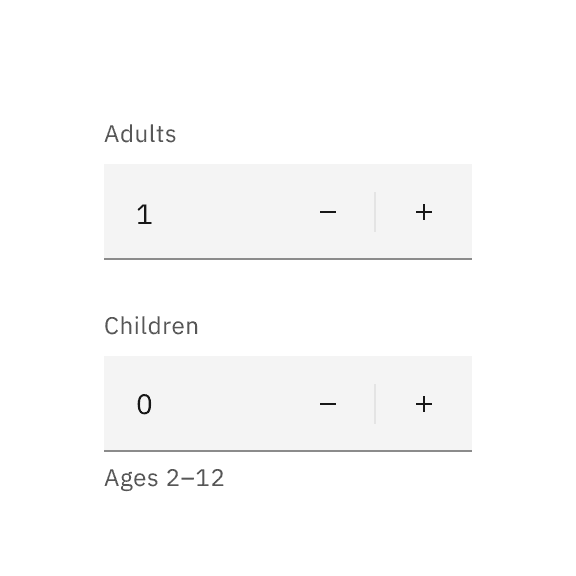
Do set a clear default that most users are likely to select
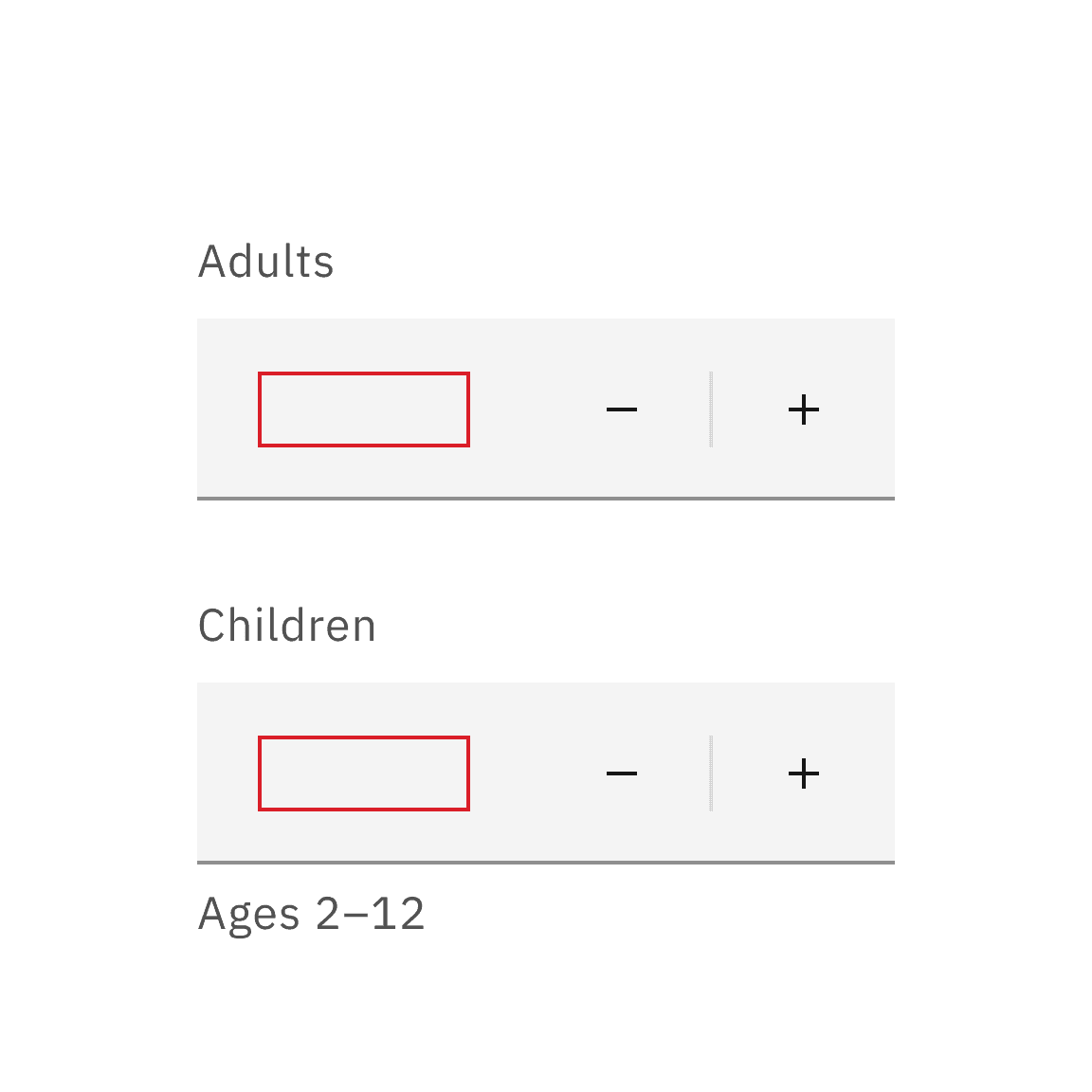
Do not leave value input blank
AI presence
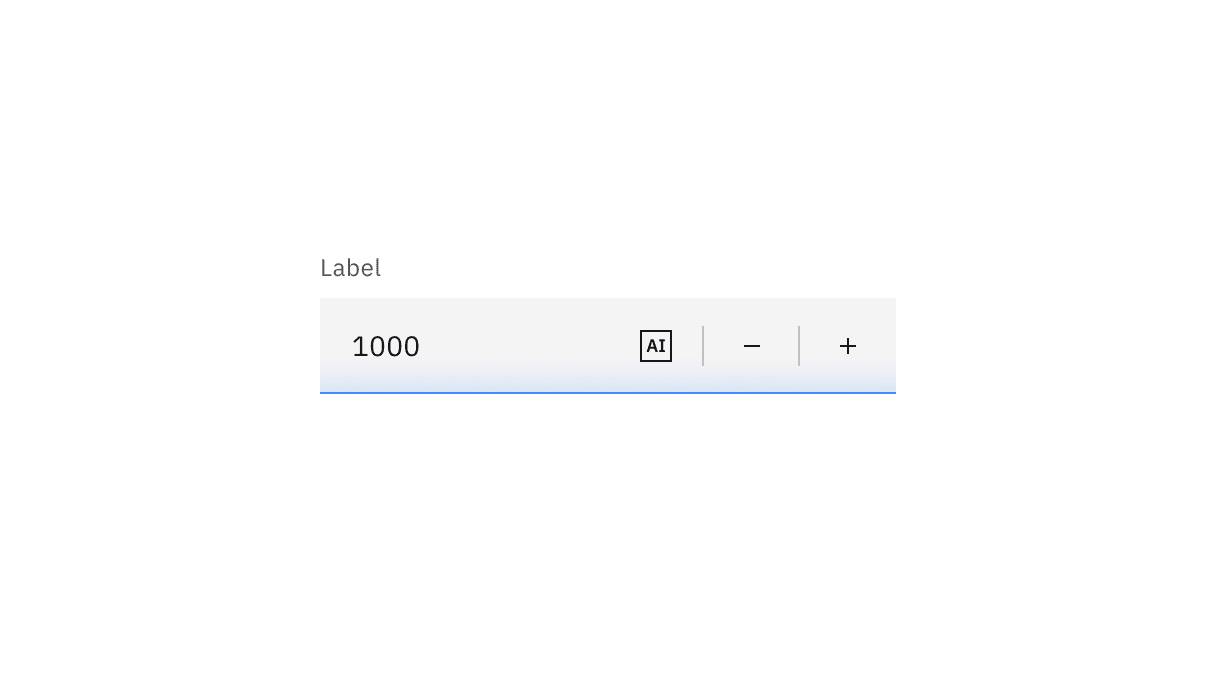
Number input has a modification that takes on the AI visual styling when the AI label is present in the input. The AI variant of number input functions the same as the normal version except with the addition of the AI label which is both a visual indicator and the trigger for the explainability popover.
For more information on designing for AI, see the Carbon for AI guidelines.
Revert to AI
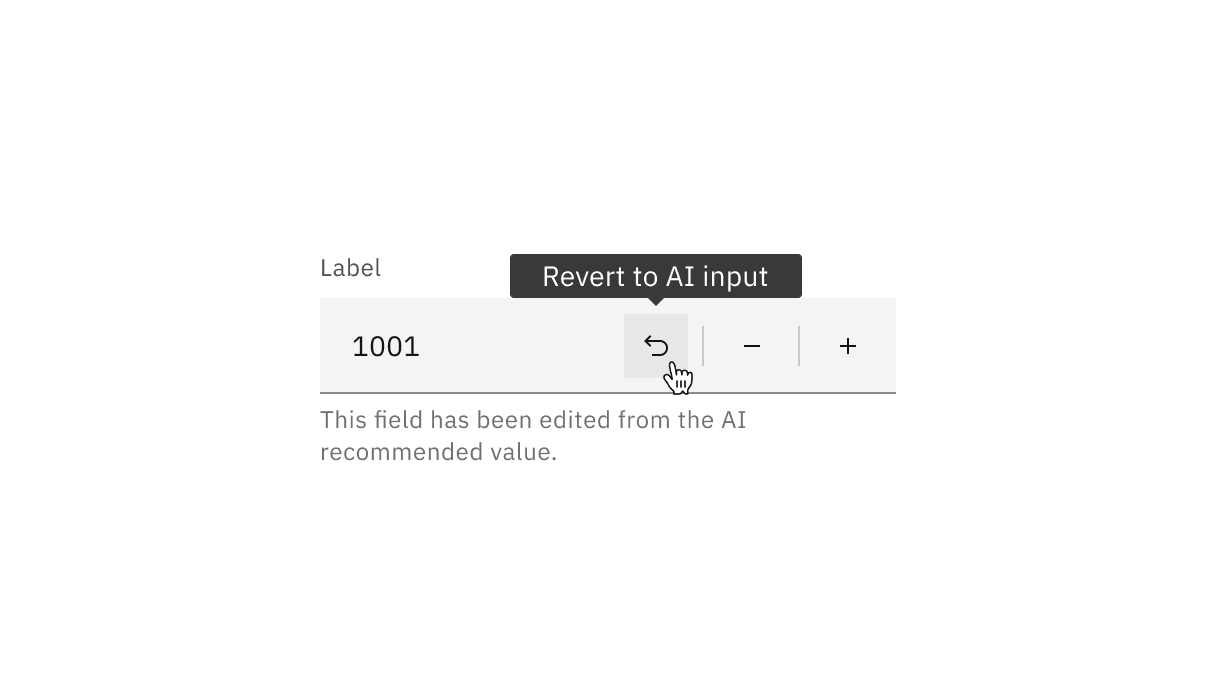
A number input can toggle between the AI variant and the non-AI variant depending on the user's interaction. If the user manually overrides the AI-suggested content then the input will change from the AI variant to the non-AI variant. Once edited, the user should still be able to switch back to the initially AI generated content via a revert to AI button.
- Use slider when numeric values are large or when there is a wide range of numeric options.
- When the exact value is important to specify within a wide range, use text input instead.
Yuxuan (Tammy) Zhou, Design Guidelines for Input Steppers (Nielsen Norman Group, 2018)
Feedback
Help us improve by providing feedback, asking questions, requesting features, or leaving any other comments on GitHub.