This live demo contains only a preview of functionality and styles available for this component. View the full demo on Storybook for additional information such as its version, controls, and API documentation.
Use a code snippet to help the user copy strings of text easily, or if you want to call out key words for the user.
Code snippets are typically used in code documentation to help the user get started quickly.
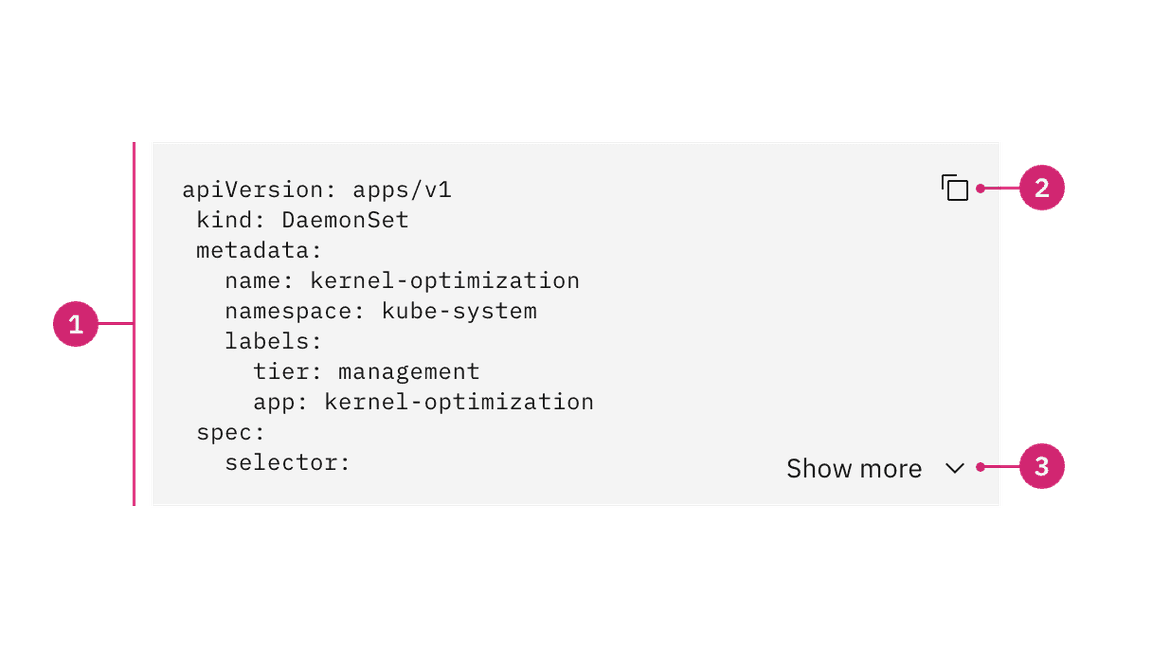
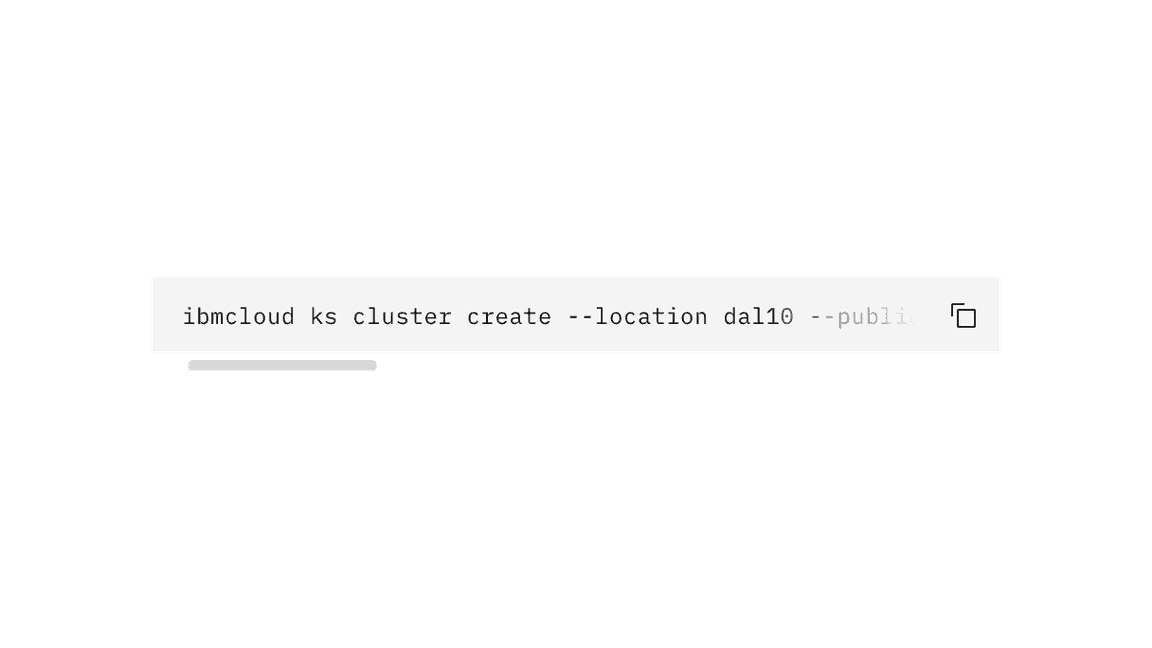
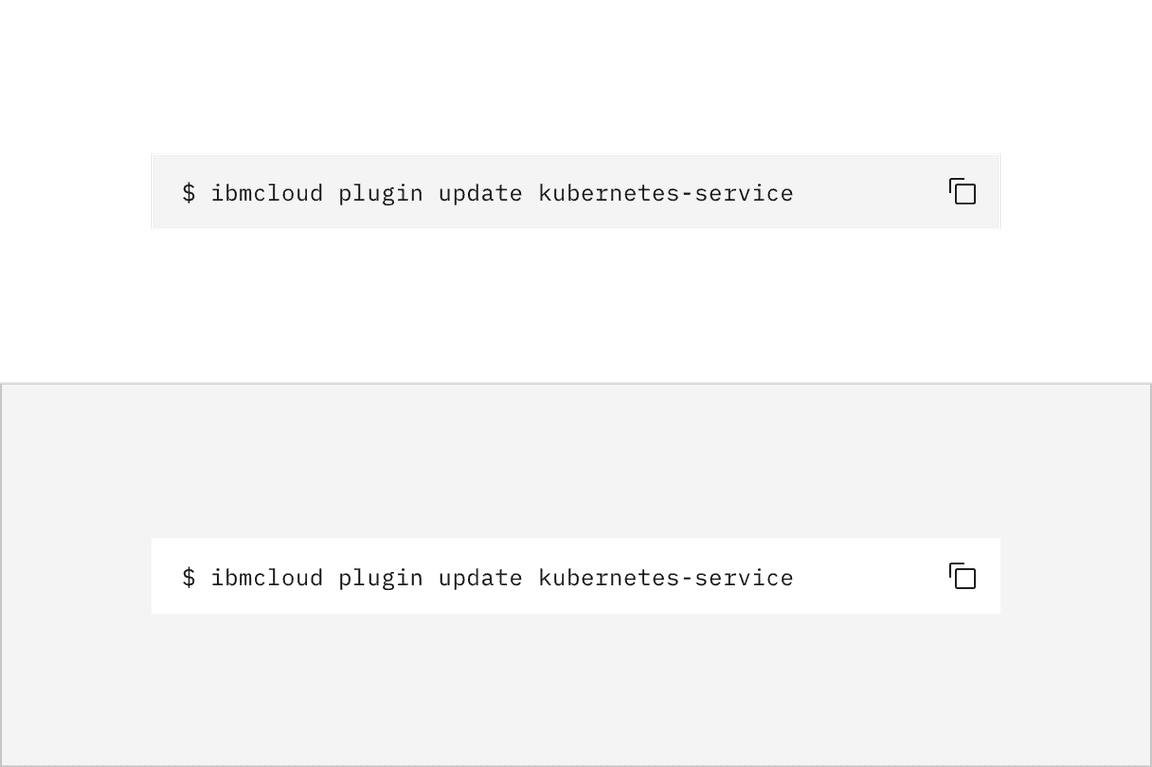
Snippet text: Lines or a block of code.
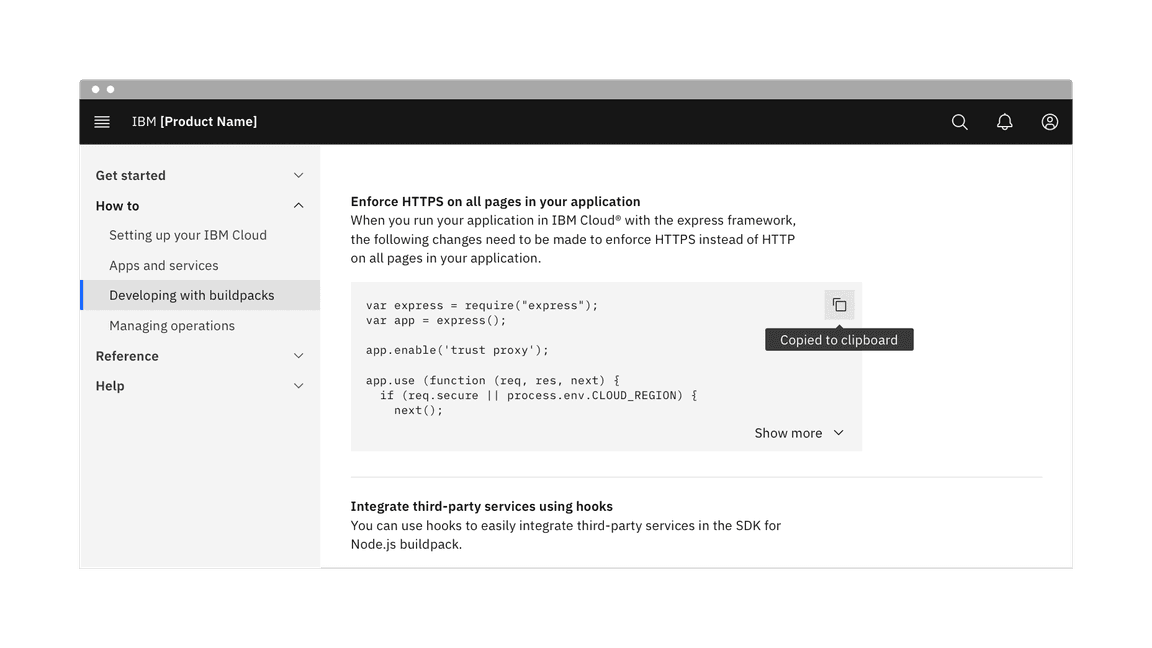
Copy button (optional): An icon button to copy the code to the clipboard.
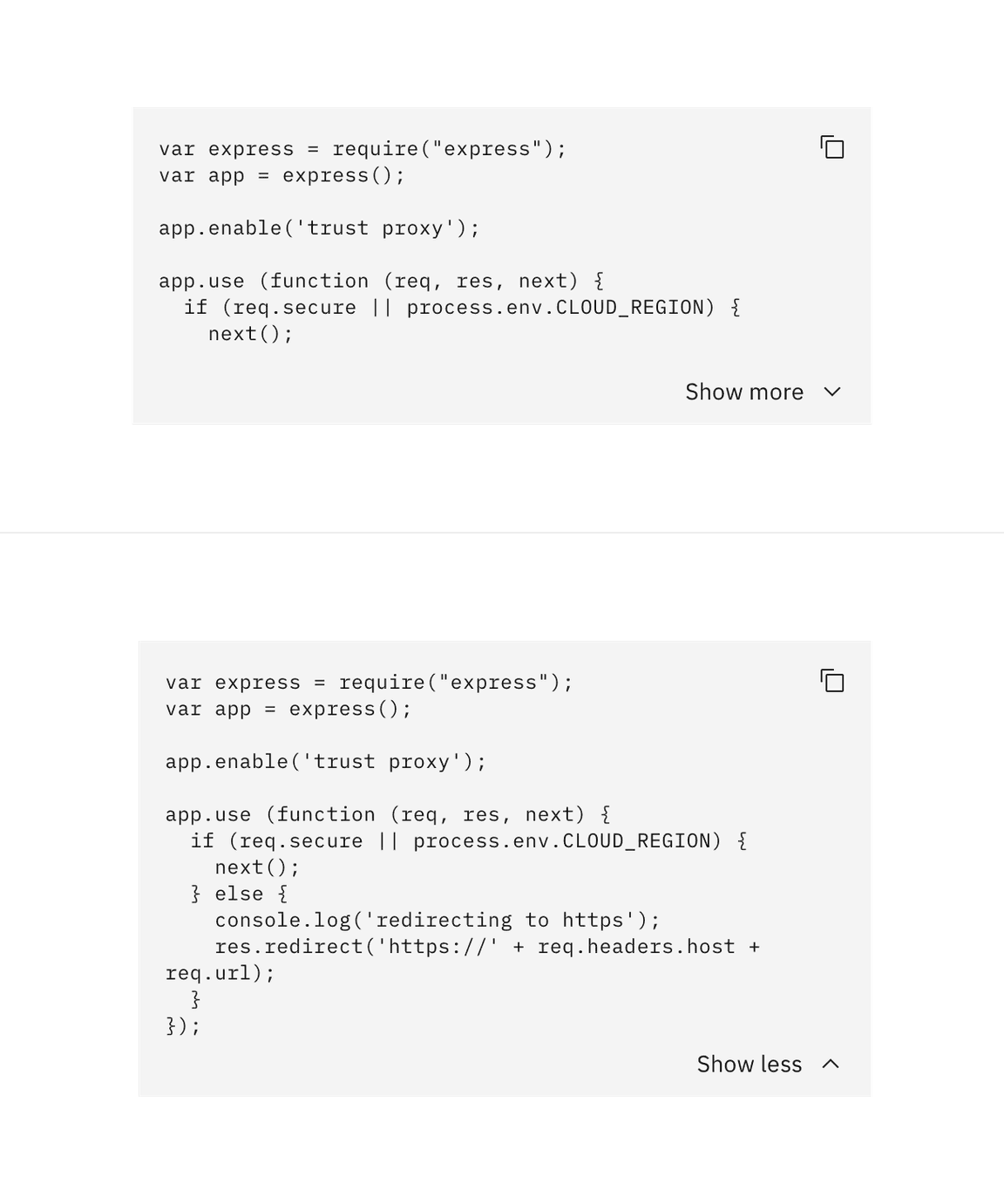
Show more button (optional): A ghost button to expand or collapse the code snippet to show more or fewer lines of code.
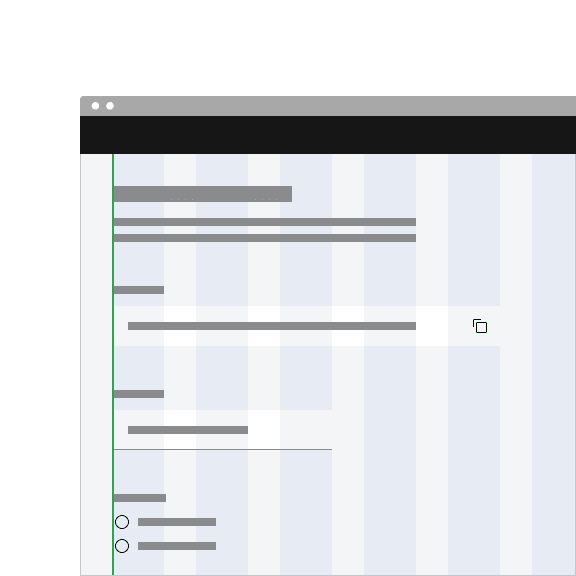
Do align code snippet containers to the grid.
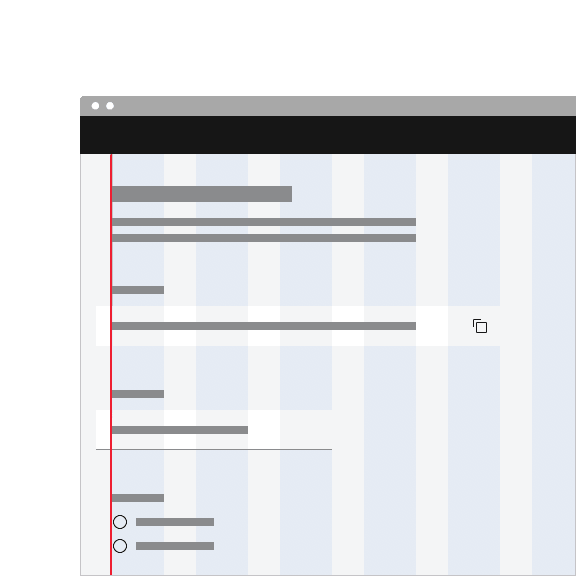
Do not align code snippet text to the grid and hang the container.
Make sure the code is using the correct syntax so that the code will not break if the user copies it to their clipboard.
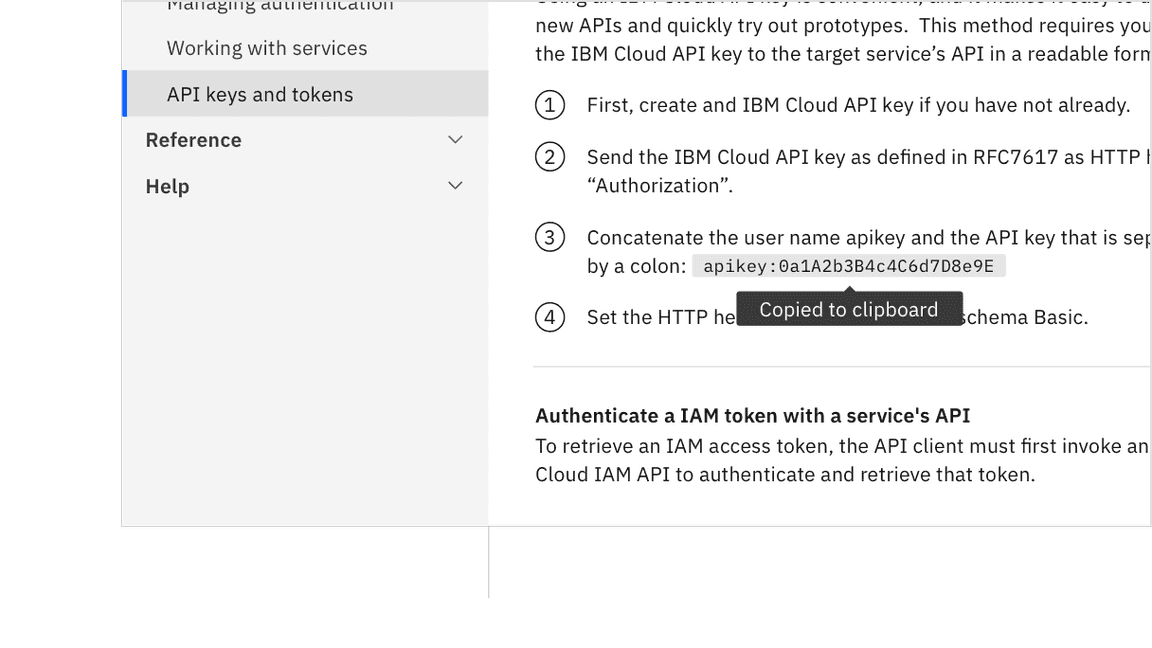
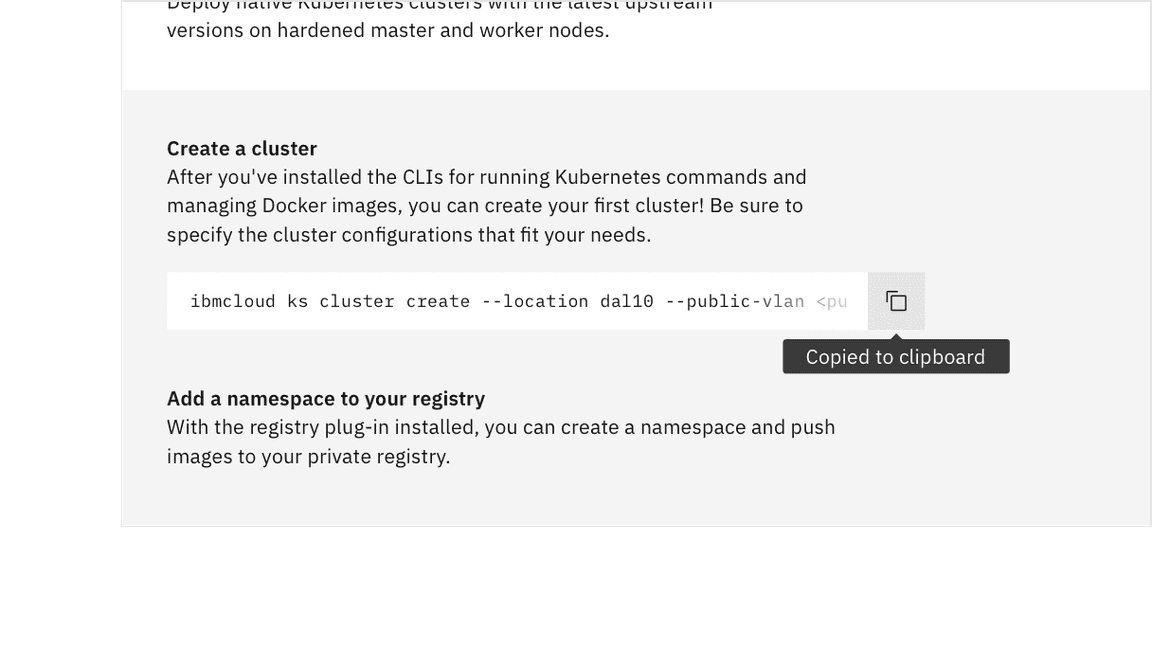
The copy button should be accompanied by a tooltip. Tooltip feedback text should be concise and describe the action taken when the user clicks the copy button. By default we display the text "Copied to clipboard".
The ghost button text should describe what the button will reveal or hide when the user clicks it. By default we display the text "Show more" or "Show less".
Further guidance
For further content guidance, see Carbon's content guidelines.
Copy to clipboard
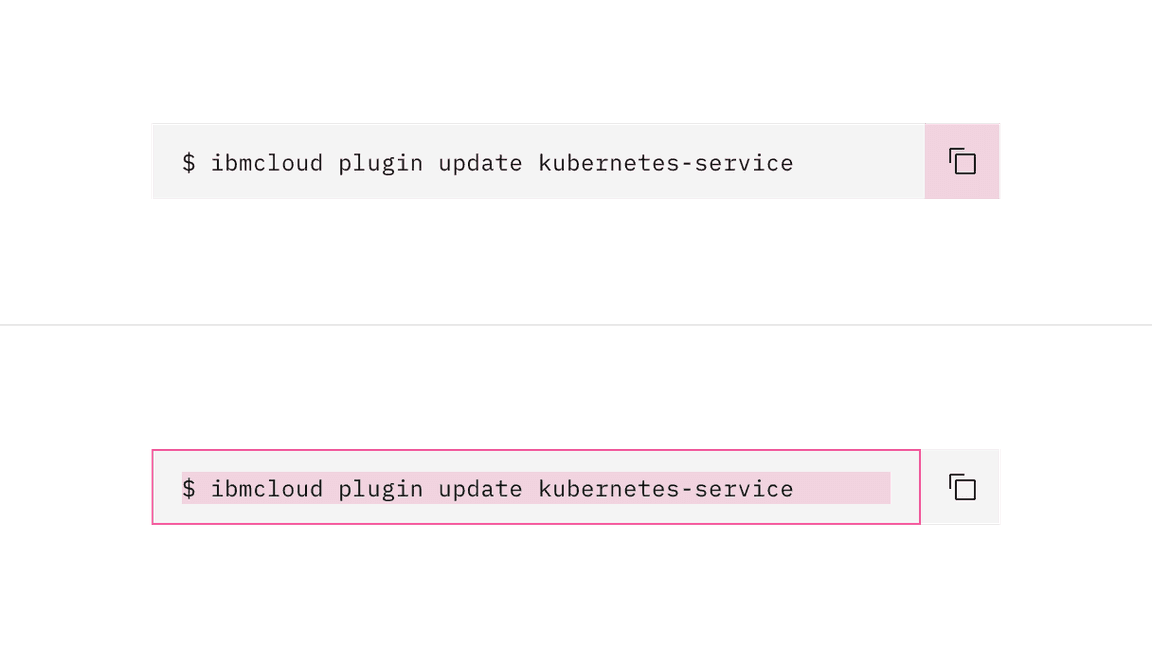
Code snippets by default have a copy functionality that allows users to copy the provided code to their clipboard. The copy icon must be accompanied by a confirmation tooltip that states the successful action of copying an item to the clipboard. Having copy functionality is optional and can be removed if it's not necessary for your use case.
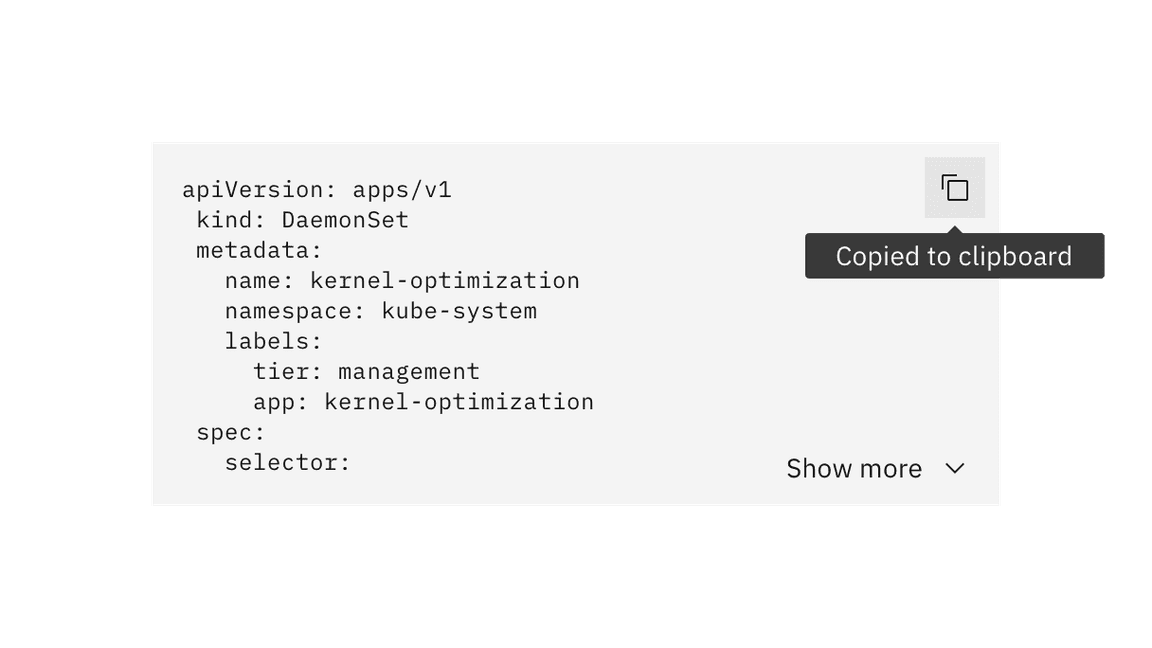

A single line code snippet can be copied by clicking on the "copy" icon. The browser also provides an ability to manually highlight the text and choose "copy" from the context menu (right click).
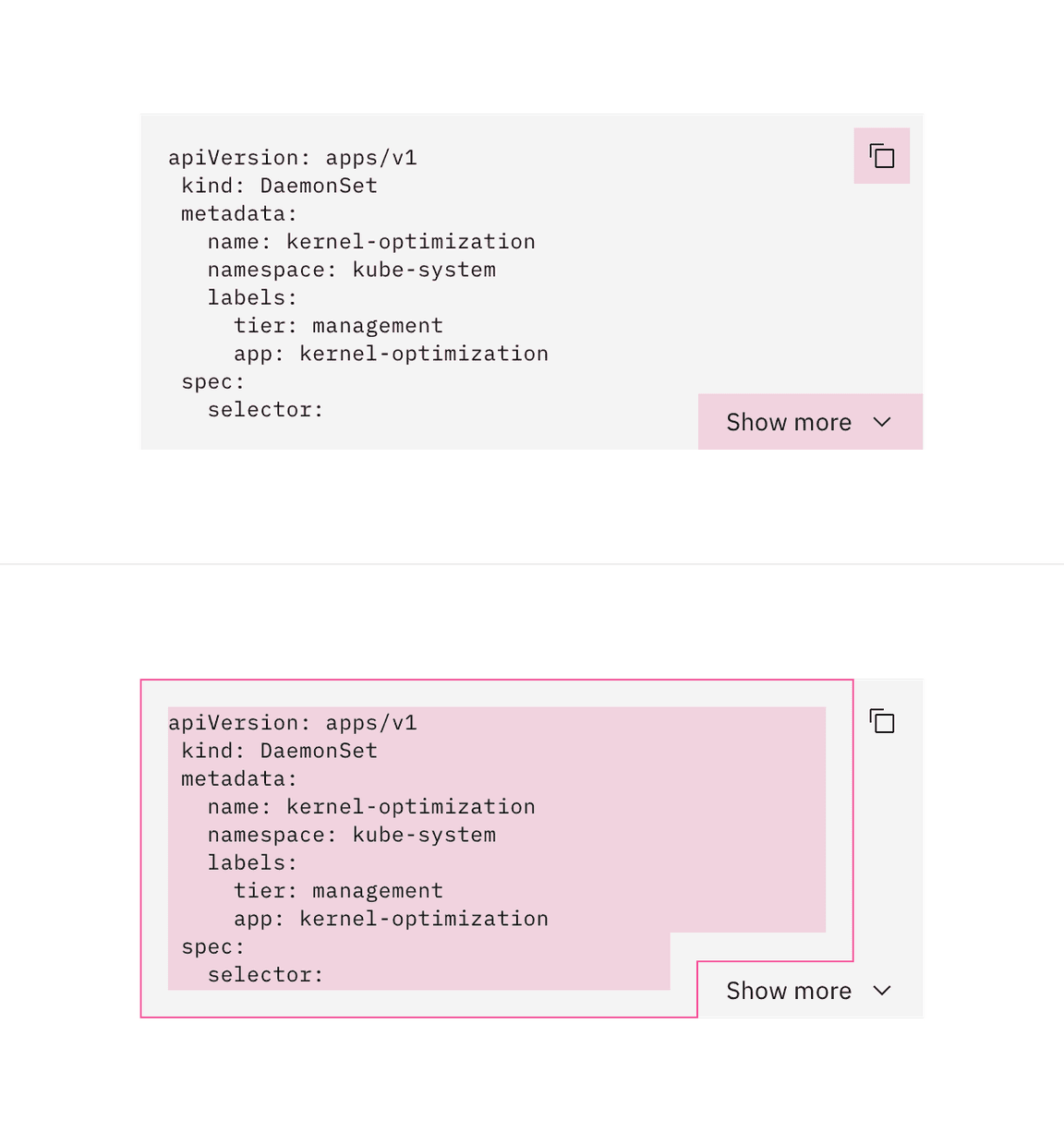
A multi-line code snippet can be copied by clicking on the copy icon or by manually highlighting the text and right clicking "copy".
Copy button:
- An inline code snippet, and the copy button of the single line and multiline snippets can be focused by pressing
Tab. - The copy functionality can be activated by pressing either
SpaceorEnter. - After the copy is activated, the focus remains on the button since there is no change in context.
Show more button:
- The "Show more" ghost button in the multi-line code snippet can be focused by pressing
Tab. - Show more or less code by pressing
SpaceorEnterwhile the ghost button is in focus.
For additional keyboard interactions, see the accessibility tab.
Feedback
Help us improve by providing feedback, asking questions, requesting features, or leaving any other comments on GitHub.