Element | Property | Color token |
|---|---|---|
Label | text-color |
|
Field text | text-color |
|
Field text: prompt | text-color |
|
Helper text | text-color |
|
Field | background-color |
|
border-bottom |
| |
Chevron icon | svg |
|
Vertical divider | border |
|
Menu option | text-color |
|
background-color |
| |
border-top |
| |
Menu | box-shadow |
|
Checkbox icon | background-color |
|
check |
| |
border |
|
* Denotes a contextual color token that will change values based on the layer it is placed on.
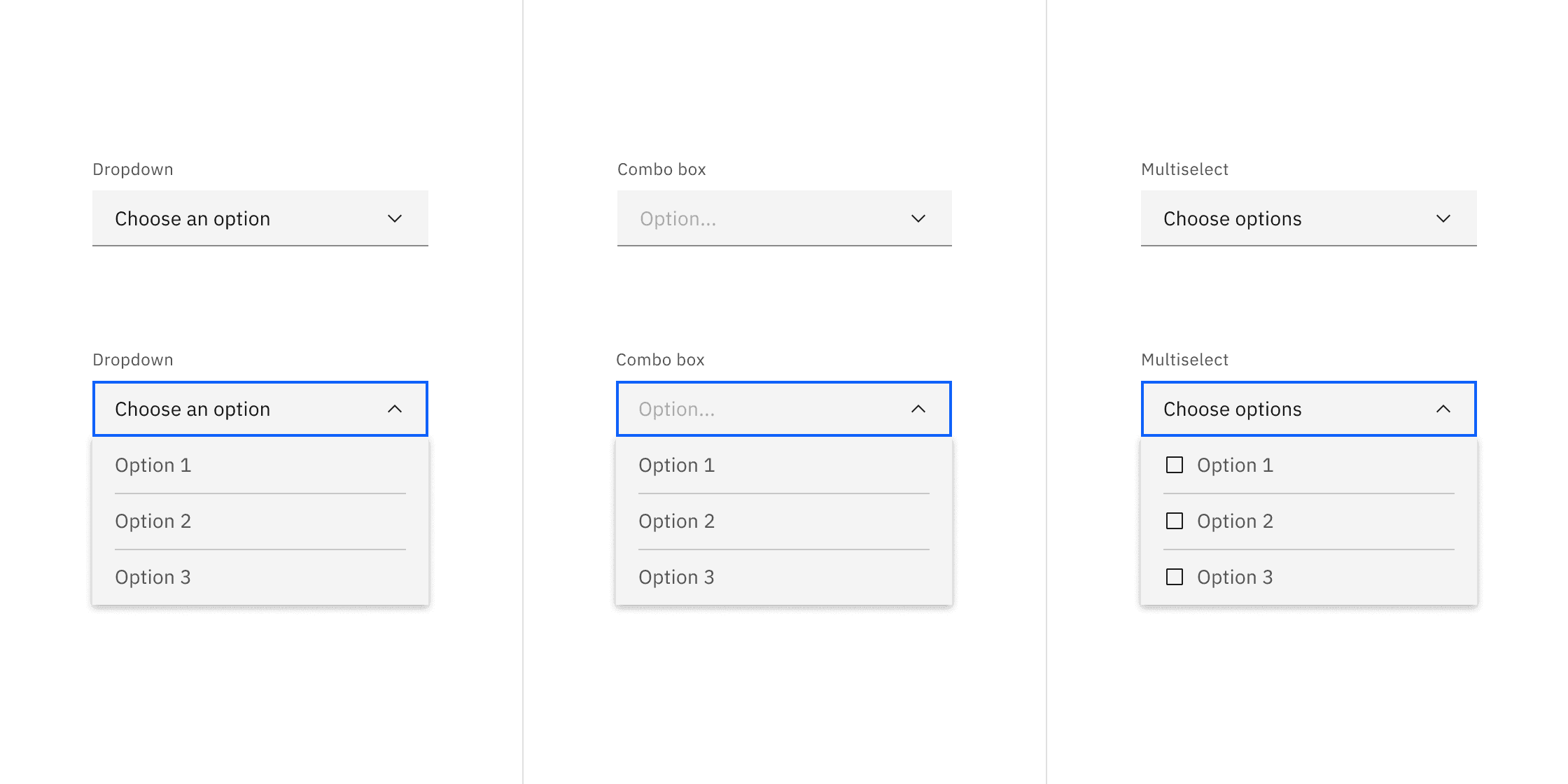
Color states of dropdown, combo box, and multiselect.
State | Element | Property | Color token |
|---|---|---|---|
Focus | Field | border |
|
Hover | Field | background-color |
|
Menu option | background-color |
| |
Menu option | text-color |
| |
Invalid | Error icon | svg |
|
Field | border |
| |
Error message | text-color |
| |
Warning | Warning message | text-color |
|
Warning icon | svg |
| |
Active | Menu option | background-color |
|
Selected | Chevron icon | svg |
|
Vertical divider | border |
| |
Close icon | svg |
| |
Menu option | background-color |
| |
Menu option | checkmark |
| |
Multiselected | Tag | background-color |
|
Tag | text-color |
| |
Disabled | Field | background-color |
|
Field (default) | border-bottom | transparent | |
Field (fluid) | border-bottom |
| |
Field | text-color |
| |
Label | text-color |
| |
Chevron icon | svg |
| |
Read-only | Field | border-bottom |
|
Field (default) | background-color | transparent | |
Field (fluid) | background-color |
| |
Label | text-color |
| |
Field text (default) | text-color |
| |
Field text (fluid) | text-color |
| |
Tag | background-color | transparent | |
Tag | border |
| |
Tag (default) | text-color |
| |
Tag (fluid) | text-color |
| |
Tag | svg |
|
* Denotes a contextual color token that will change values based on the layer it is placed on.
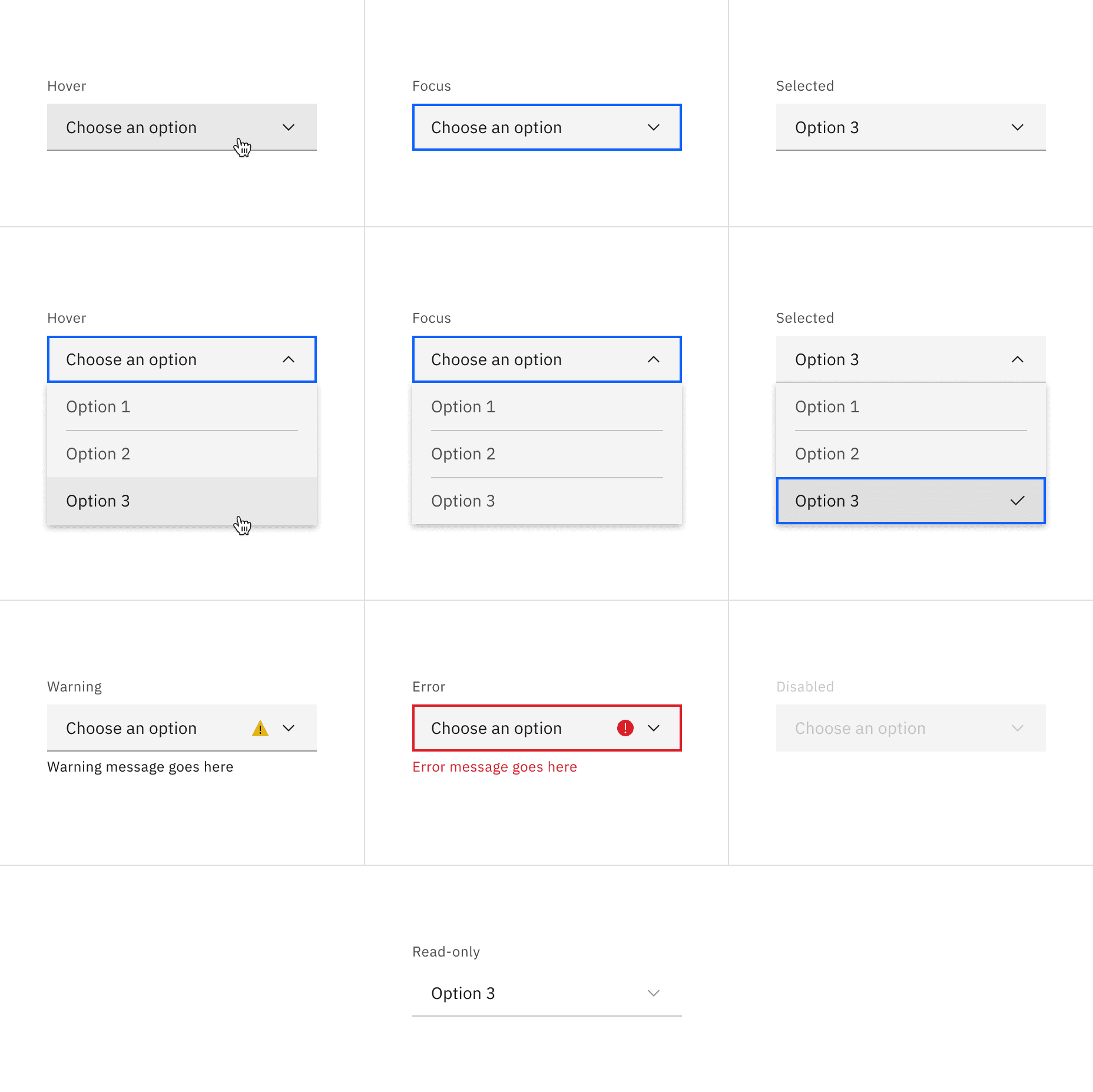
Dropdown interactive states
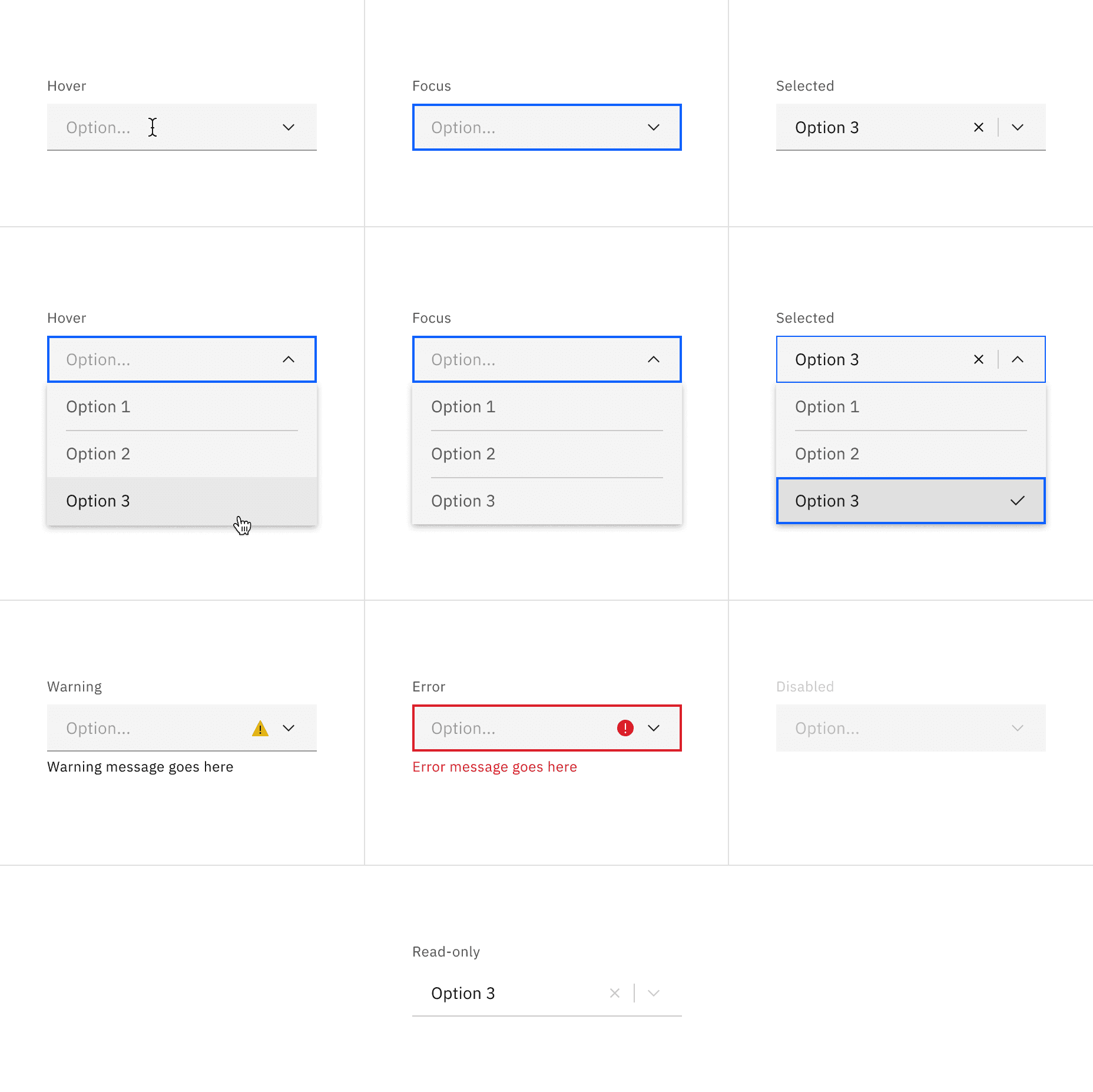
Combo box interactive states
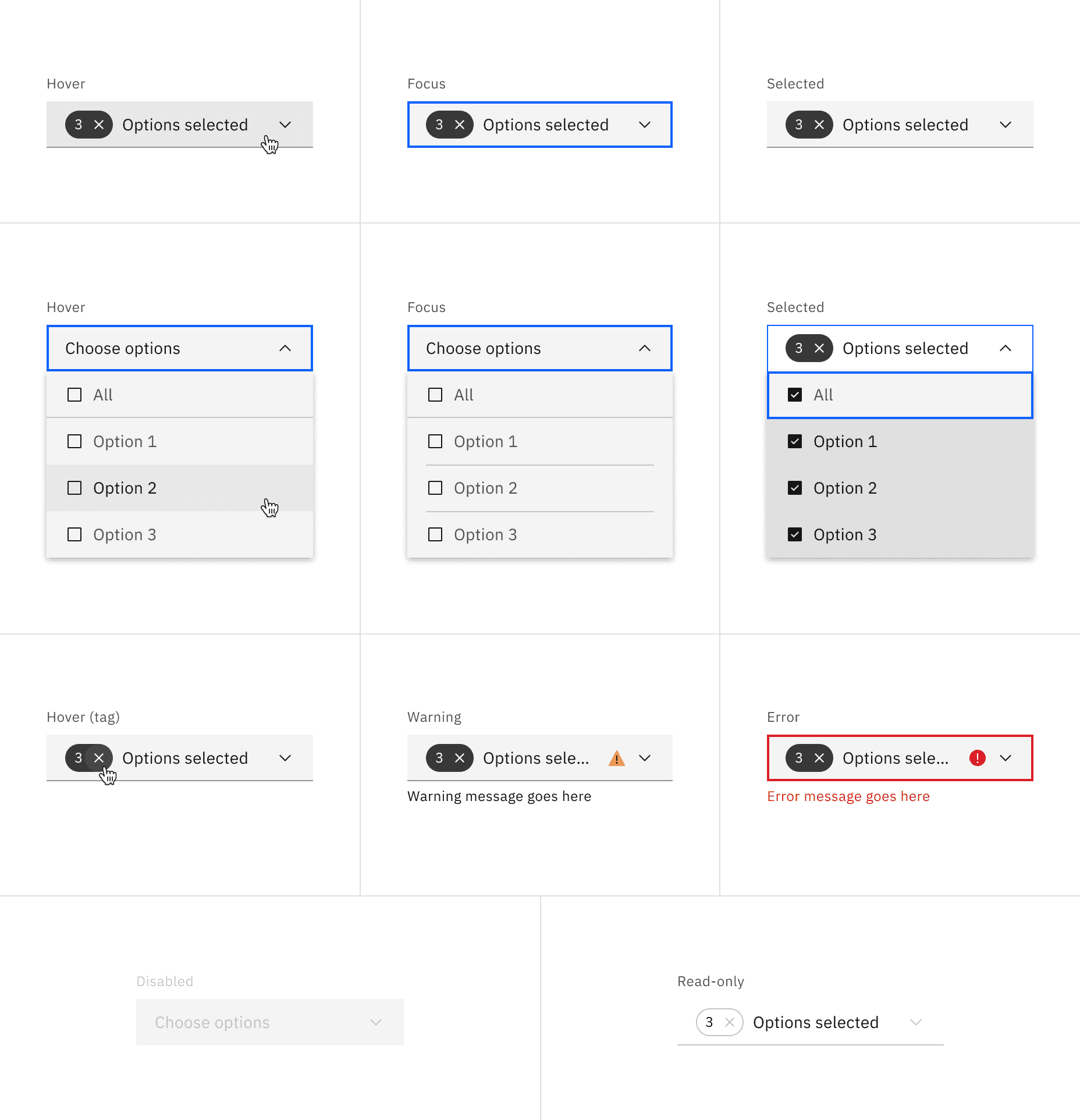
Multiselect interactive states
State | Element | Property | Color token |
|---|---|---|---|
Enabled | Field | background-color | transparent |
Field text | text-color |
| |
Chevron icon | svg |
| |
Menu option | text-color |
| |
Menu option | background-color |
| |
Hover | Field | background-color |
|
Menu option | background-color |
| |
Menu option | text-color |
| |
Active | Menu option | background-color |
|
Selected | Menu option | background-color |
|
Menu option | checkmark |
| |
Invalid | Field | border |
|
Error message | text-color |
| |
Error icon | svg |
|
* Denotes a contextual color token that will change values based on the layer it is placed on.
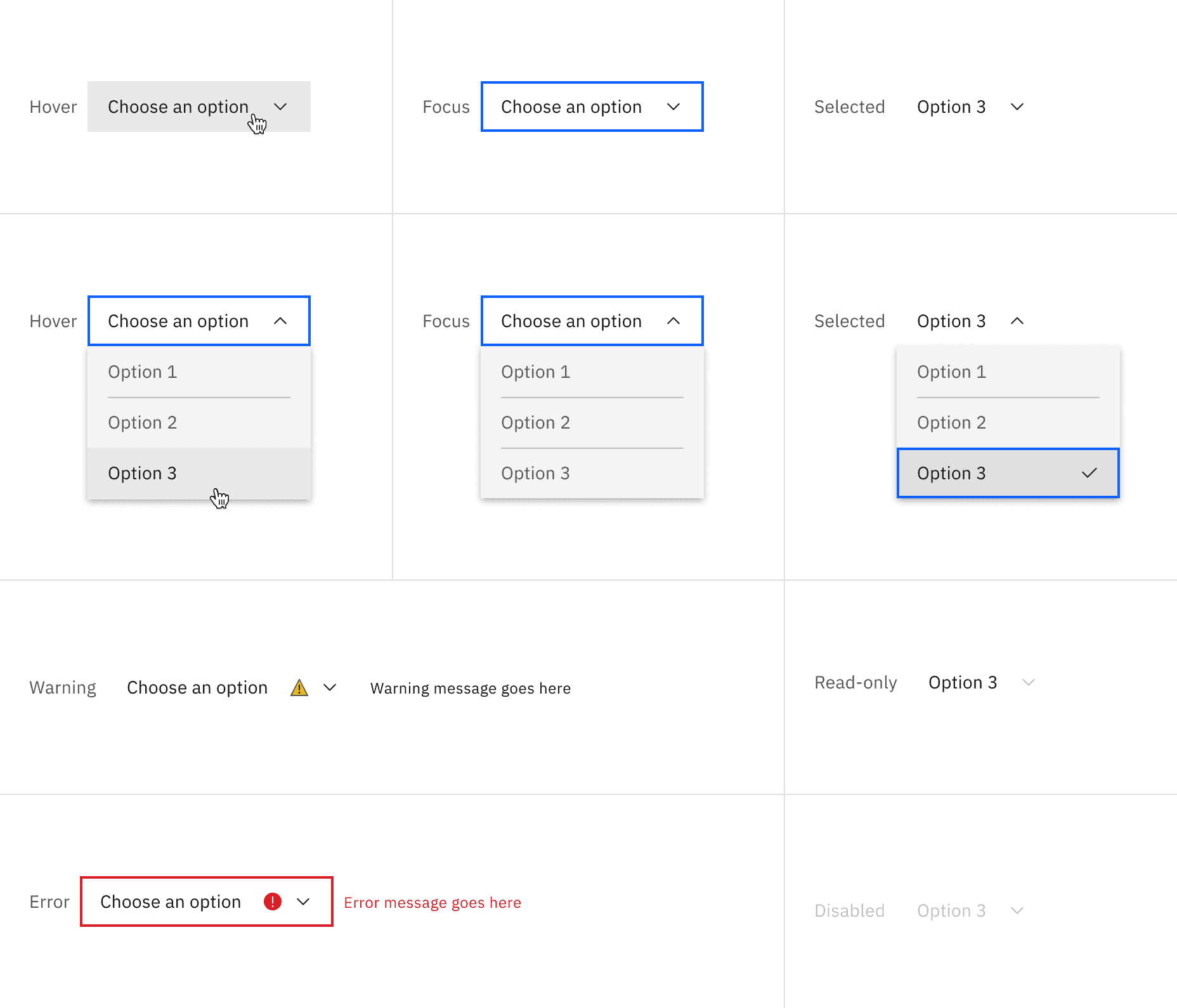
Inline dropdown states
Element | Font-size (px/rem) | Font-weight | Type token |
|---|---|---|---|
Label | 12 / 0.75 | Regular / 400 | $label-01 |
Field text | 14 / 0.875 | Regular / 400 | $body-compact-01 |
Menu option text | 14 / 0.875 | Regular / 400 | $body-compact-01 |
Helper text | 12 / 0.75 | Regular / 400 | $helper-text-01 |
Error message | 12 / 0.75 | Regular / 400 | $label-01 |
Element | Property | px / rem | Spacing token |
|---|---|---|---|
Label | margin-bottom | 8 / 0.5 |
|
Field | padding-left | 16 / 1 |
|
padding-right | 48 / 3 |
| |
border-bottom | 1px | – | |
Chevron icon | padding-right, padding-left | 16 / 1 |
|
Helper text | margin-top | 4 / 0.25 |
|
State icon | padding-right, padding-left | 16 / 1 |
|
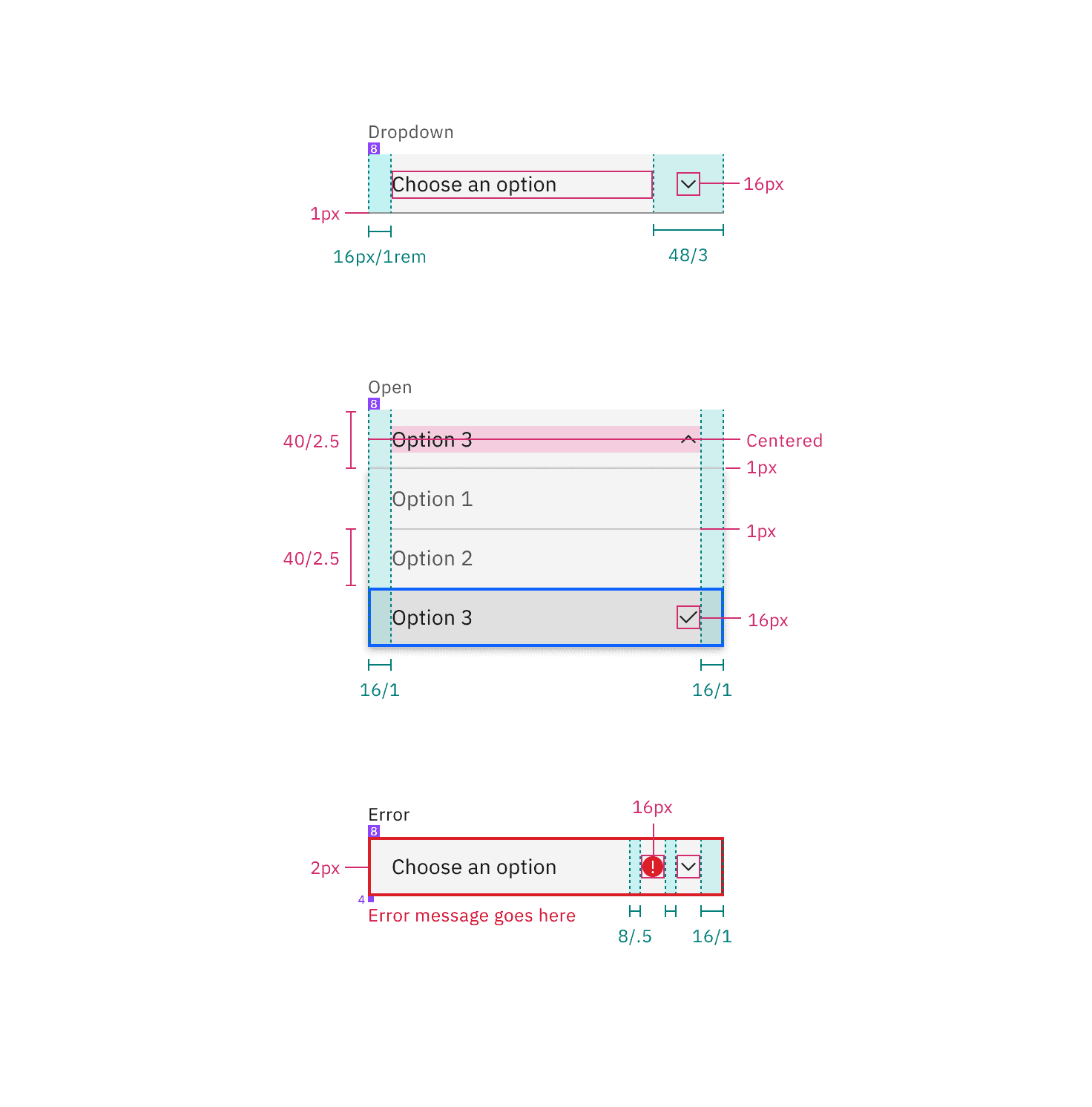
Structure and spacing measurements for default dropdown | px / rem
Label | margin-bottom | 4 / 0.25 |
|
Field | padding-left | 16 / 1 |
|
padding-right | 48 / 3 |
| |
border-bottom | 1px | – | |
margin-top, margin-bottom | 13 / .8125 | – | |
Chevron icon | padding-right, padding-left | 16 / 1 |
|
State icon | padding-right, padding-left | 16 / 1 |
|
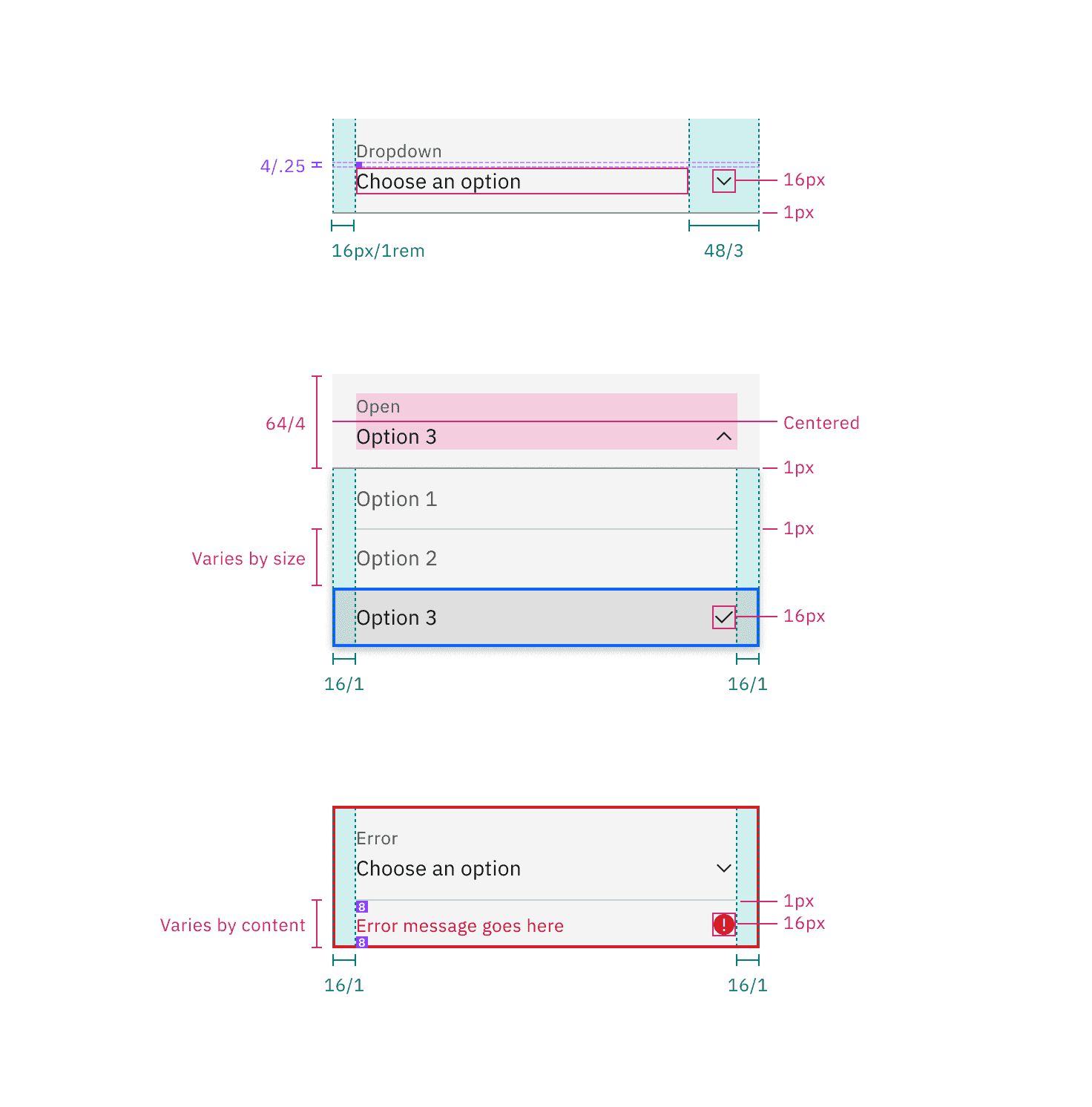
Structure and spacing measurements for a fluid dropdown | px / rem
Element | Property | px / rem | Spacing token |
|---|---|---|---|
Label | margin-bottom | 8 / 0.5 |
|
Field | padding-left | 16 / 1 |
|
padding-right | 72 / 4.5 | – | |
Chevron icon | padding-right | 16 / 1 |
|
Vertical divider | padding-right, padding-left | 8 / 0.5 |
|
Clear icon | padding-right | 8 / 0.5 |
|
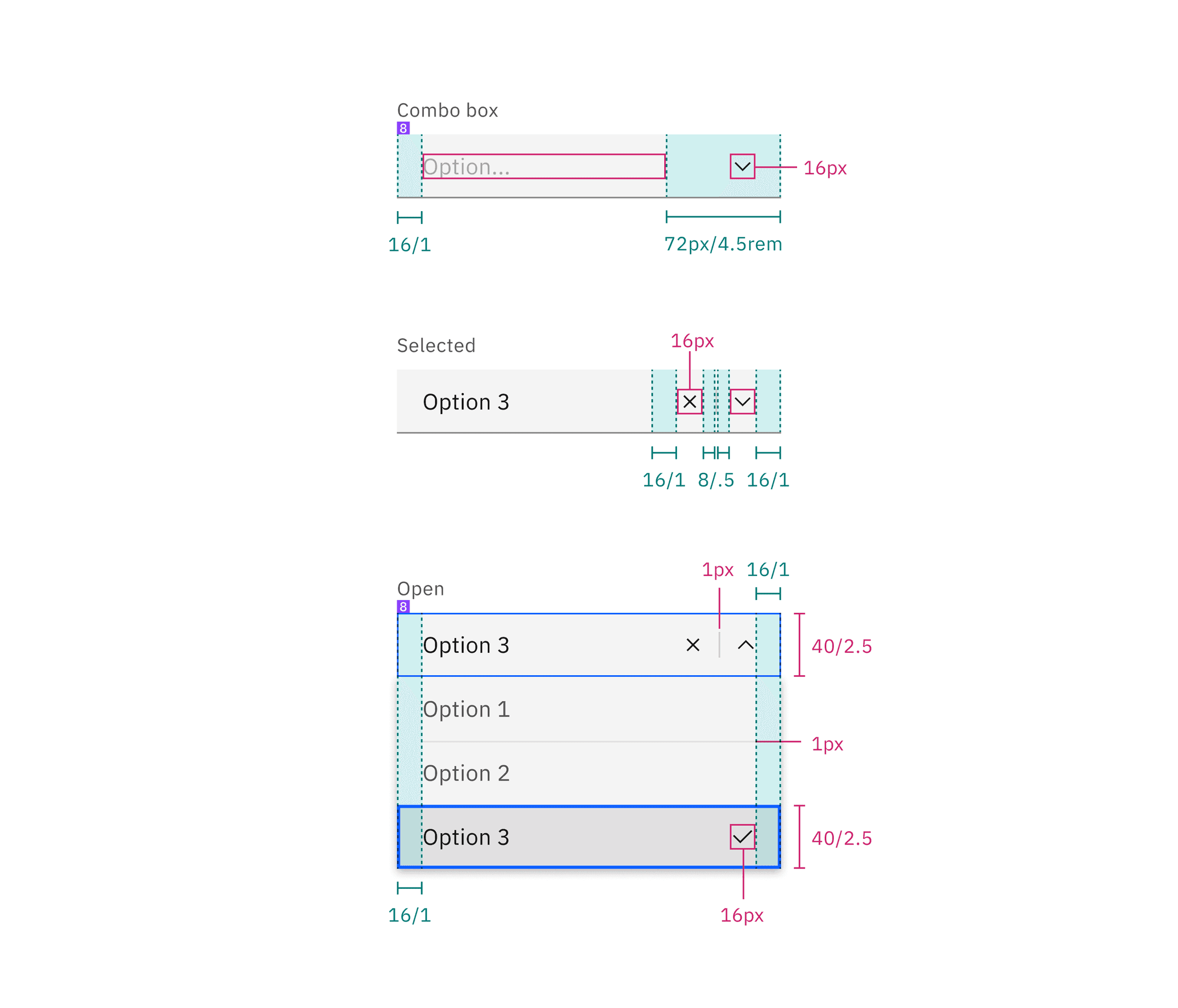
Spacing for combo box dropdown | px / rem
Element | Property | px / rem | Spacing token |
|---|---|---|---|
Label | margin-bottom | 8 / 0.5 |
|
Field | padding-left | 16 / 1 |
|
padding-right | 48 / 3 |
| |
Chevron icon | padding-left, padding-right | 16 / 1 |
|
Tag | height | 24 / 1.5 | – |
padding-right | 8 / 0.5 |
| |
Checkbox icon | padding-left | 16 / 1 |
|
padding-right | 8 / 0.5 |
|
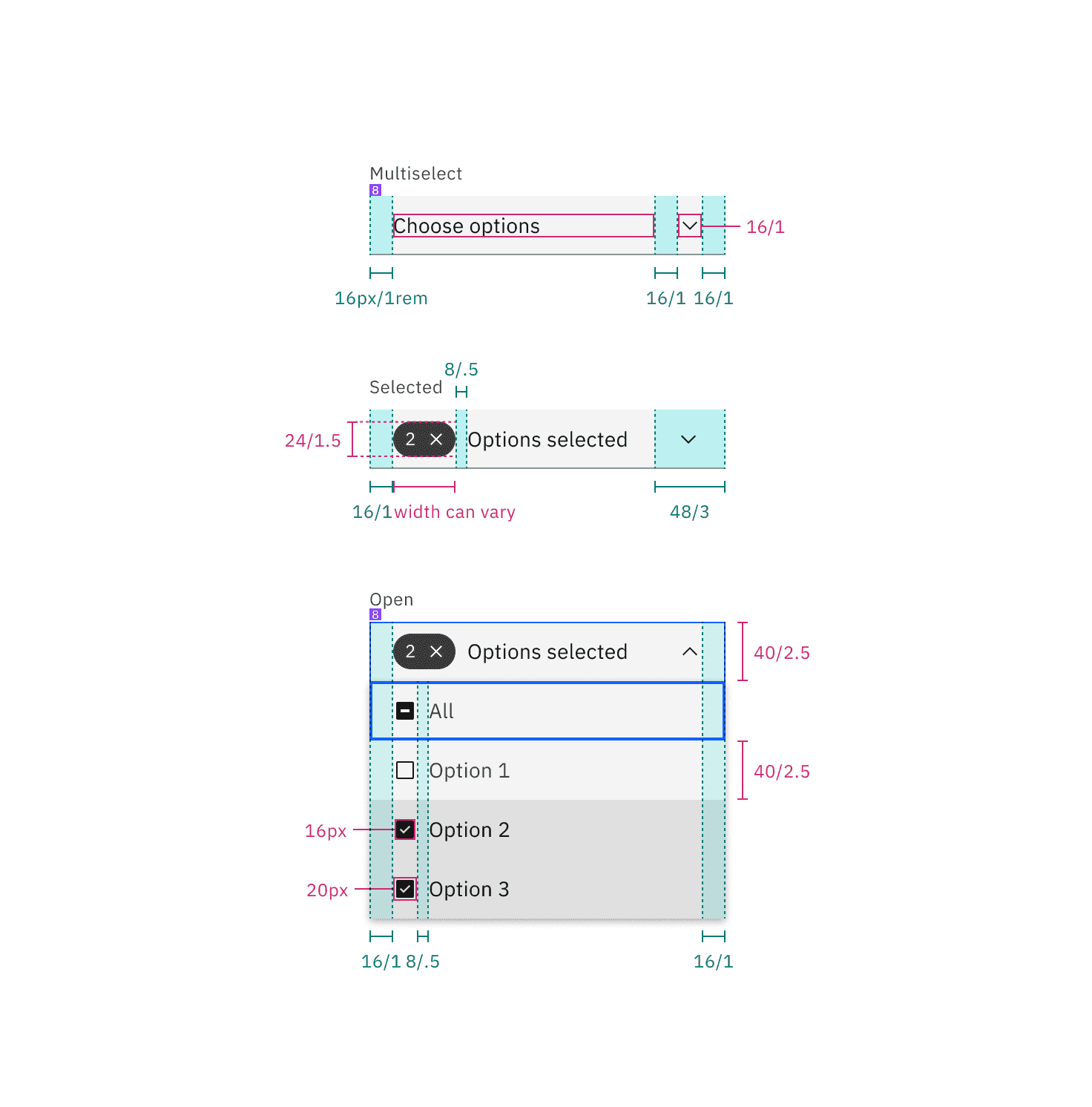
Structure and spacing measurements for a multiselect dropdown | px / rem
Element | Property | px / rem | Spacing token |
|---|---|---|---|
Field text | padding-right, padding-left | 16 / 1 |
|
Menu option | padding-right, padding-left | 16 / 1 |
|
Chevron icon | padding-left | 16 / 1 |
|
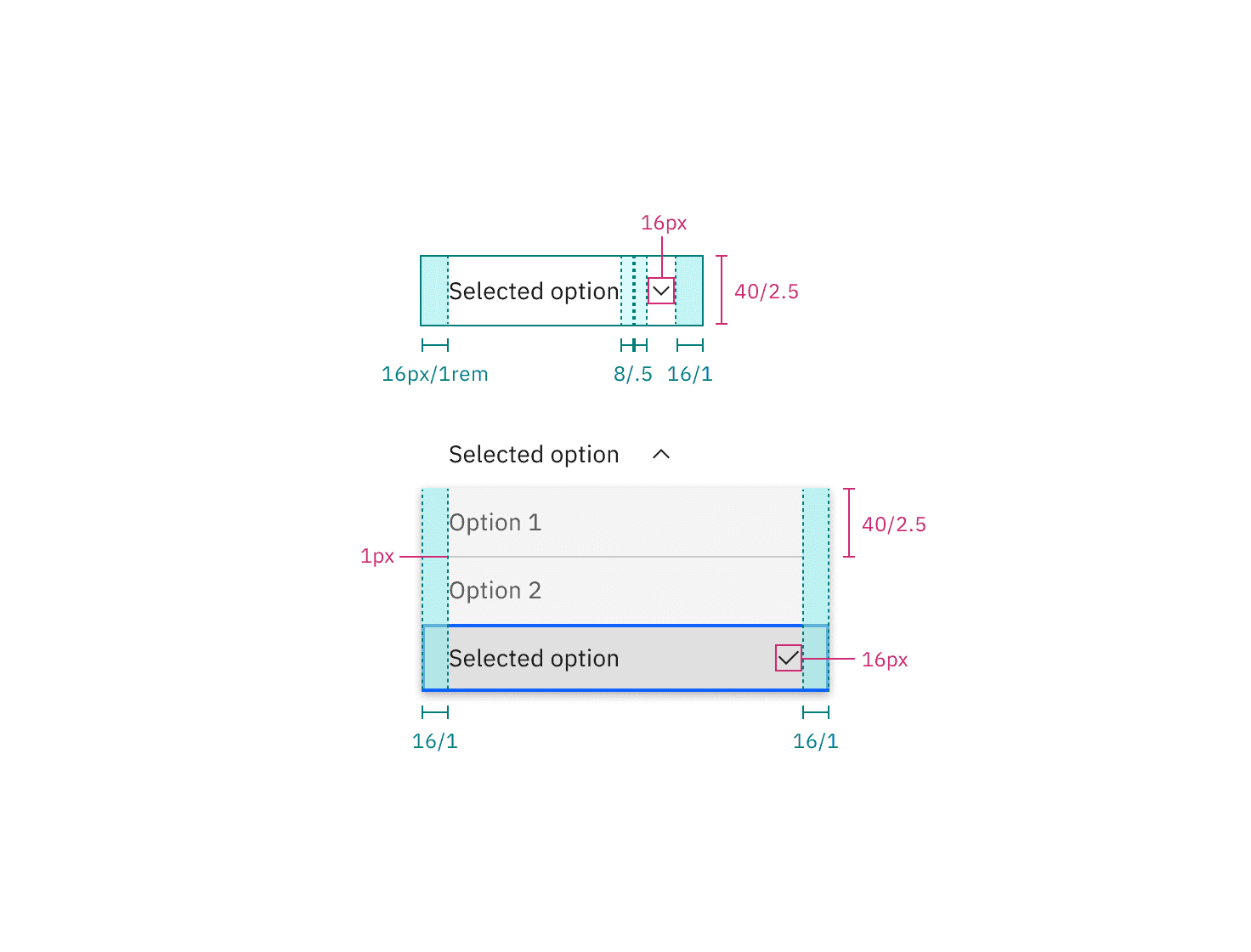
Structure and spacing for inline dropdown | px / rem
Element | Size | Height px / rem |
|---|---|---|
Field | Extra small (xs) | 24 / 1.5 |
Small (sm) | 32 / 2 | |
Medium (md) | 40 / 2.5 | |
Large (lg) | 48 / 3 | |
Menu item | Extra small (xs) | 24 / 1.5 |
Small (sm) | 32 / 2 | |
Medium (md) | 40 / 2.5 | |
Large (lg) | 48 / 3 |
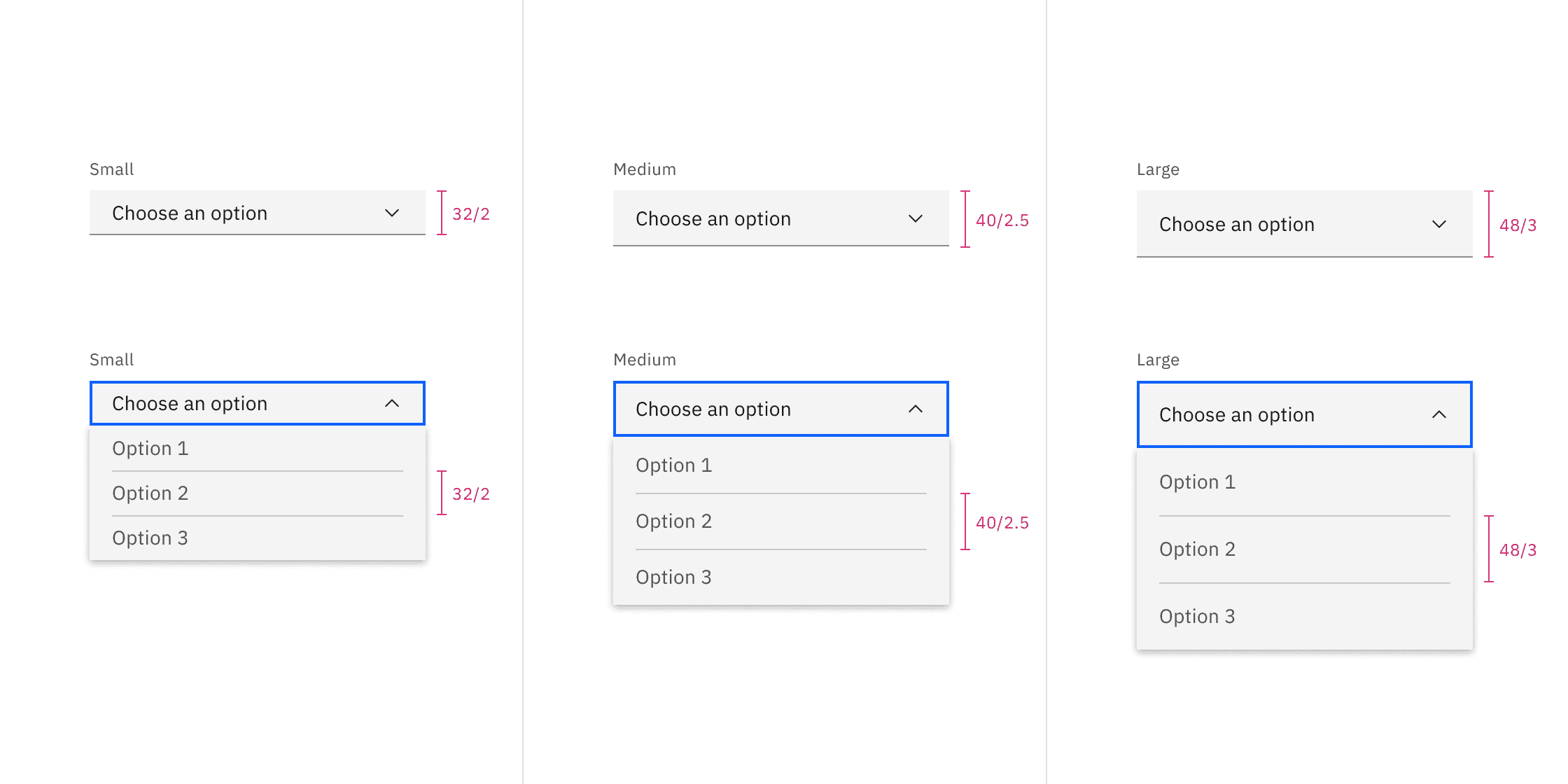
Default dropdown sizes | px / rem
Element | Size | Height px / rem |
|---|---|---|
Field | Default | 64 / 4 |
Menu item | Default | 64 / 4 |
Condensed | 40 / 2.5 |
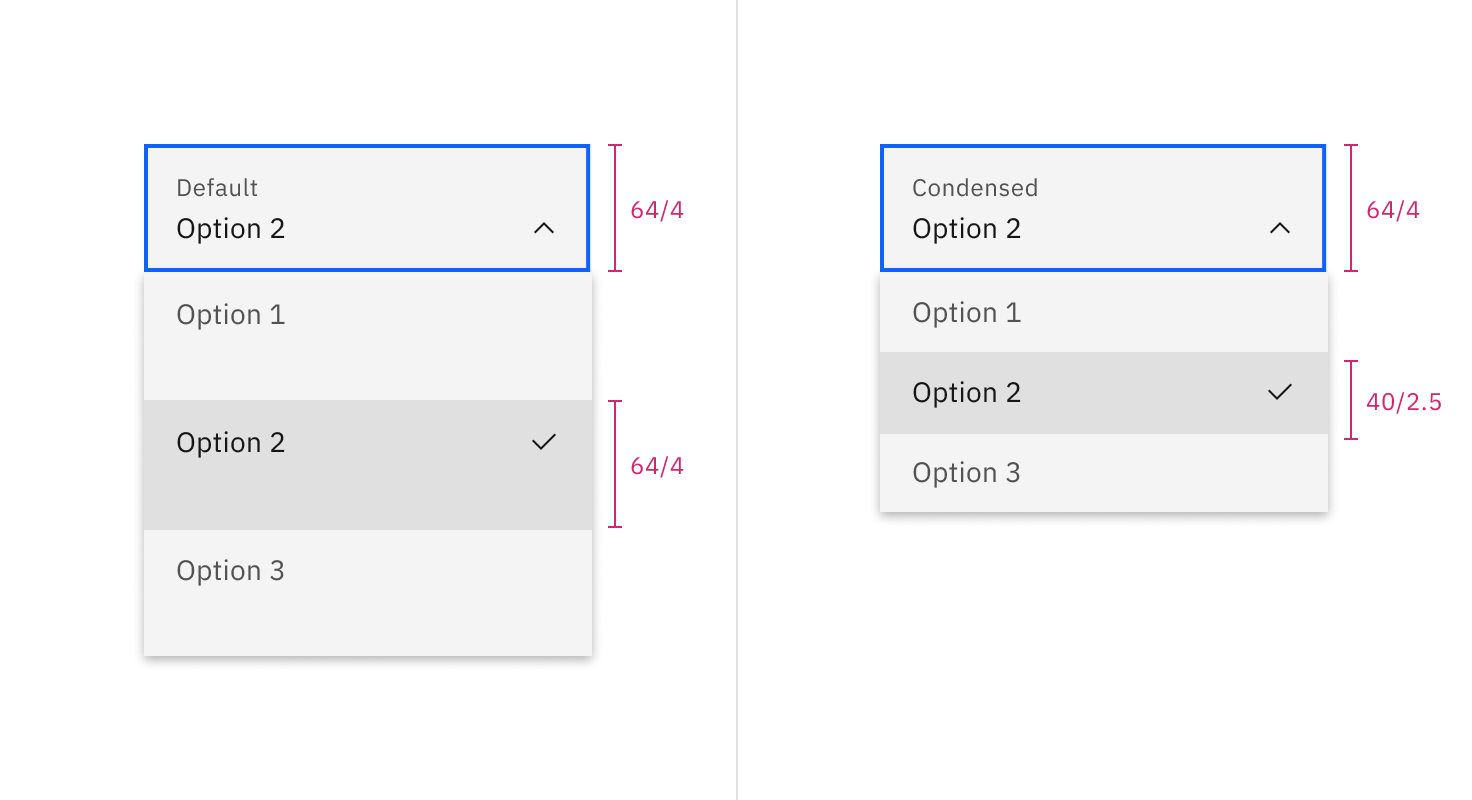
Fluid dropdown sizes | px / rem
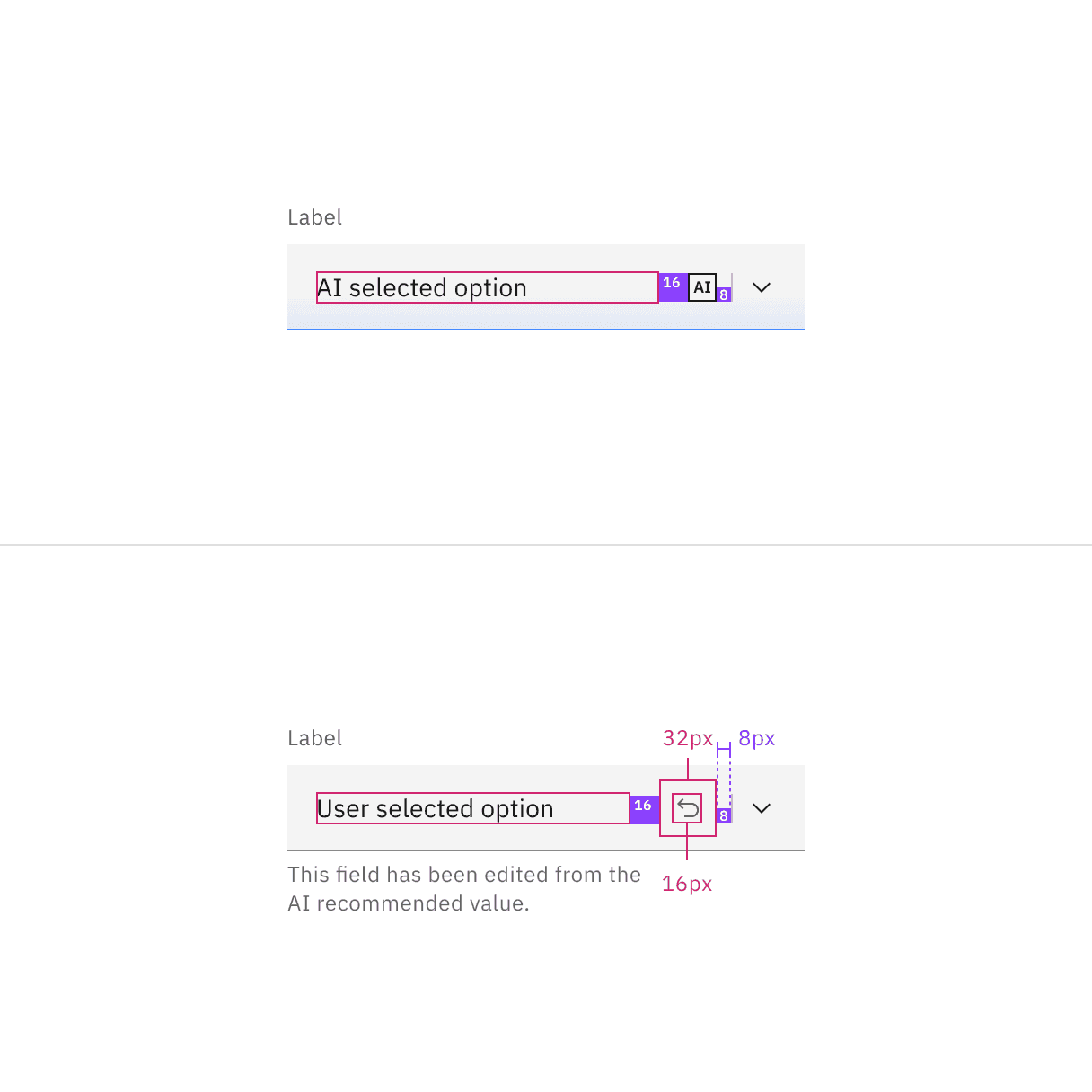
AI presence
The following are the unique styles applied to the component when the AI label is present. Unless specified, all other tokens in the component remain the same as the non-AI variant.
For more information on the AI style elements, see the Carbon for AI guidelines.
Element | Property | Token / Size |
|---|---|---|
Linear gradient | start |
|
stop |
| |
Field | border-bottom |
|
background color |
| |
AI label | size | mini |
* Denotes a contextual color token that will change values based on the layer it is placed on.
Feedback
Help us improve by providing feedback, asking questions, requesting features, or leaving any other comments on GitHub.